UNITED PETRO TECH • OPERATION GUIDE
Desktop
Station-side operation, monitoring and hardware control
Operator-facing documentation
Screenshot-led walkthrough
No implementation internals
How this guide is written
Every chapter explains why an option exists, what it does, how to use it, the expected result, and the exact screenshot required for the final manual. The guide intentionally documents the product from an operator/user perspective only.
Not included
Source code, internal architecture, database structure, credentials, secrets, implementation logic or sensitive engineering details.
SECTION 01
Desktop Overview
The Desktop application is the main station-side operational interface. It is used for station login, hardware availability, tank monitoring, alarm handling, nozzle operations and approved configuration actions.
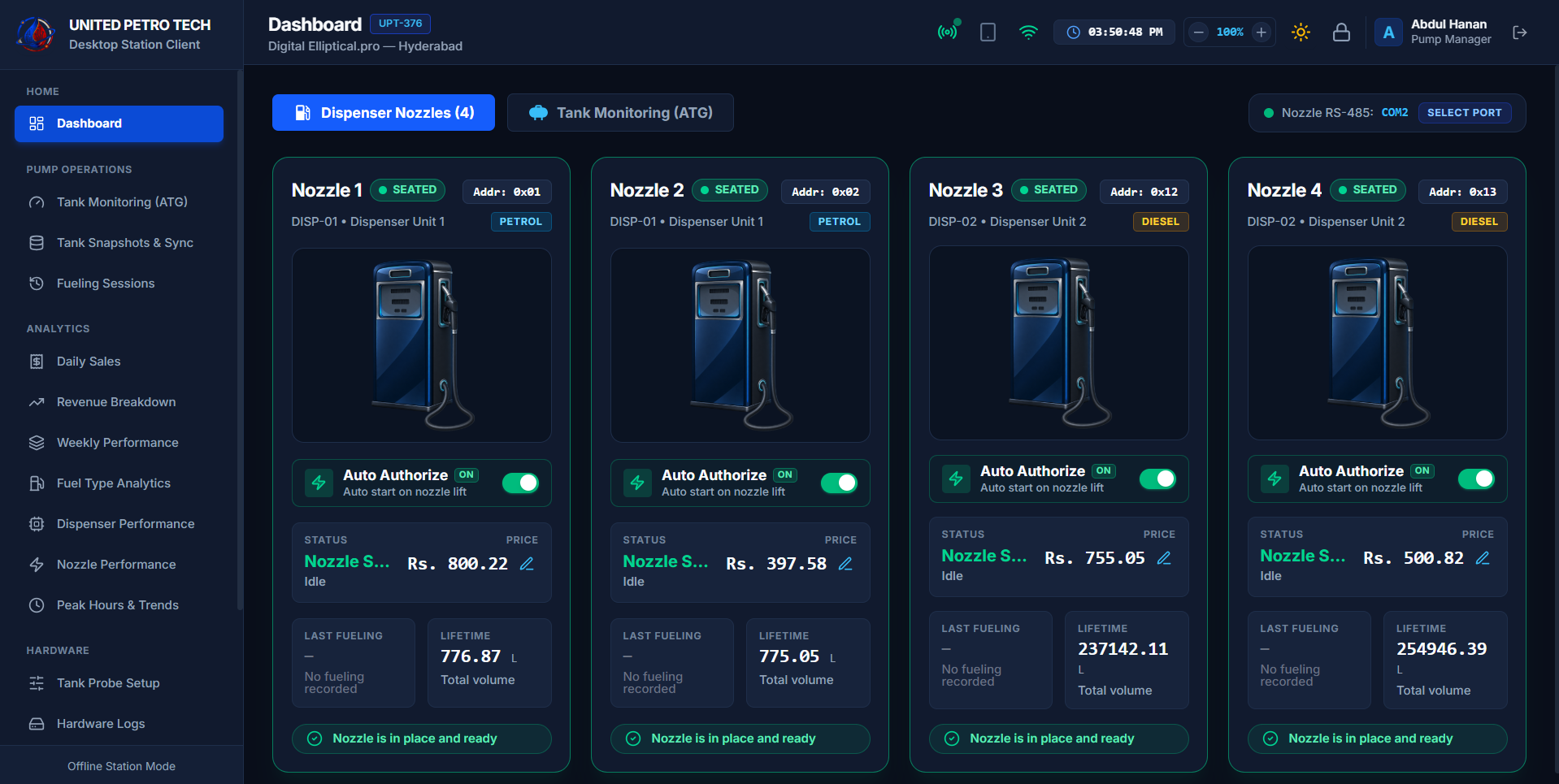
Desktop main application / overview screen
WHYWhy this exists
The Desktop application is the main station-side operational interface. It is used for station login, hardware availability, tank monitoring, alarm handling, nozzle operations and approved configuration actions.
WHATWhat it does
The Desktop application is the main station-side operational interface. It is used for station login, hardware availability, tank monitoring, alarm handling, nozzle operations and approved configuration actions.
HOWHow to use
Open this area from the application navigation, review the visible status/information, and use only the controls presented for your role.
RESULTExpected result
The screen should clearly show the current user-facing state and any action result or warning.
SECTION 02
Login & Session
Login identifies the assigned station/manager session and opens the operational workspace. The guide will show successful login, incorrect credentials, session recovery and logout.
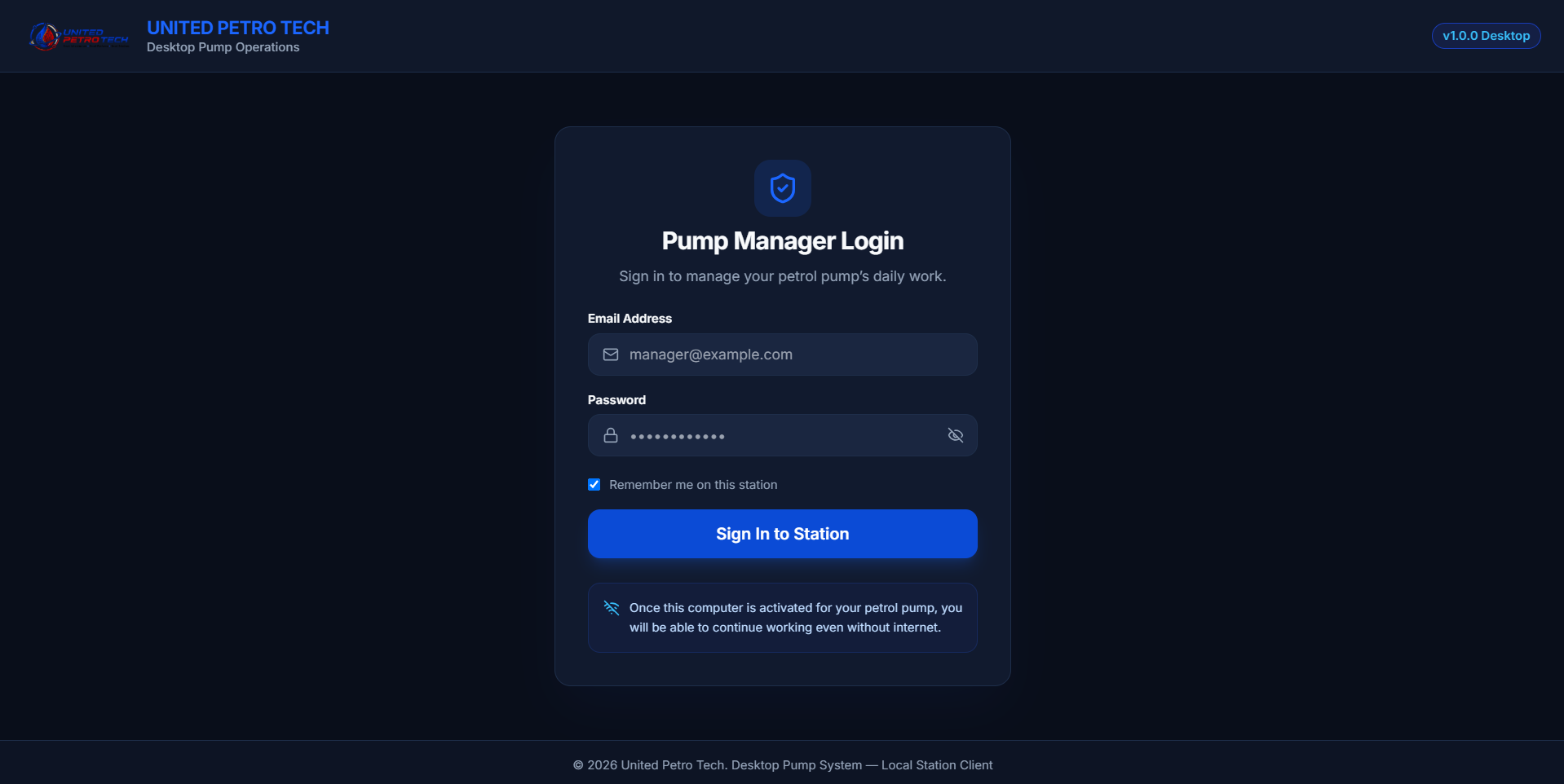
Desktop login screen
WHYWhy this exists
Login identifies the assigned station/manager session and opens the operational workspace. The guide will show successful login, incorrect credentials, session recovery and logout.
WHATWhat it does
Login identifies the assigned station/manager session and opens the operational workspace. The guide will show successful login, incorrect credentials, session recovery and logout.
HOWHow to use
Open this area from the application navigation, review the visible status/information, and use only the controls presented for your role.
RESULTExpected result
The screen should clearly show the current user-facing state and any action result or warning.
SECTION 03
Dashboard
The Dashboard gives a quick operational summary of station status and the major areas that need attention before the operator opens individual modules.
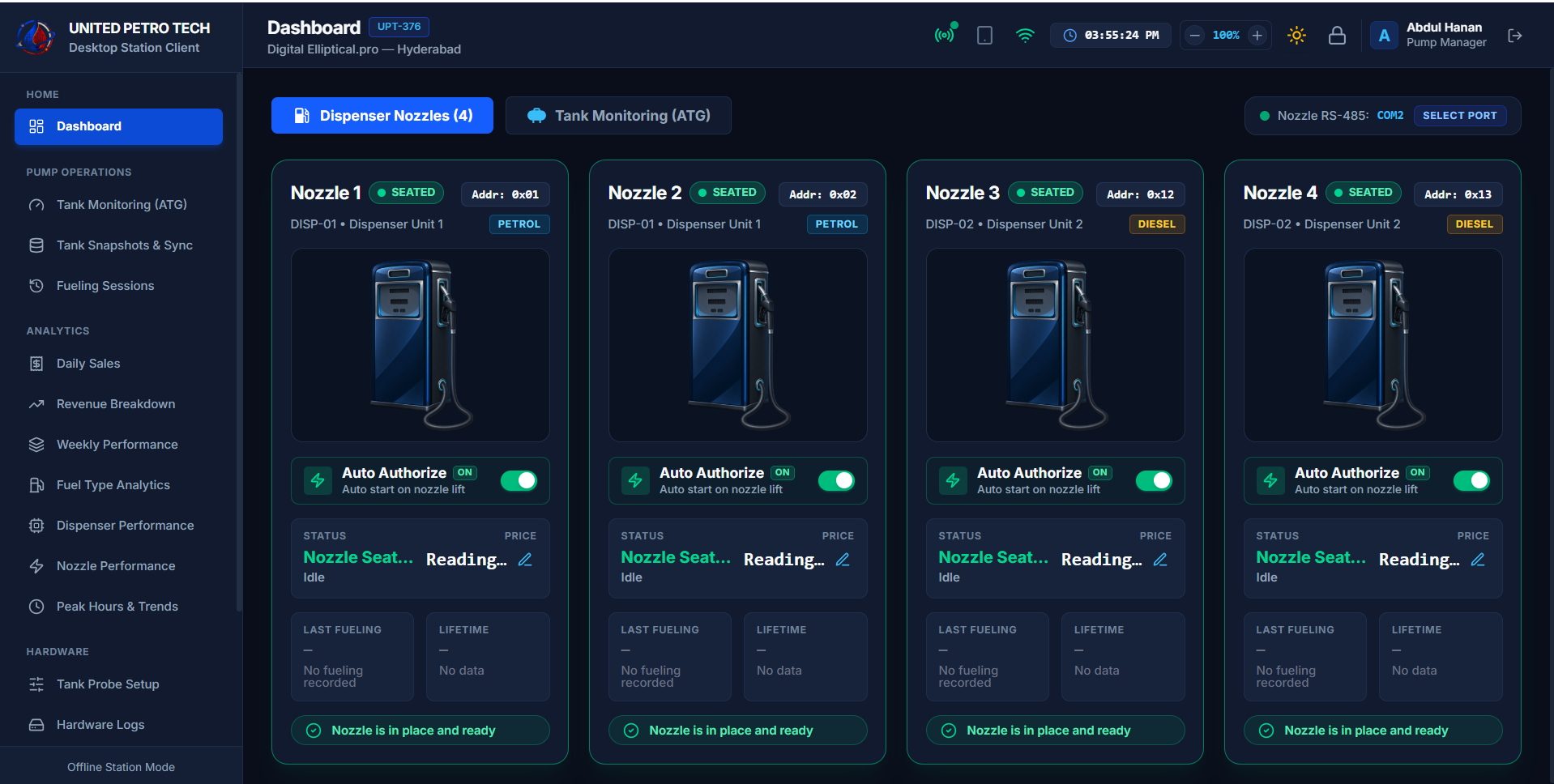
Desktop dashboard after successful login
WHYWhy this exists
The Dashboard gives a quick operational summary of station status and the major areas that need attention before the operator opens individual modules.
WHATWhat it does
The Dashboard gives a quick operational summary of station status and the major areas that need attention before the operator opens individual modules.
HOWHow to use
Open this area from the application navigation, review the visible status/information, and use only the controls presented for your role.
RESULTExpected result
The screen should clearly show the current user-facing state and any action result or warning.
SECTION 04
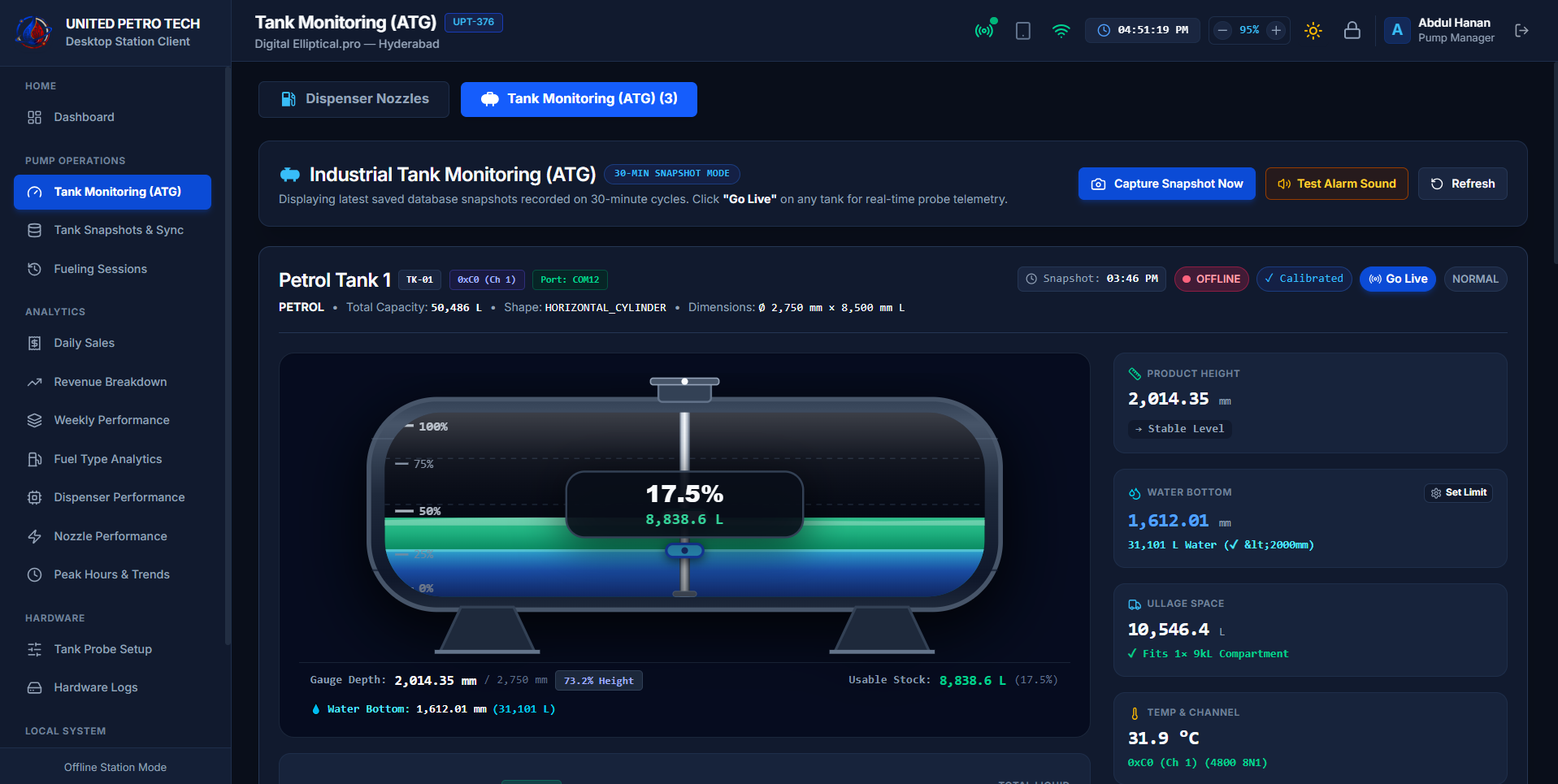
Tank Monitoring
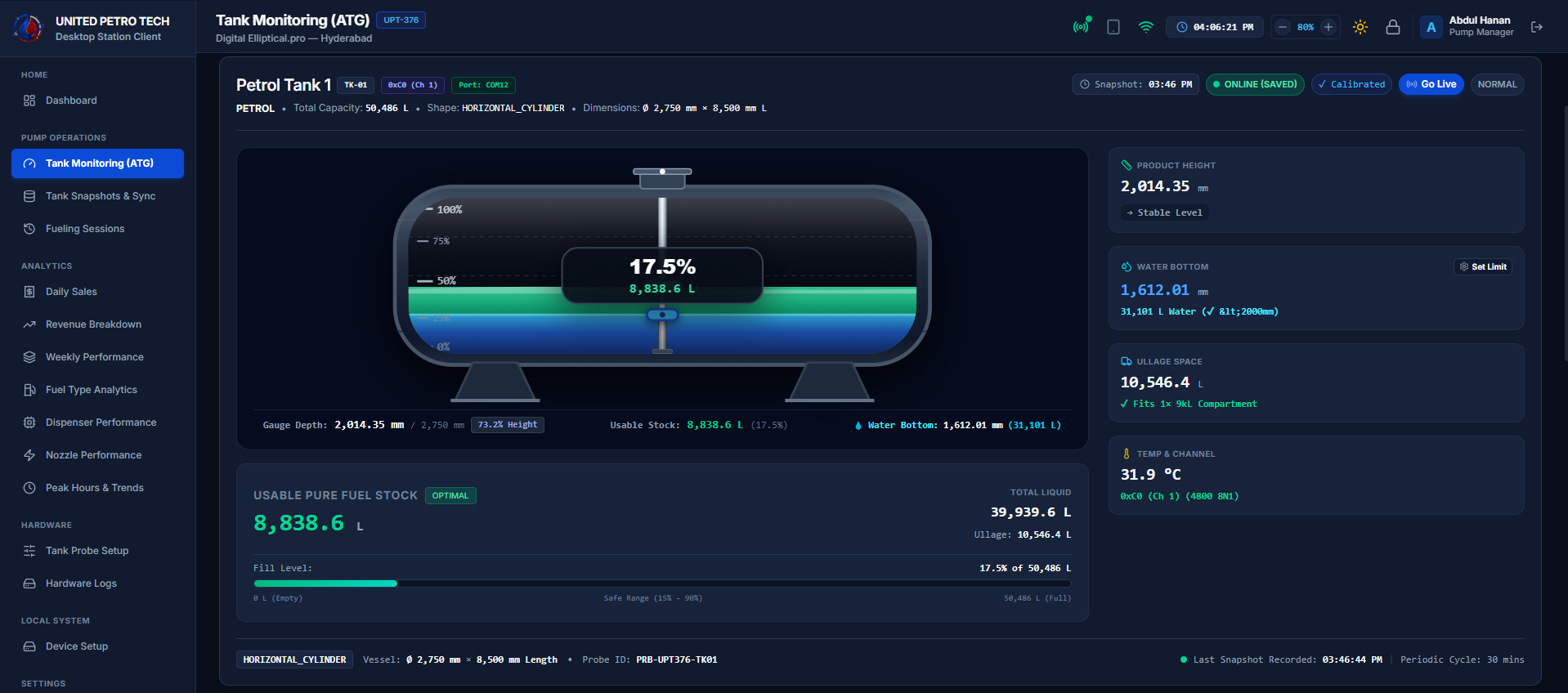
Tank Monitoring displays the current tank state. Usable fuel, water, total measured liquid, product height, fill percentage, ullage and probe temperature are treated as separate operational values.
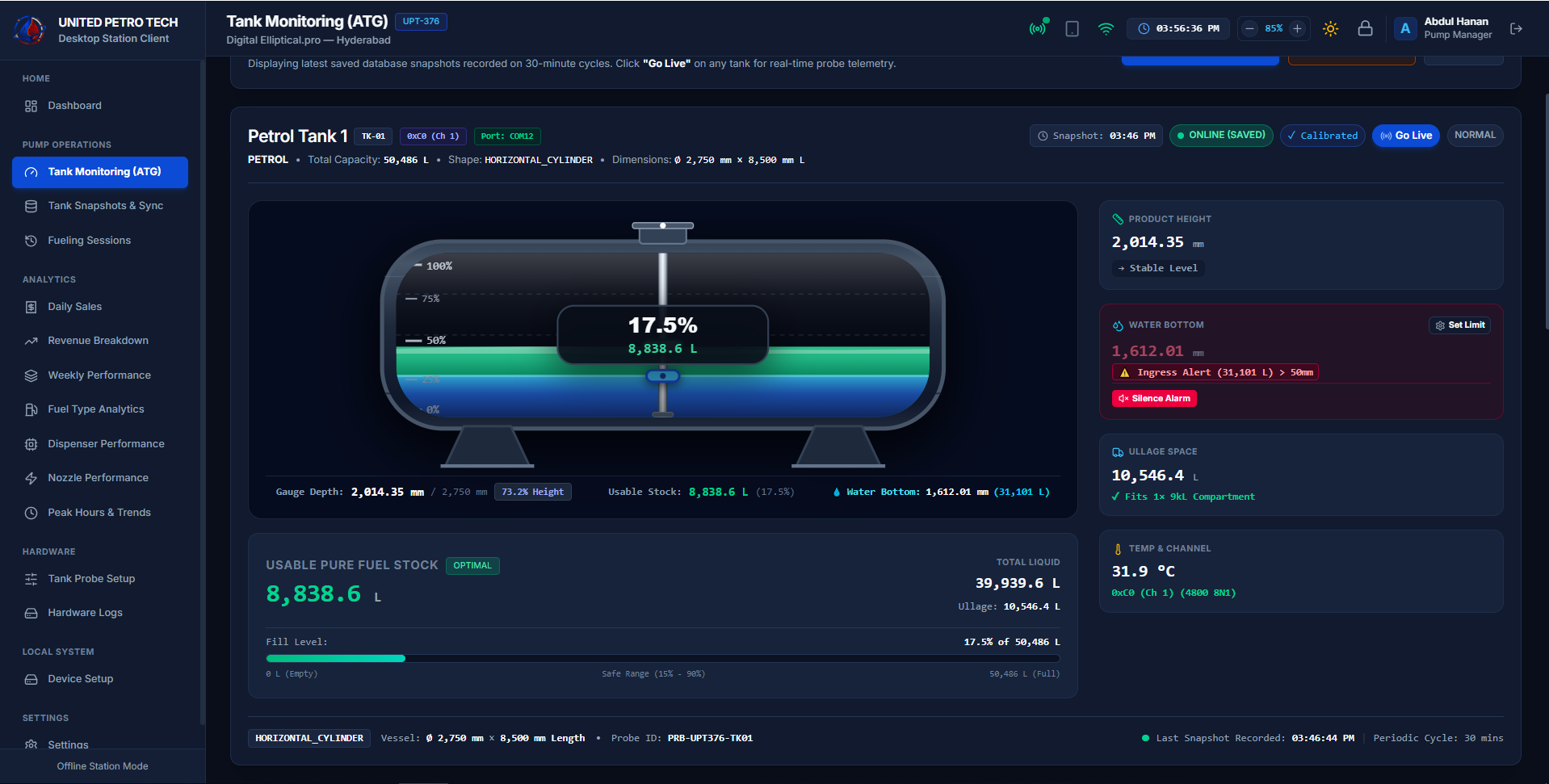
Desktop Tank Monitoring screen
WHYWhy this exists
To provide a complete operational picture of the selected tank without confusing usable fuel with water or total liquid.
WHATWhat it does
Tank Monitoring displays the current tank state. Usable fuel, water, total measured liquid, product height, fill percentage, ullage and probe temperature are treated as separate operational values.
HOWHow to use
Select the required tank. Review the tank visual, Live Usable Pure Fuel Stock, Product Height, Water Bottom, Ullage Space, Probe Temperature and active alarm state.
RESULTExpected result
Fuel, water, total liquid and capacity-related values remain clearly separated and update from the station's current tank state.
Important: Do not treat Total Liquid as Usable Fuel. Water is displayed separately and may trigger an ingress warning.
SECTION 05
Water / Ingress Alarm
Water Bottom shows water level and volume. If the configured limit is exceeded, the visual water/ingress warning remains active until the physical condition clears.
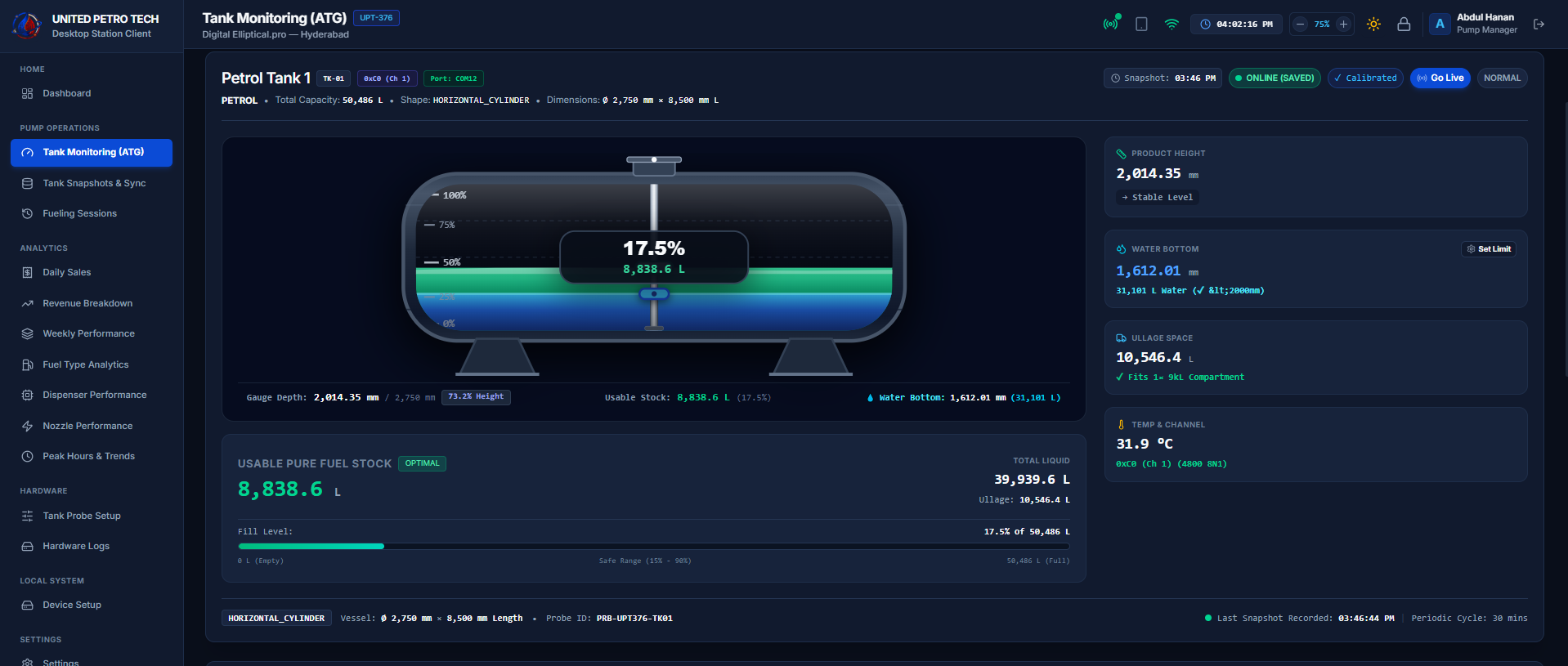
Water Bottom normal state
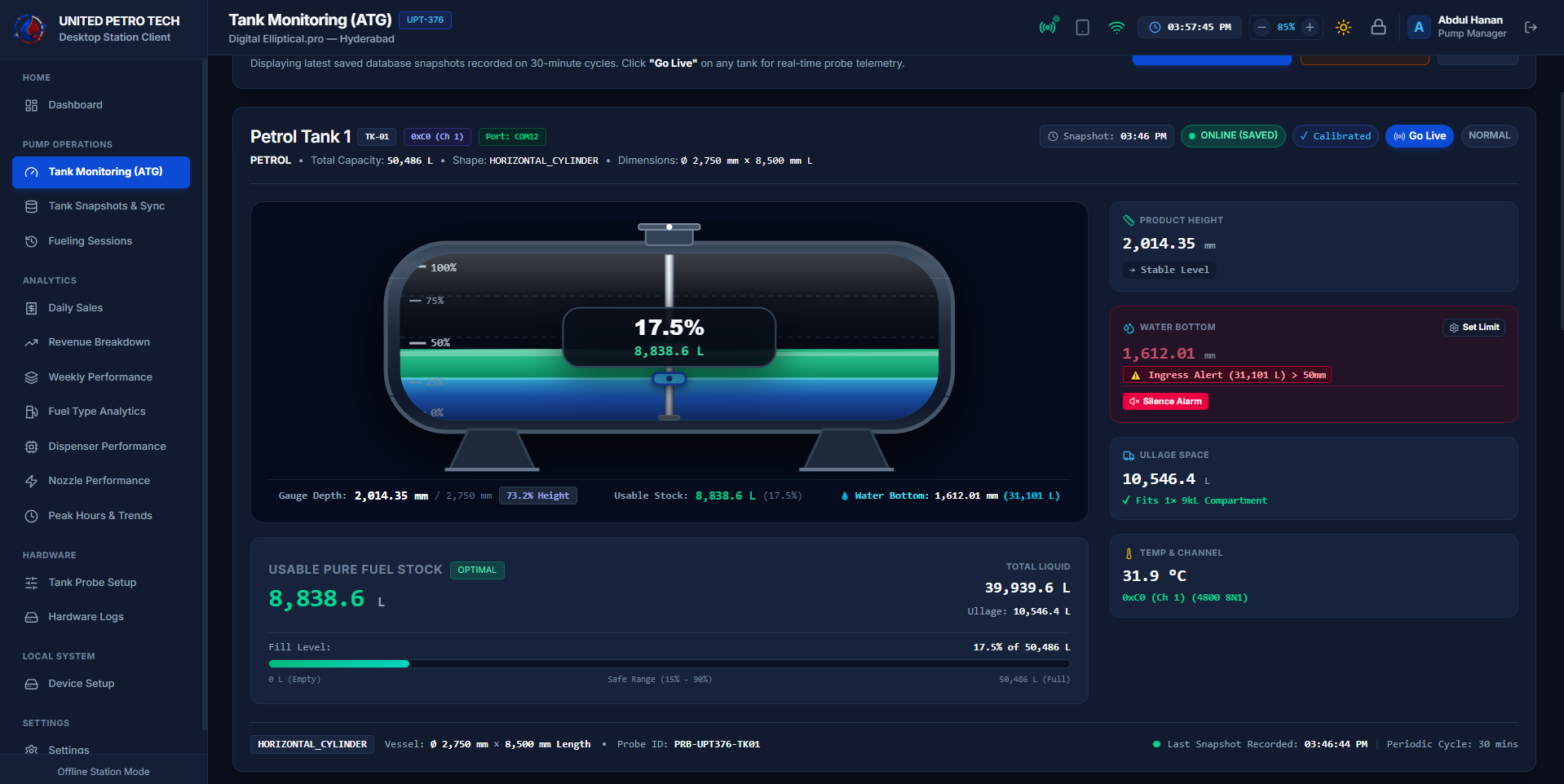
Water / Ingress Alert active state
WHYWhy this exists
Water Bottom shows water level and volume. If the configured limit is exceeded, the visual water/ingress warning remains active until the physical condition clears.
WHATWhat it does
Water Bottom shows water level and volume. If the configured limit is exceeded, the visual water/ingress warning remains active until the physical condition clears.
HOWHow to use
Review the Water Bottom card. If an ingress alert is active, check the shown water level/volume and configured limit. Use the available Desktop alarm actions according to station procedure.
RESULTExpected result
The visual warning remains active while the physical water condition remains active.
SECTION 06
Water Alarm Limit
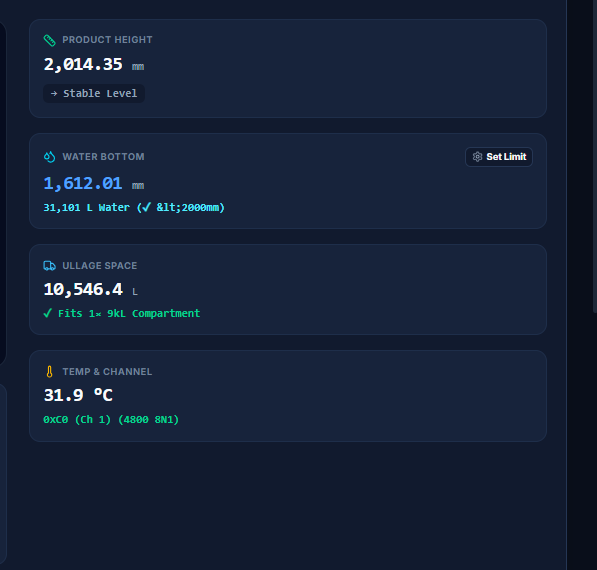
The Desktop is the authorized surface for changing the water alarm limit. The guide explains why the limit exists, how to open the control, how to save it and how to verify the resulting warning state.
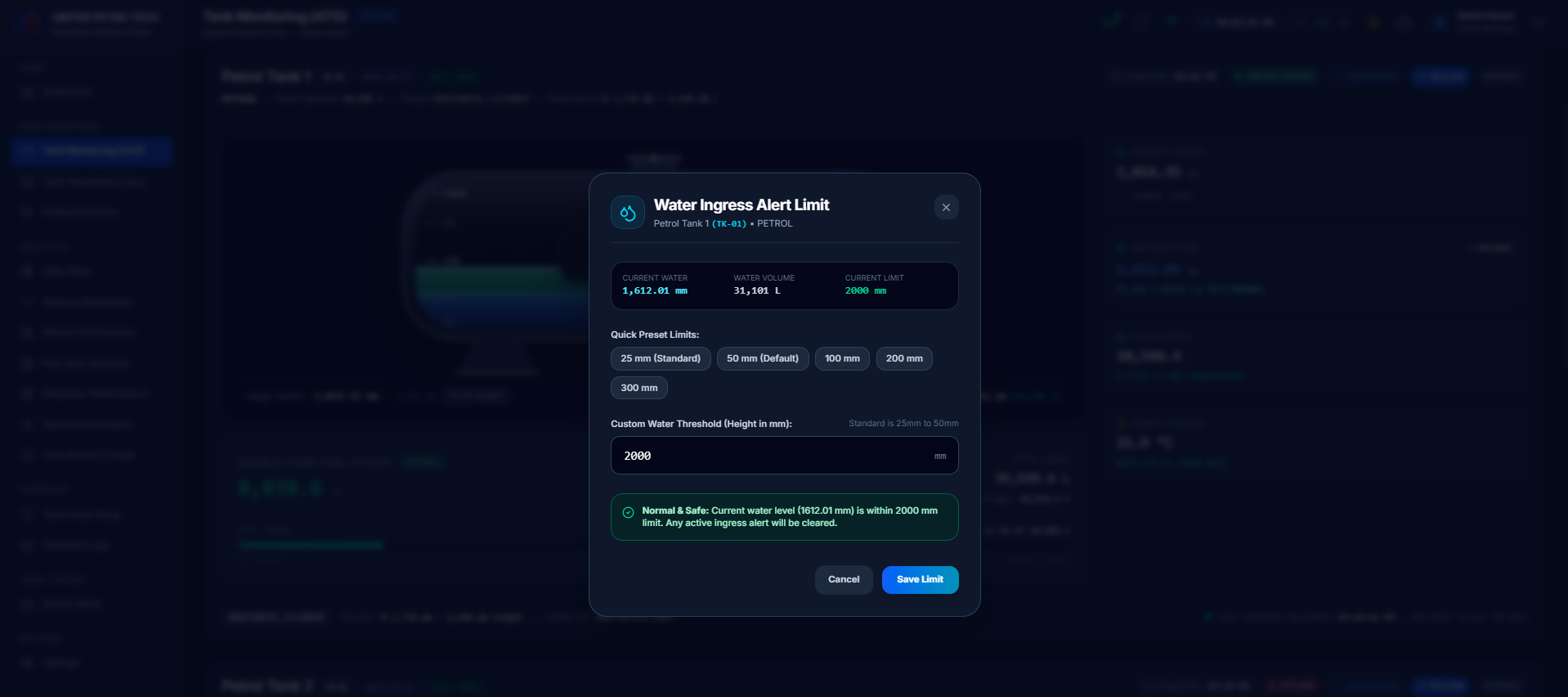
Tank Detail with Set Limit button visible
Set Water Alarm Limit modal/dialog
Saved limit visible after update
WHYWhy this exists
The Desktop is the authorized surface for changing the water alarm limit. The guide explains why the limit exists, how to open the control, how to save it and how to verify the resulting warning state.
WHATWhat it does
The Desktop is the authorized surface for changing the water alarm limit. The guide explains why the limit exists, how to open the control, how to save it and how to verify the resulting warning state.
HOWHow to use
Open Set Limit from the Desktop Water Bottom area, enter/select the approved threshold, save it and confirm the updated limit shown on screen.
RESULTExpected result
The configured limit updates on Desktop and future water alarm evaluation uses the approved value.
Important: This configuration is Desktop-only. Manager Tablet must not expose Set/Increase Limit.
SECTION 07
Desktop Alarm Audio
The audible alarm attracts operator attention while the physical alarm remains visible. Silencing audio does not change the physical tank condition.
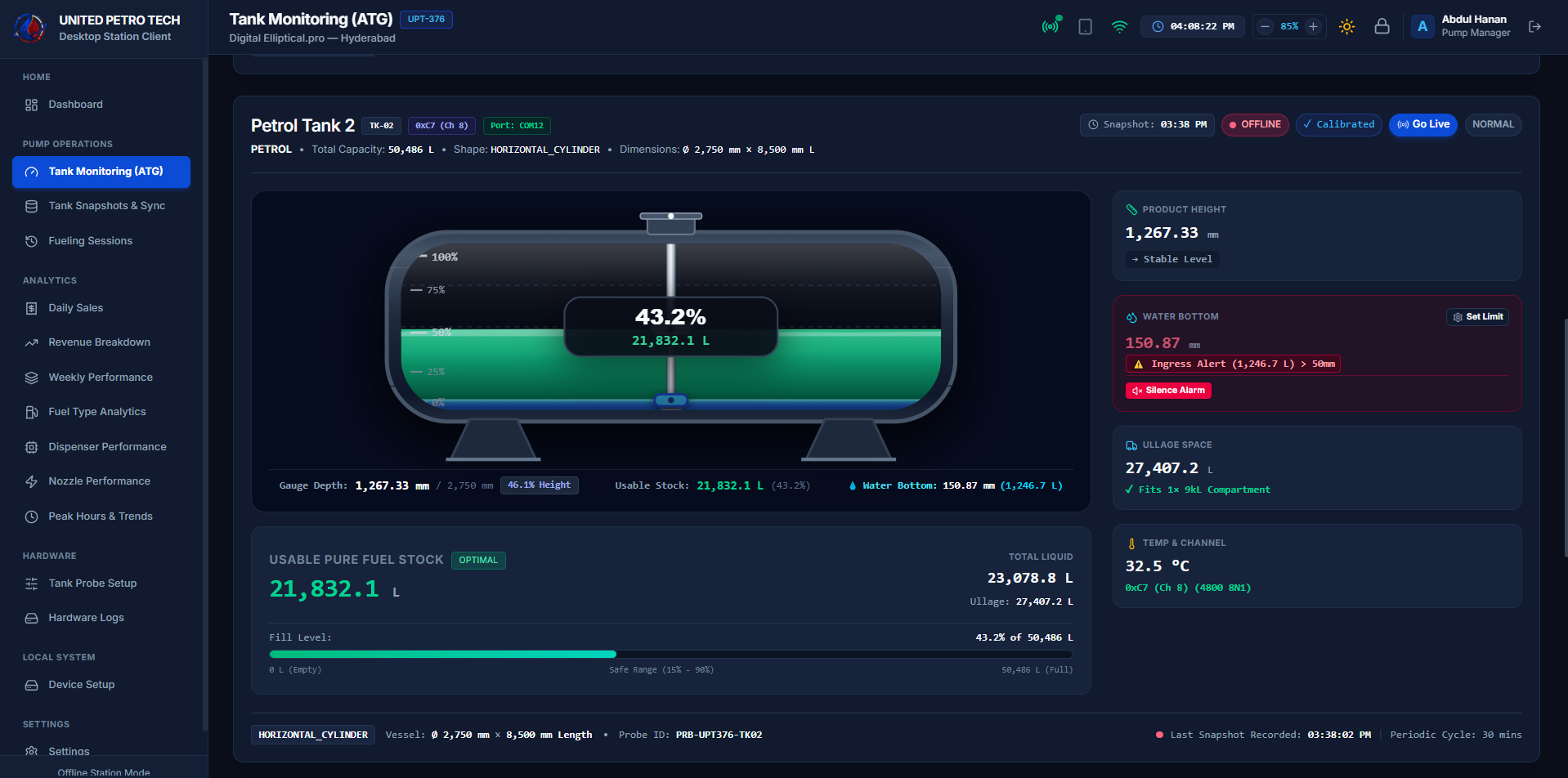
Desktop active Tank alarm / audible alarm state
WHYWhy this exists
The audible alarm attracts operator attention while the physical alarm remains visible. Silencing audio does not change the physical tank condition.
WHATWhat it does
The audible alarm attracts operator attention while the physical alarm remains visible. Silencing audio does not change the physical tank condition.
HOWHow to use
Open this area from the application navigation, review the visible status/information, and use only the controls presented for your role.
RESULTExpected result
The screen should clearly show the current user-facing state and any action result or warning.
SECTION 08
Hardware Setup
Hardware Setup is used to work with configured station hardware and visible communication status. The guide will explain operator-facing setup/status only.
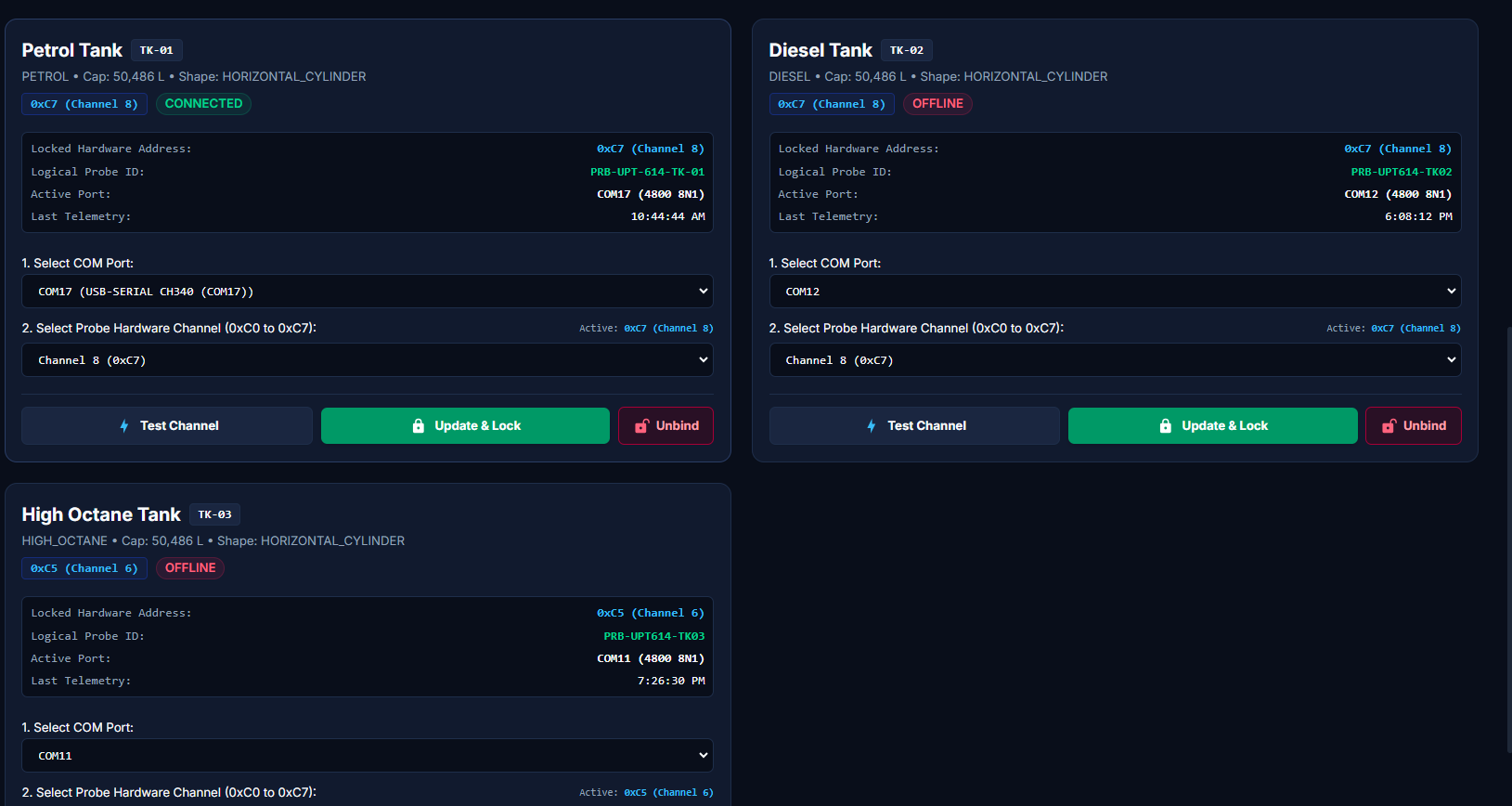
Desktop Hardware Setup screen
WHYWhy this exists
Hardware Setup is used to work with configured station hardware and visible communication status. The guide will explain operator-facing setup/status only.
WHATWhat it does
Hardware Setup is used to work with configured station hardware and visible communication status. The guide will explain operator-facing setup/status only.
HOWHow to use
Open this area from the application navigation, review the visible status/information, and use only the controls presented for your role.
RESULTExpected result
The screen should clearly show the current user-facing state and any action result or warning.
SECTION 09
Tank Probe Connection
The operator selects the configured probe connection for a tank and verifies that the visible communication state is healthy before relying on live readings.
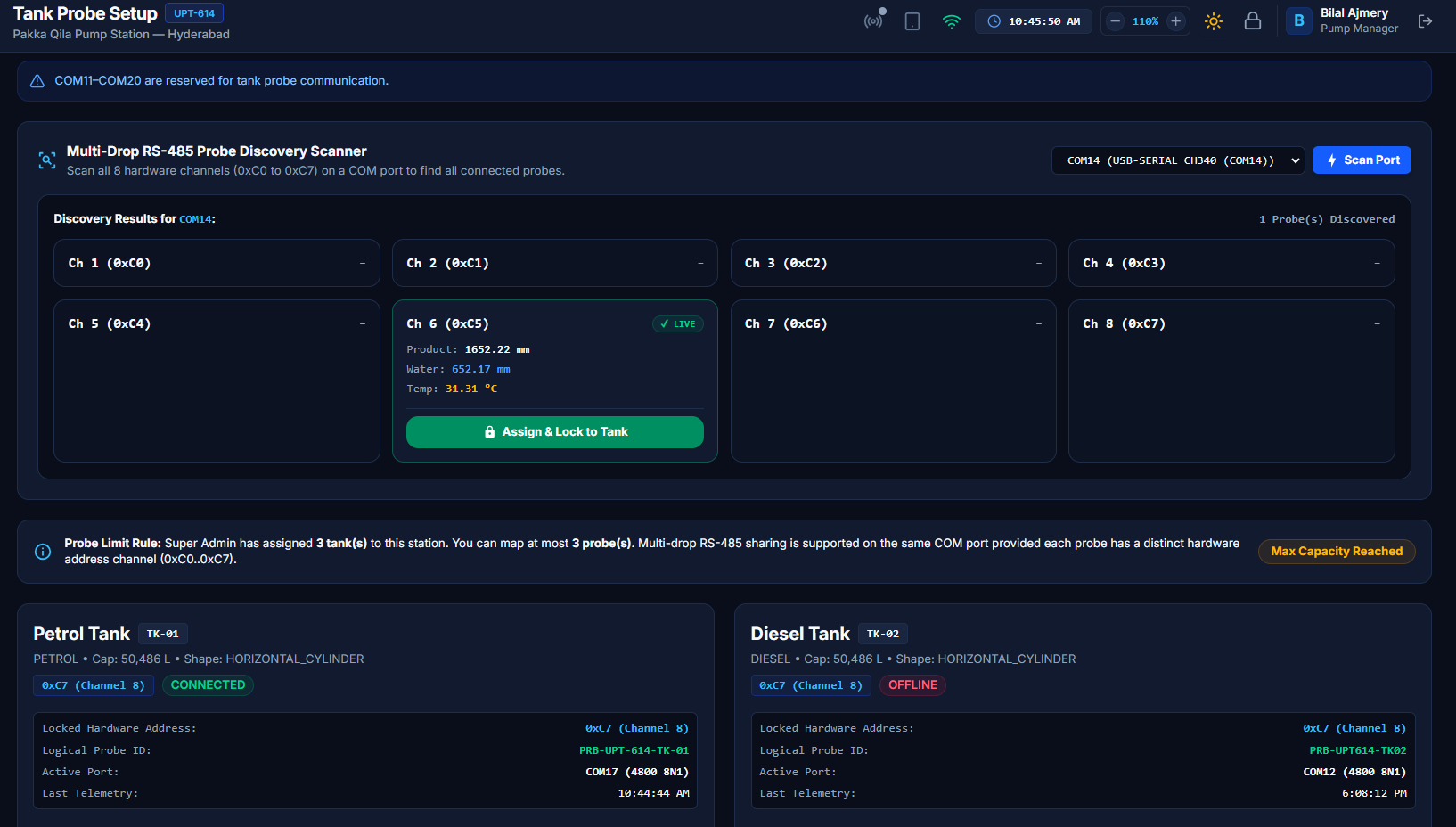
Tank Probe configuration screen
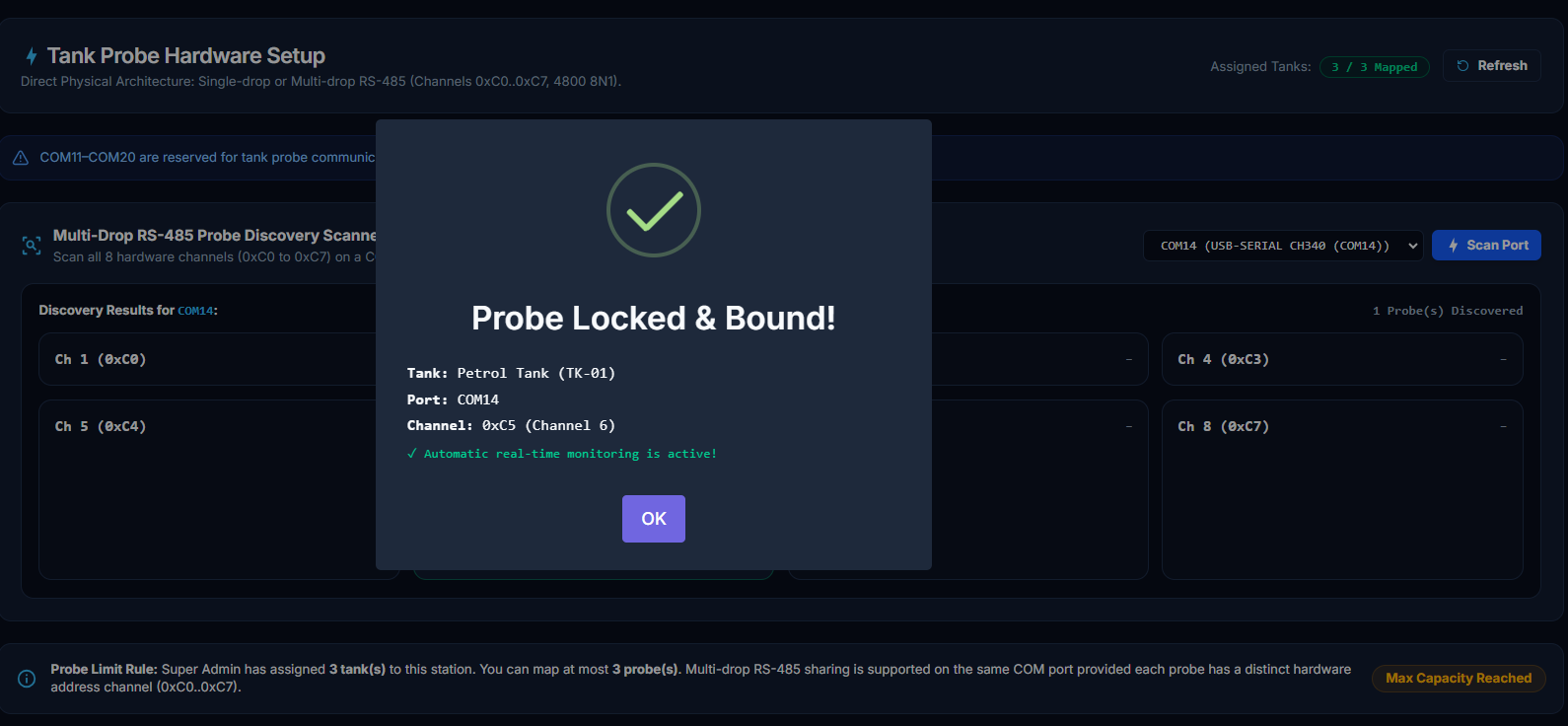
Probe connected/responding status
WHYWhy this exists
The operator selects the configured probe connection for a tank and verifies that the visible communication state is healthy before relying on live readings.
WHATWhat it does
The operator selects the configured probe connection for a tank and verifies that the visible communication state is healthy before relying on live readings.
HOWHow to use
Open this area from the application navigation, review the visible status/information, and use only the controls presented for your role.
RESULTExpected result
The screen should clearly show the current user-facing state and any action result or warning.
SECTION 10
Nozzle / Dispenser Monitoring
The Desktop shows configured nozzle/dispenser information and operational status for station use.
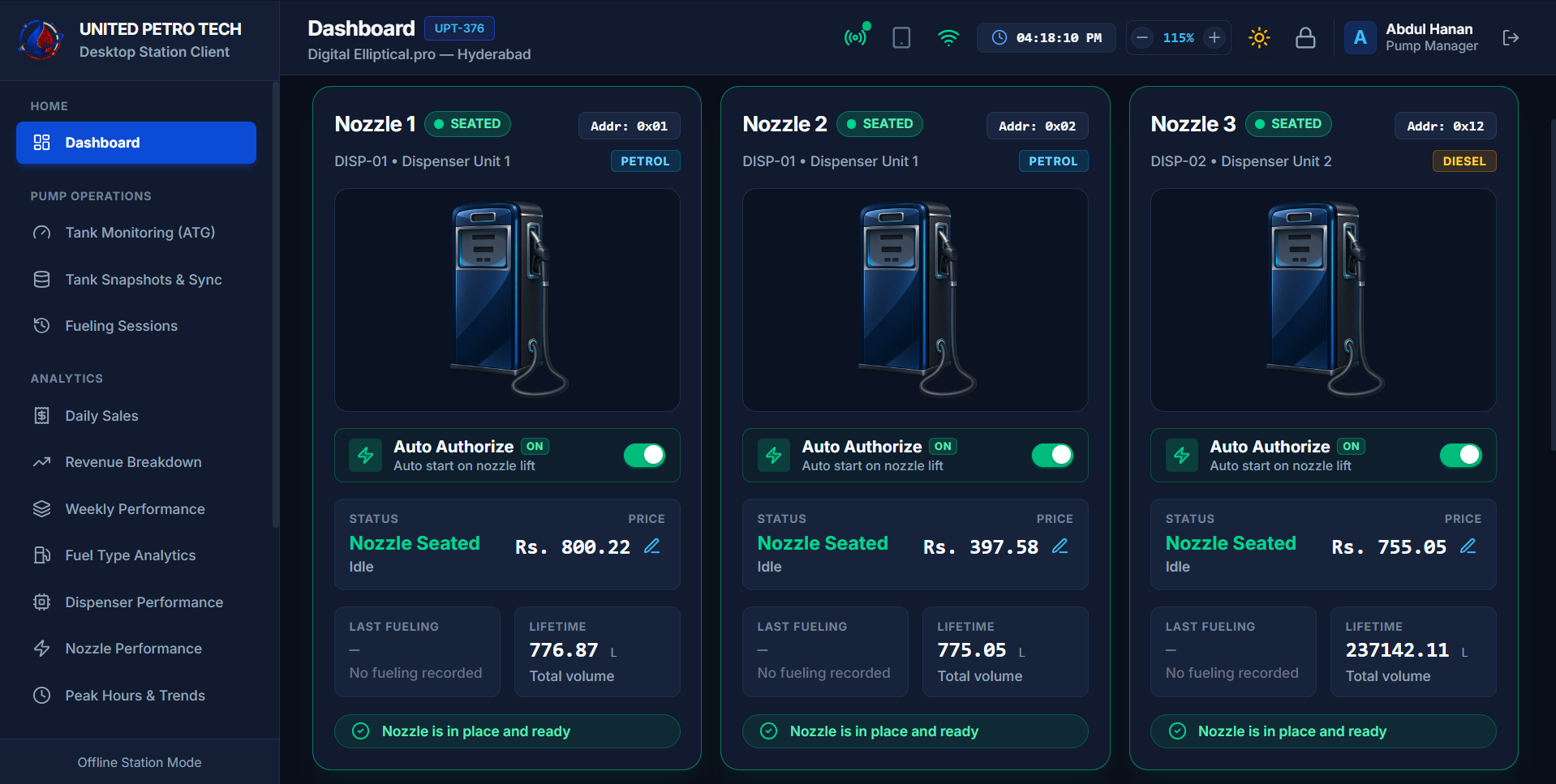
Nozzle / Dispenser monitoring screen
WHYWhy this exists
The Desktop shows configured nozzle/dispenser information and operational status for station use.
WHATWhat it does
The Desktop shows configured nozzle/dispenser information and operational status for station use.
HOWHow to use
Open this area from the application navigation, review the visible status/information, and use only the controls presented for your role.
RESULTExpected result
The screen should clearly show the current user-facing state and any action result or warning.
SECTION 11
Nozzle Price Change
Where enabled, the Desktop can perform approved nozzle price changes. The guide will focus on prerequisites, visible confirmation and failure messages.
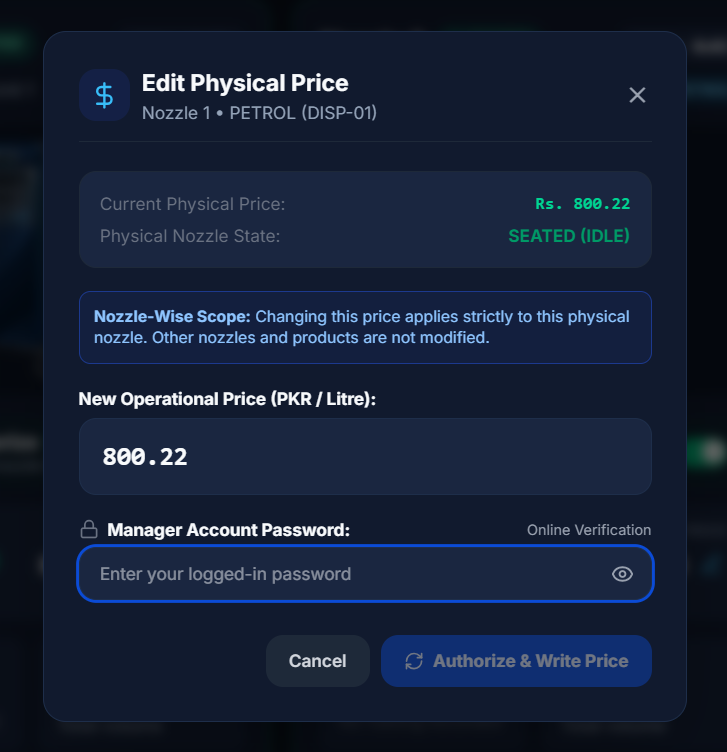
Nozzle price change form
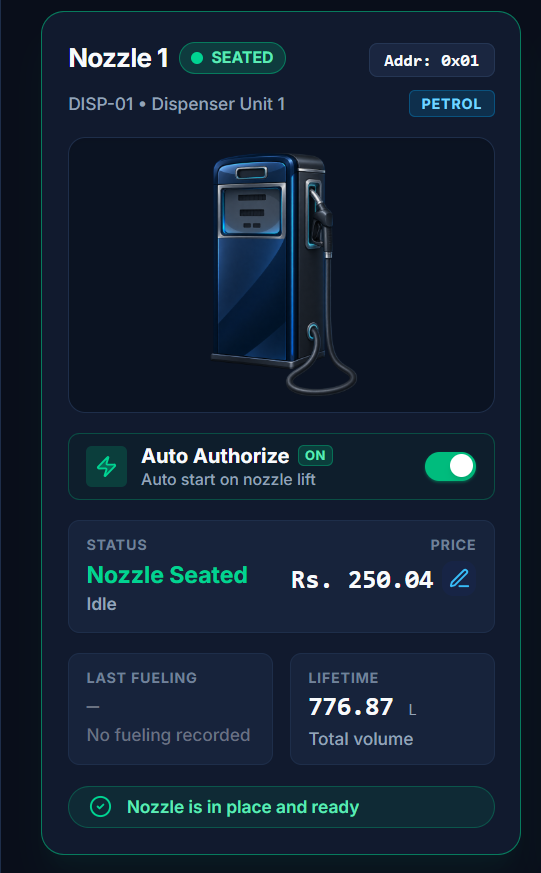
Verified price change result / status
WHYWhy this exists
Where enabled, the Desktop can perform approved nozzle price changes. The guide will focus on prerequisites, visible confirmation and failure messages.
WHATWhat it does
Where enabled, the Desktop can perform approved nozzle price changes. The guide will focus on prerequisites, visible confirmation and failure messages.
HOWHow to use
Open this area from the application navigation, review the visible status/information, and use only the controls presented for your role.
RESULTExpected result
The screen should clearly show the current user-facing state and any action result or warning.
SECTION 12
Manager Tablet Pairing
The Desktop receives Manager Tablet live-monitoring requests and allows the operator to accept or reject the request. After approval, the Tablet can receive the current tank state directly.
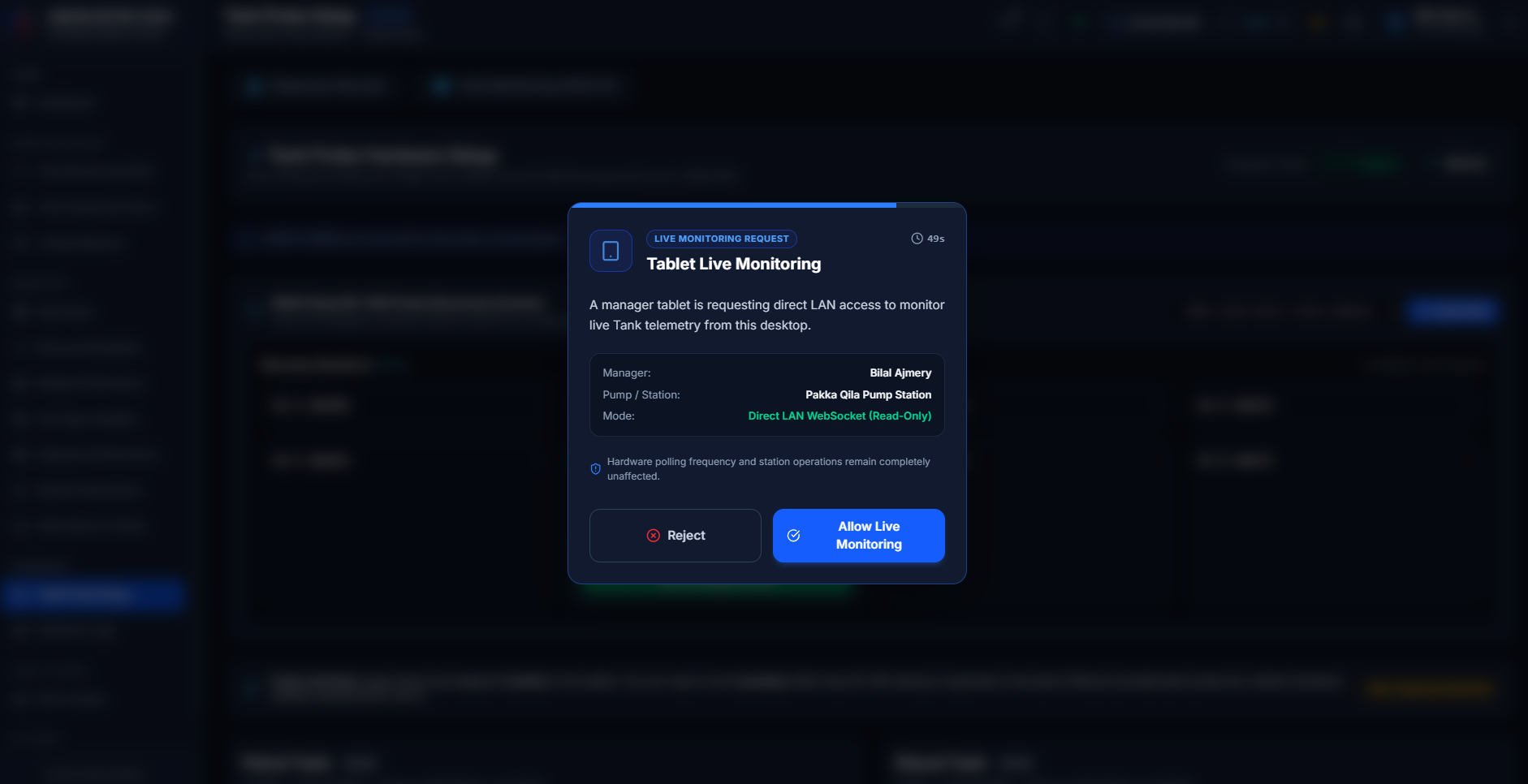
Incoming Manager Tablet live request
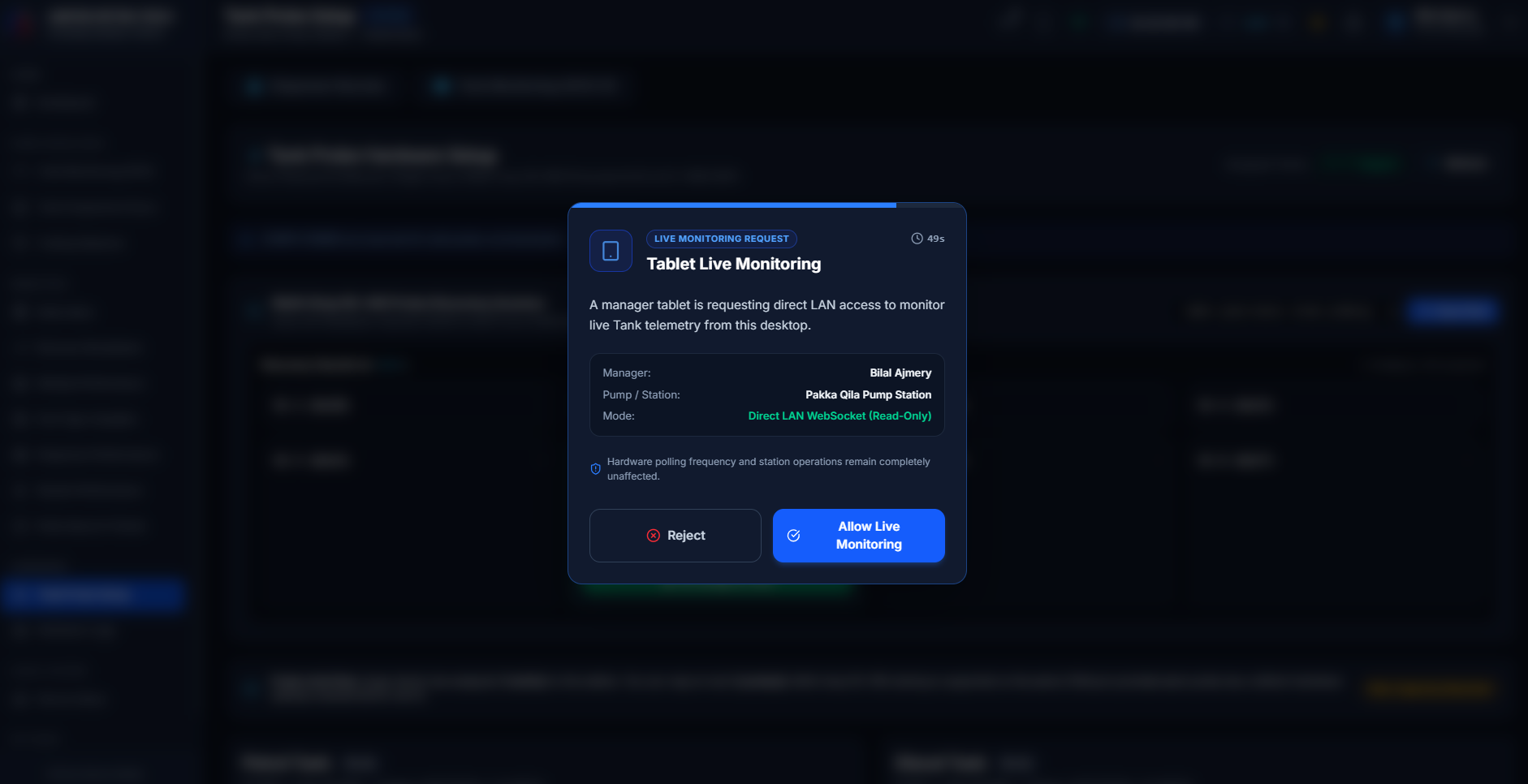
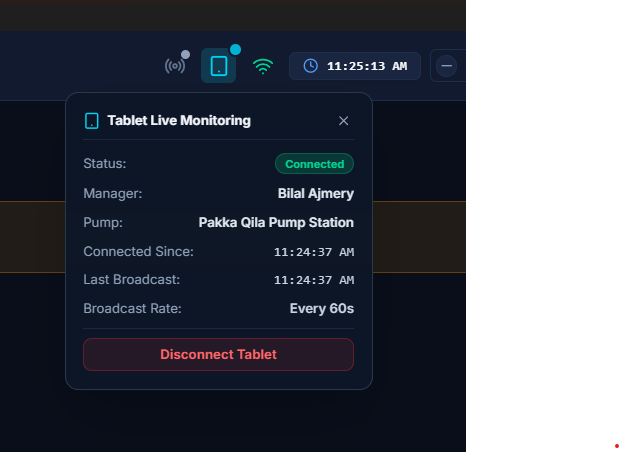
Tablet live request approved state
WHYWhy this exists
The Desktop receives Manager Tablet live-monitoring requests and allows the operator to accept or reject the request. After approval, the Tablet can receive the current tank state directly.
WHATWhat it does
The Desktop receives Manager Tablet live-monitoring requests and allows the operator to accept or reject the request. After approval, the Tablet can receive the current tank state directly.
HOWHow to use
When a Manager Tablet sends a live-monitoring request, review the request shown on Desktop and choose Allow or Reject.
RESULTExpected result
Allow establishes the approved direct monitoring session; Reject leaves the Tablet without direct Desktop access.
SECTION 13
Desktop Online Presence
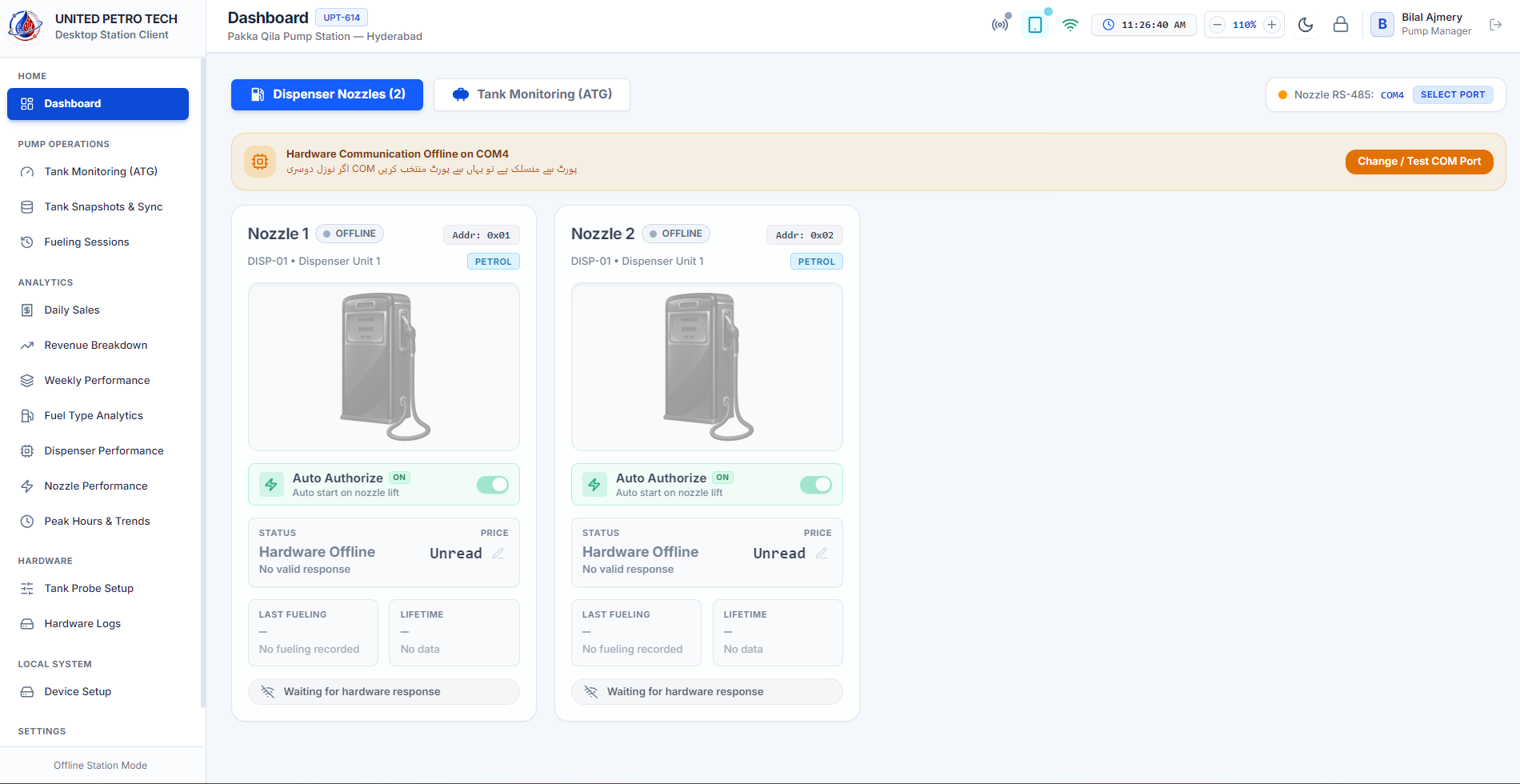
When the Desktop is logged in and its station presence is active, Manager Tablet can see the Desktop as ONLINE. Logout or loss of presence changes it to OFFLINE.
Desktop logged-in / active station session
WHYWhy this exists
When the Desktop is logged in and its station presence is active, Manager Tablet can see the Desktop as ONLINE. Logout or loss of presence changes it to OFFLINE.
WHATWhat it does
When the Desktop is logged in and its station presence is active, Manager Tablet can see the Desktop as ONLINE. Logout or loss of presence changes it to OFFLINE.
HOWHow to use
Open this area from the application navigation, review the visible status/information, and use only the controls presented for your role.
RESULTExpected result
The screen should clearly show the current user-facing state and any action result or warning.
SECTION 14
Language & Theme
The guide will explain the available language/theme controls and what changes to expect on screen.
Desktop language option
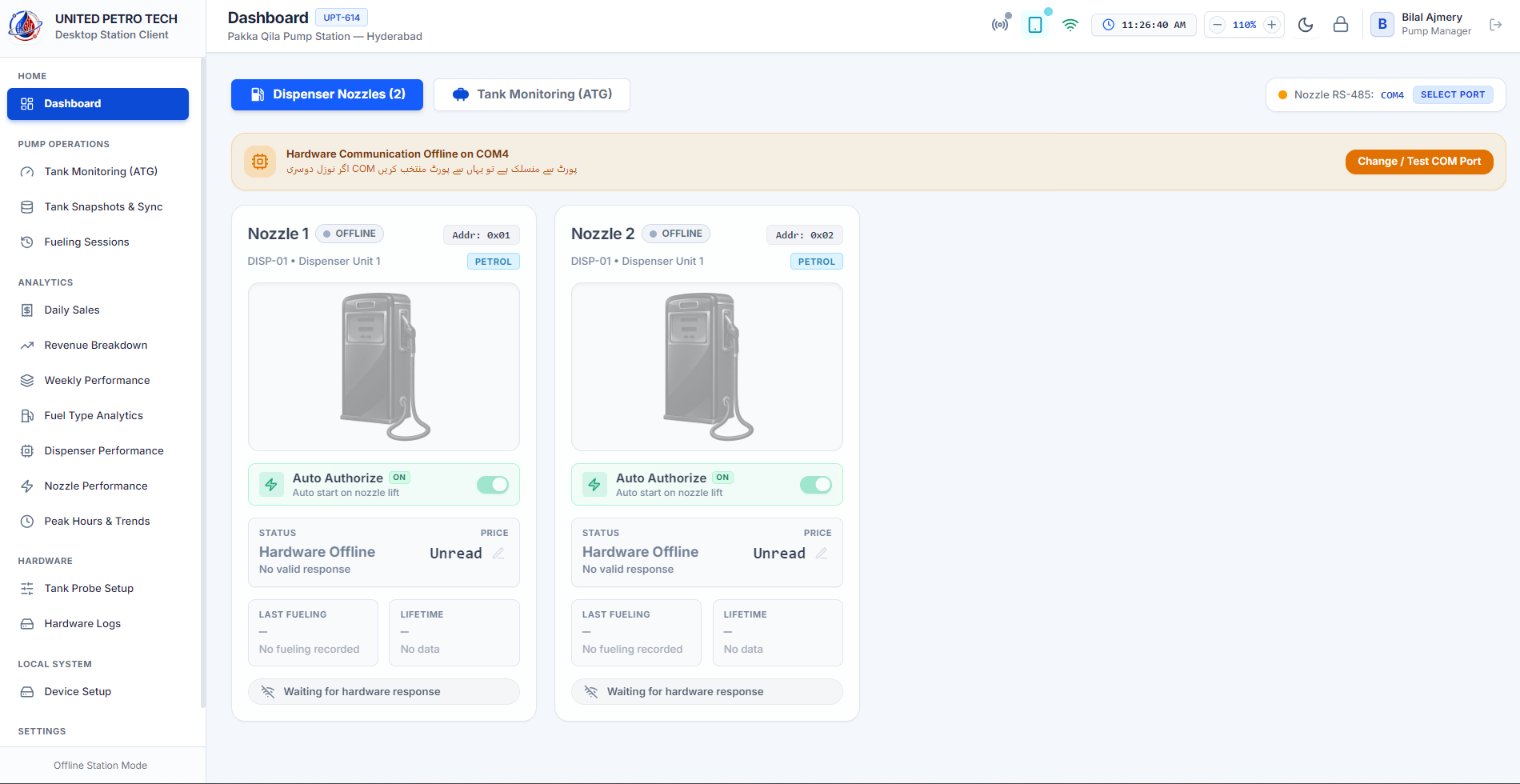
Desktop theme option
WHYWhy this exists
The guide will explain the available language/theme controls and what changes to expect on screen.
WHATWhat it does
The guide will explain the available language/theme controls and what changes to expect on screen.
HOWHow to use
Open this area from the application navigation, review the visible status/information, and use only the controls presented for your role.
RESULTExpected result
The screen should clearly show the current user-facing state and any action result or warning.
SECTION 15
Logout & Safe Exit
Logout ends the current Desktop session and also ends any active Manager Tablet direct monitoring session associated with that login.
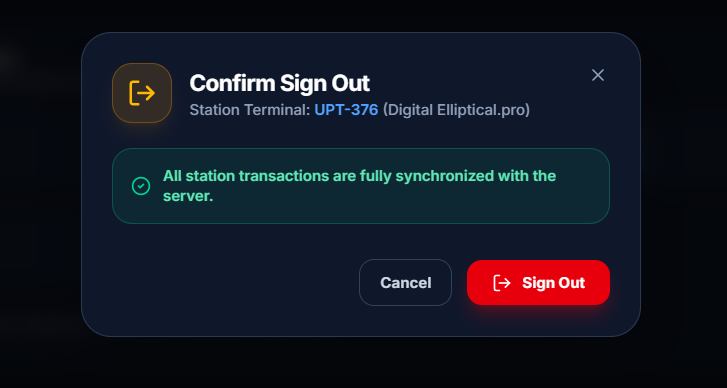
Desktop logout confirmation / logout control
WHYWhy this exists
Logout ends the current Desktop session and also ends any active Manager Tablet direct monitoring session associated with that login.
WHATWhat it does
Logout ends the current Desktop session and also ends any active Manager Tablet direct monitoring session associated with that login.
HOWHow to use
Open this area from the application navigation, review the visible status/information, and use only the controls presented for your role.
RESULTExpected result
The screen should clearly show the current user-facing state and any action result or warning.
SECTION 16
Operator Troubleshooting
Simple non-technical checks for missing readings, offline hardware, active alarms and connectivity status before escalation.
Representative Desktop operator warning/error state
WHYWhy this exists
Simple non-technical checks for missing readings, offline hardware, active alarms and connectivity status before escalation.
WHATWhat it does
Simple non-technical checks for missing readings, offline hardware, active alarms and connectivity status before escalation.
HOWHow to use
Follow the simple visible checks in order. If the issue remains after these checks, record the exact on-screen status/message and escalate it.
RESULTExpected result
The user can distinguish common operational conditions from issues requiring technical support.
UNITED PETRO TECH • OPERATION GUIDE
Client Application
Client/owner monitoring and approved remote operations
Operator-facing documentation
Screenshot-led walkthrough
No implementation internals
How this guide is written
Every chapter explains why an option exists, what it does, how to use it, the expected result, and the exact screenshot required for the final manual. The guide intentionally documents the product from an operator/user perspective only.
Not included
Source code, internal architecture, database structure, credentials, secrets, implementation logic or sensitive engineering details.
SECTION 01
Application Overview
The Client Application gives the client/owner a mobile view of assigned pumps, tank information, alerts and approved account functions.
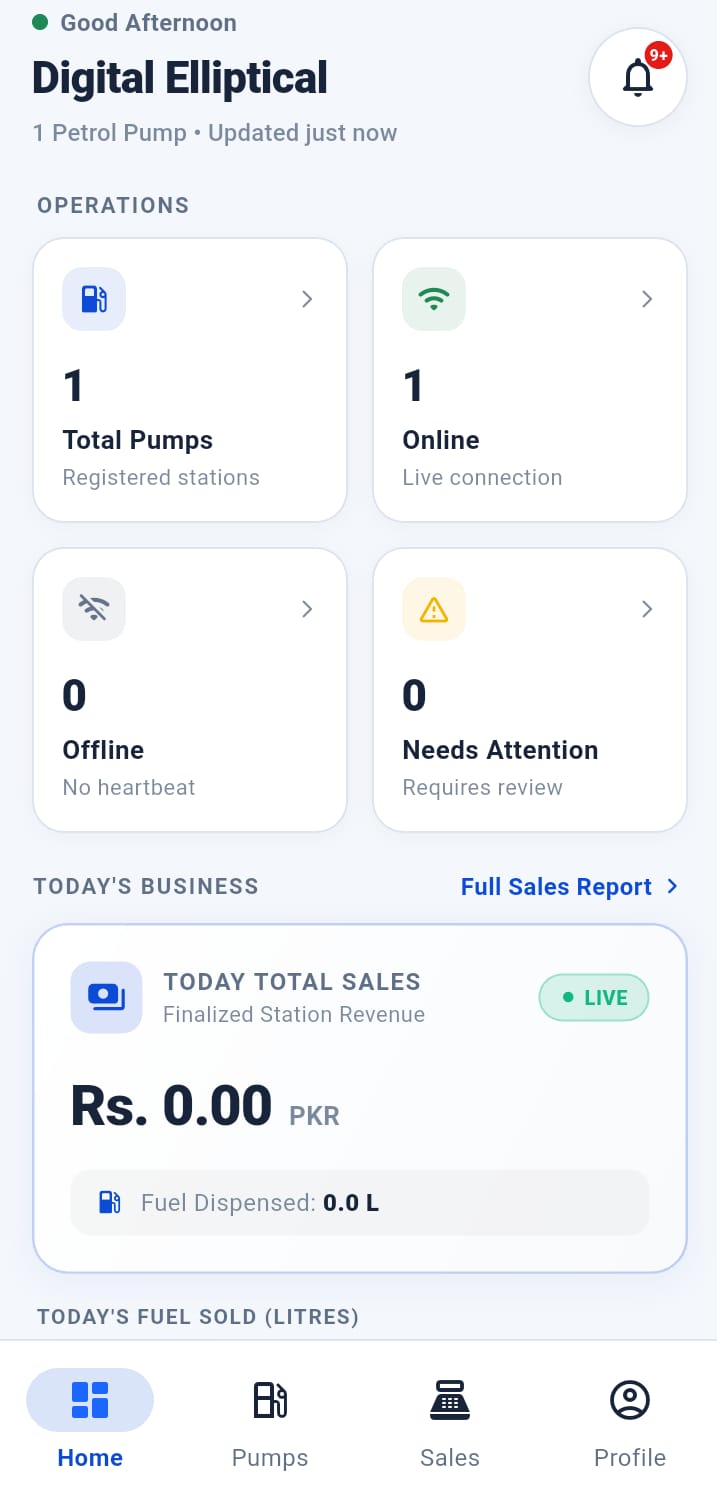
Client Application main overview
WHYWhy this exists
The Client Application gives the client/owner a mobile view of assigned pumps, tank information, alerts and approved account functions.
WHATWhat it does
The Client Application gives the client/owner a mobile view of assigned pumps, tank information, alerts and approved account functions.
HOWHow to use
Open this area from the application navigation, review the visible status/information, and use only the controls presented for your role.
RESULTExpected result
The screen should clearly show the current user-facing state and any action result or warning.
SECTION 02
Splash & Intro
The opening experience introduces the application and prepares the user for login.
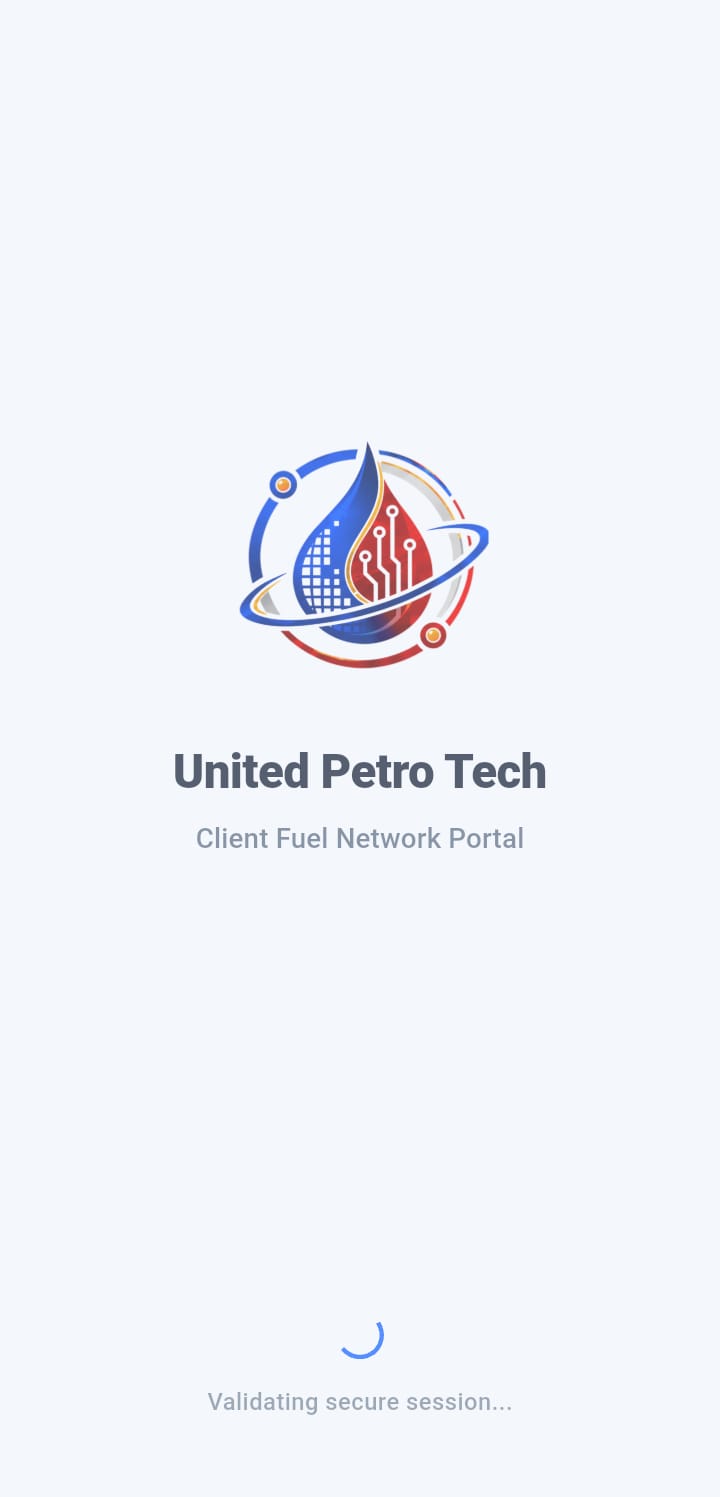
Client Application splash / intro
WHYWhy this exists
The opening experience introduces the application and prepares the user for login.
WHATWhat it does
The opening experience introduces the application and prepares the user for login.
HOWHow to use
Open this area from the application navigation, review the visible status/information, and use only the controls presented for your role.
RESULTExpected result
The screen should clearly show the current user-facing state and any action result or warning.
SECTION 03
Login
The user signs in with the assigned account. The guide will show normal login, invalid credentials and recovery behavior.
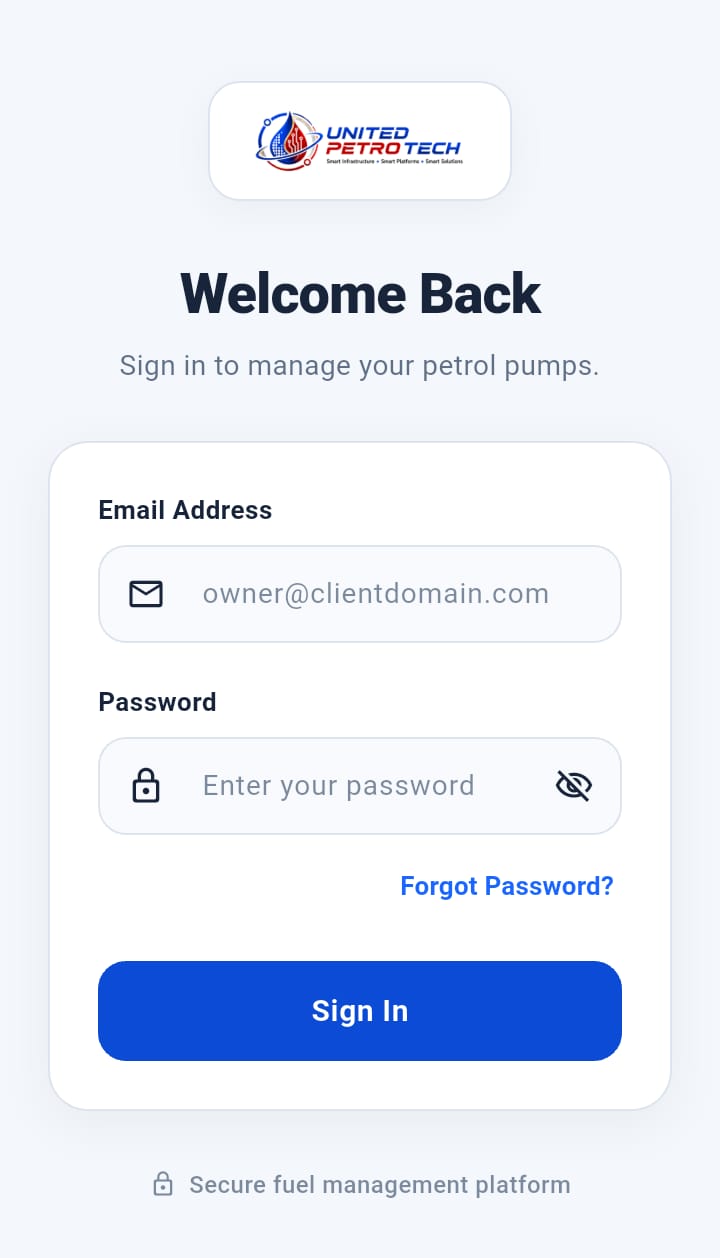
Client Application login screen
WHYWhy this exists
The user signs in with the assigned account. The guide will show normal login, invalid credentials and recovery behavior.
WHATWhat it does
The user signs in with the assigned account. The guide will show normal login, invalid credentials and recovery behavior.
HOWHow to use
Open this area from the application navigation, review the visible status/information, and use only the controls presented for your role.
RESULTExpected result
The screen should clearly show the current user-facing state and any action result or warning.
SECTION 04
App PIN
Where enabled, the user can use the application PIN for convenient access while periodic real-password verification remains mandatory according to configured policy.
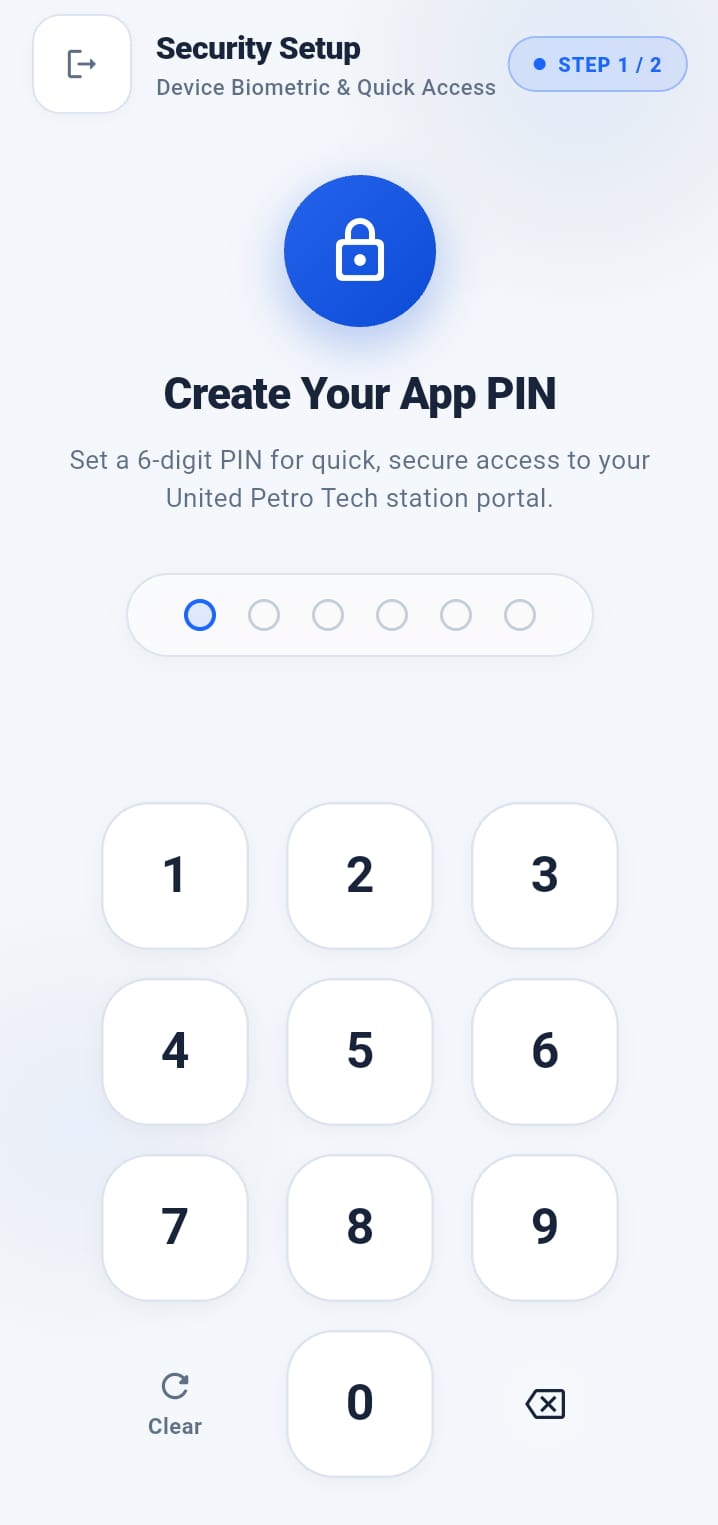
App PIN entry screen
Periodic real-password verification screen
WHYWhy this exists
Where enabled, the user can use the application PIN for convenient access while periodic real-password verification remains mandatory according to configured policy.
WHATWhat it does
Where enabled, the user can use the application PIN for convenient access while periodic real-password verification remains mandatory according to configured policy.
HOWHow to use
Use the configured application PIN for normal convenient access when PIN login is available.
RESULTExpected result
When real-password verification is due, the application requires the actual account password before continuing.
SECTION 05
Periodic Password Verification
At the configured interval, the application asks for the real account password again. This cannot be skipped when verification is due.
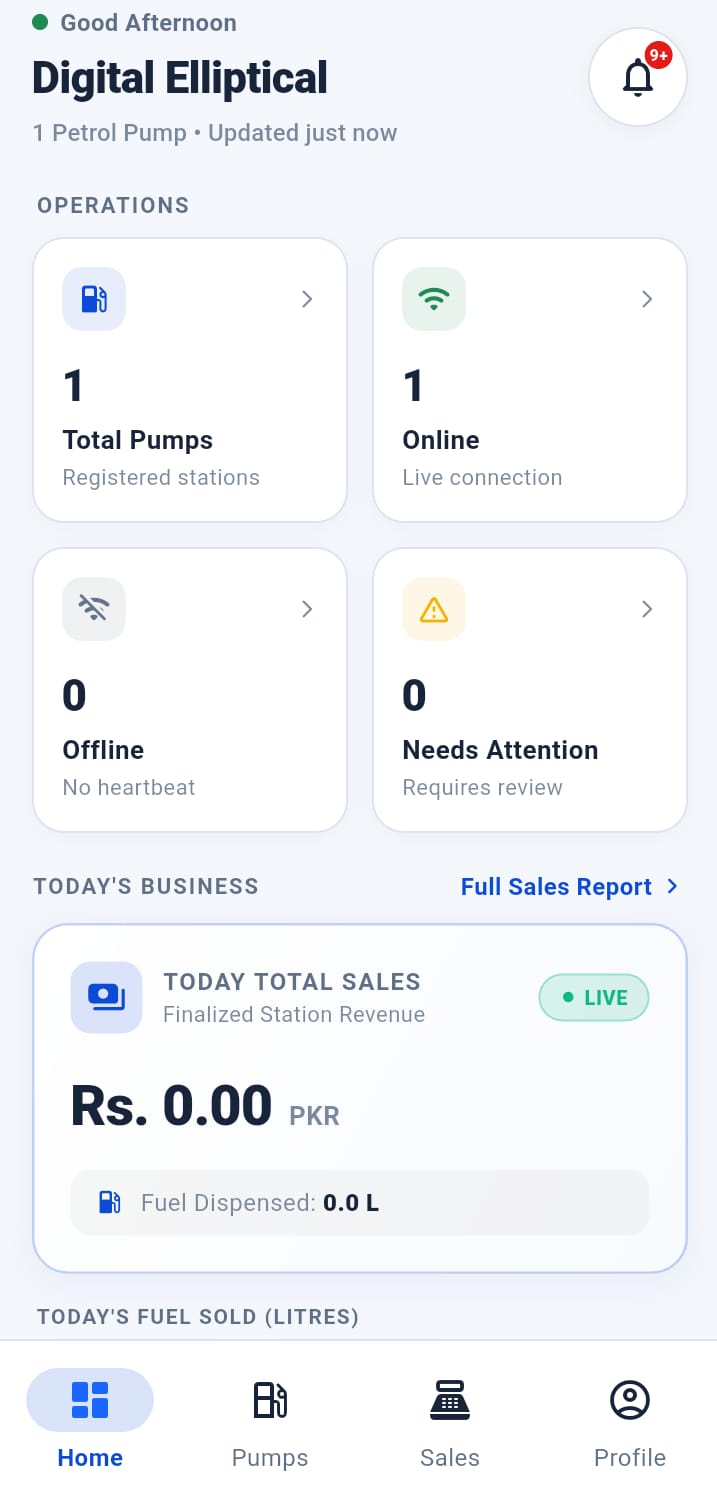
Mandatory password verification state
WHYWhy this exists
At the configured interval, the application asks for the real account password again. This cannot be skipped when verification is due.
WHATWhat it does
At the configured interval, the application asks for the real account password again. This cannot be skipped when verification is due.
HOWHow to use
Open this area from the application navigation, review the visible status/information, and use only the controls presented for your role.
RESULTExpected result
The screen should clearly show the current user-facing state and any action result or warning.
SECTION 06
Forgot Password
Used when the account password is no longer known. The guide will explain the visible recovery flow only.
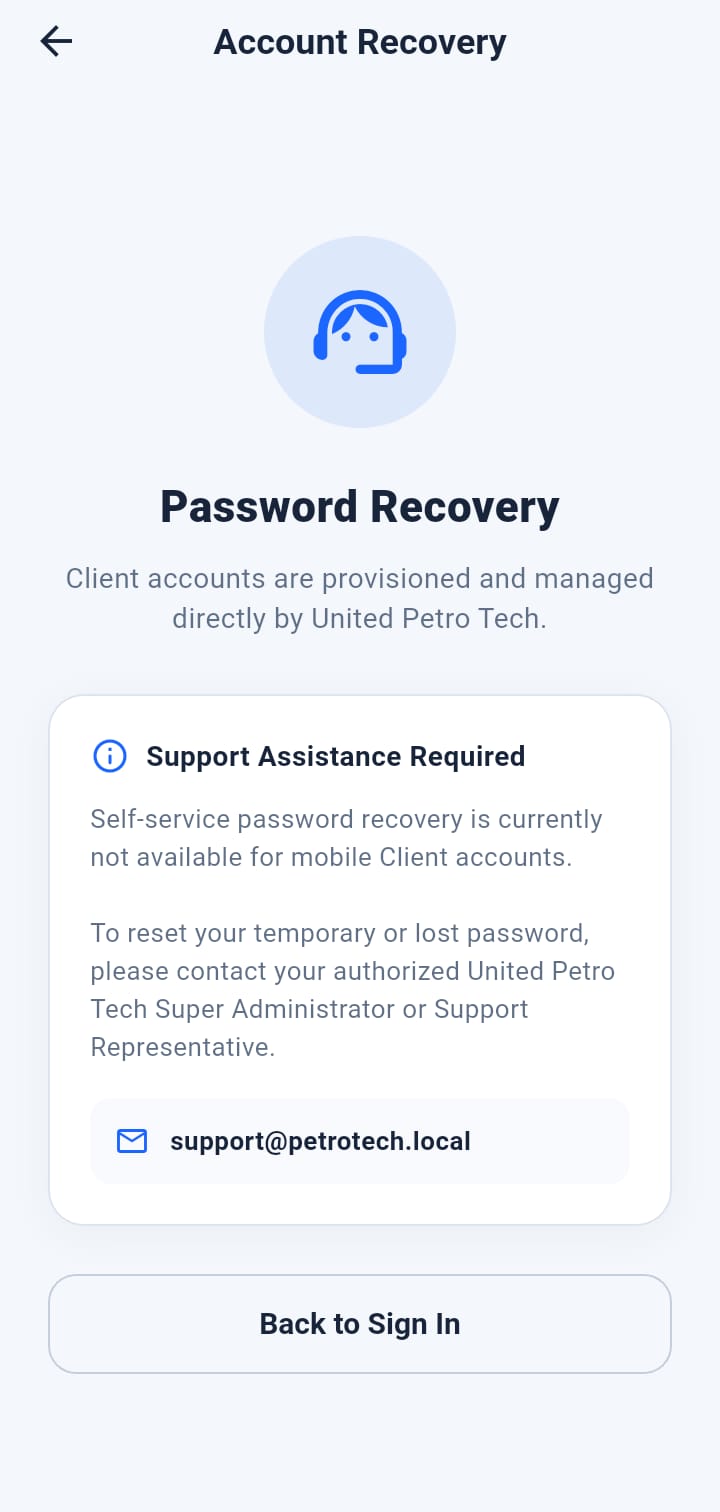
Forgot Password screen
WHYWhy this exists
Used when the account password is no longer known. The guide will explain the visible recovery flow only.
WHATWhat it does
Used when the account password is no longer known. The guide will explain the visible recovery flow only.
HOWHow to use
Open this area from the application navigation, review the visible status/information, and use only the controls presented for your role.
RESULTExpected result
The screen should clearly show the current user-facing state and any action result or warning.
SECTION 07
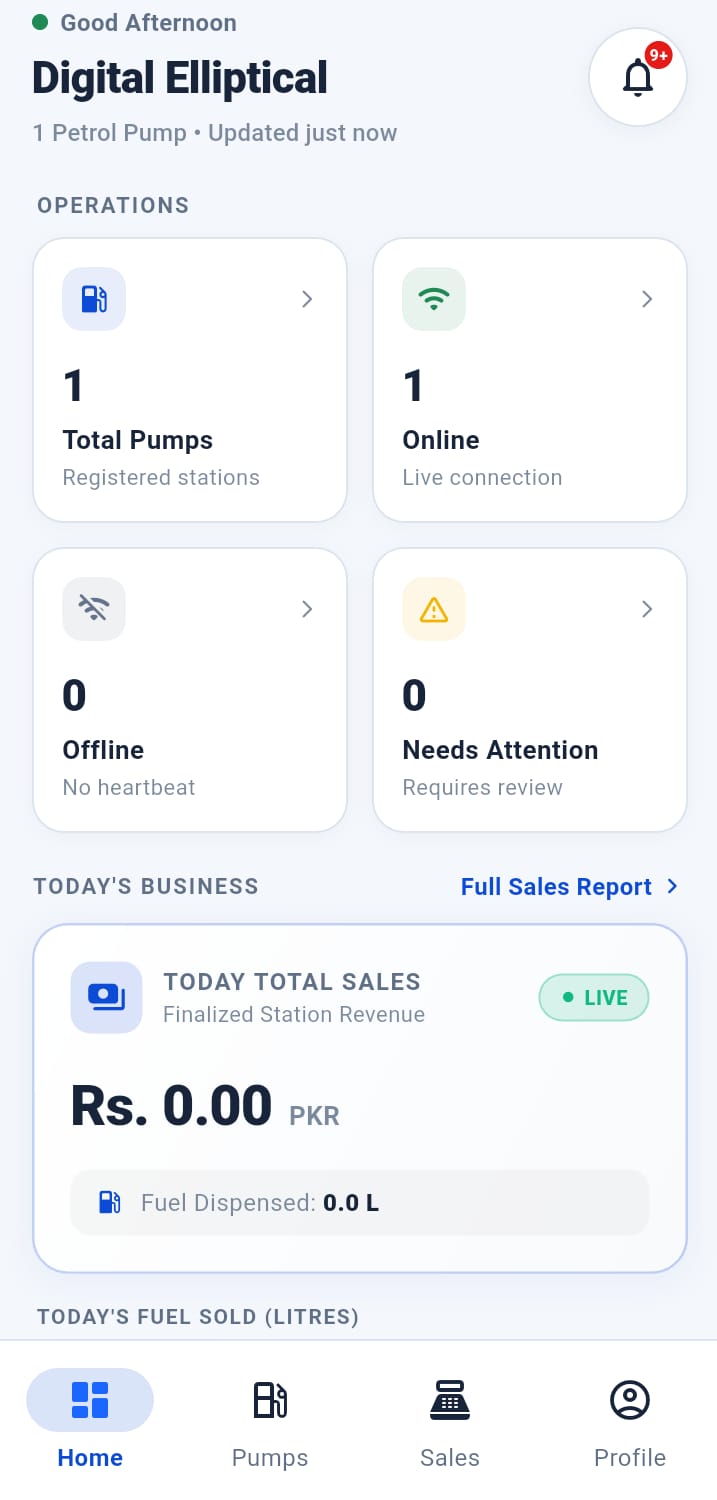
Dashboard
Displays the client's operational overview and entry points to assigned pump information.
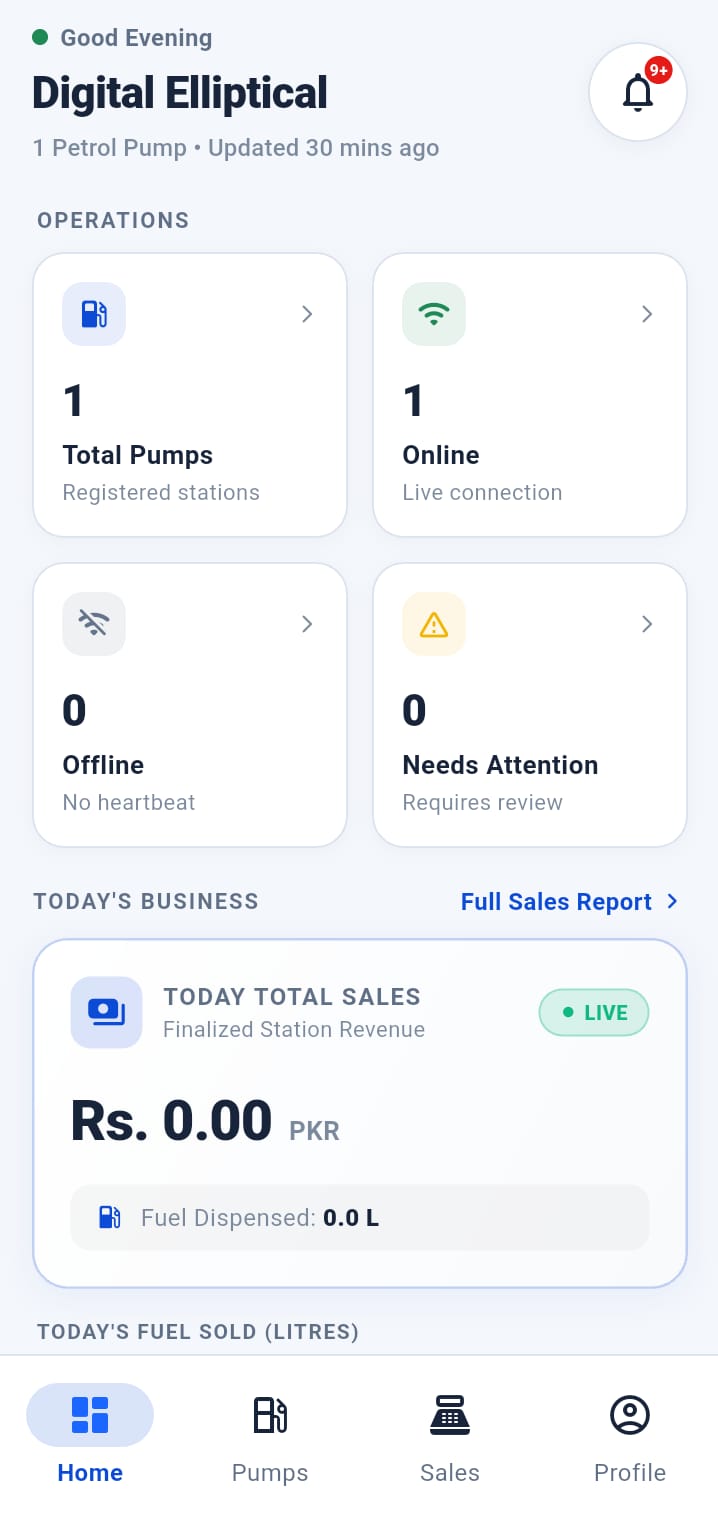
Client Dashboard
WHYWhy this exists
Displays the client's operational overview and entry points to assigned pump information.
WHATWhat it does
Displays the client's operational overview and entry points to assigned pump information.
HOWHow to use
Open this area from the application navigation, review the visible status/information, and use only the controls presented for your role.
RESULTExpected result
The screen should clearly show the current user-facing state and any action result or warning.
SECTION 08
Pump Information
Shows the pumps assigned to the client and their visible operational information.
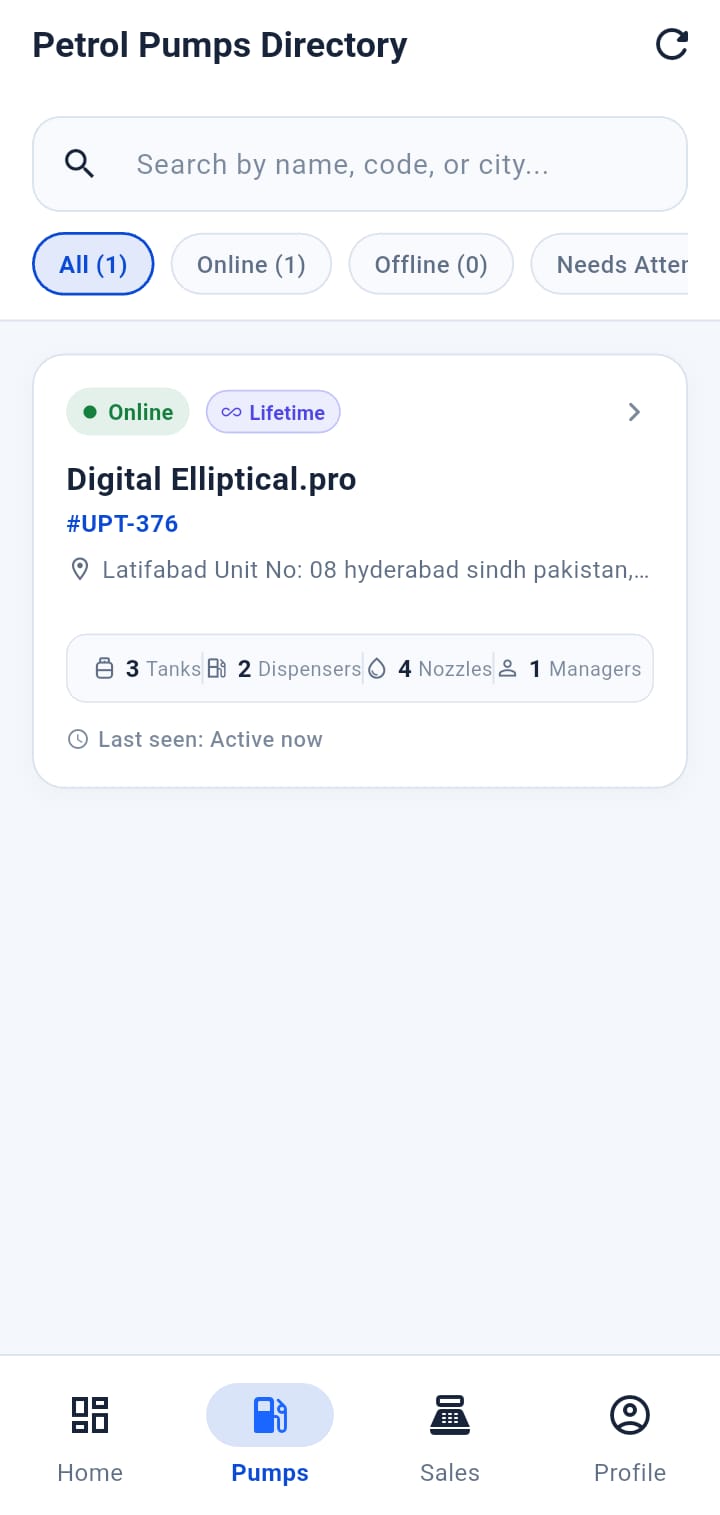
Assigned Pump information screen
WHYWhy this exists
Shows the pumps assigned to the client and their visible operational information.
WHATWhat it does
Shows the pumps assigned to the client and their visible operational information.
HOWHow to use
Open this area from the application navigation, review the visible status/information, and use only the controls presented for your role.
RESULTExpected result
The screen should clearly show the current user-facing state and any action result or warning.
SECTION 09
Tank Monitoring
Shows tank readings and status available to the client, using clear separation between fuel and water information.
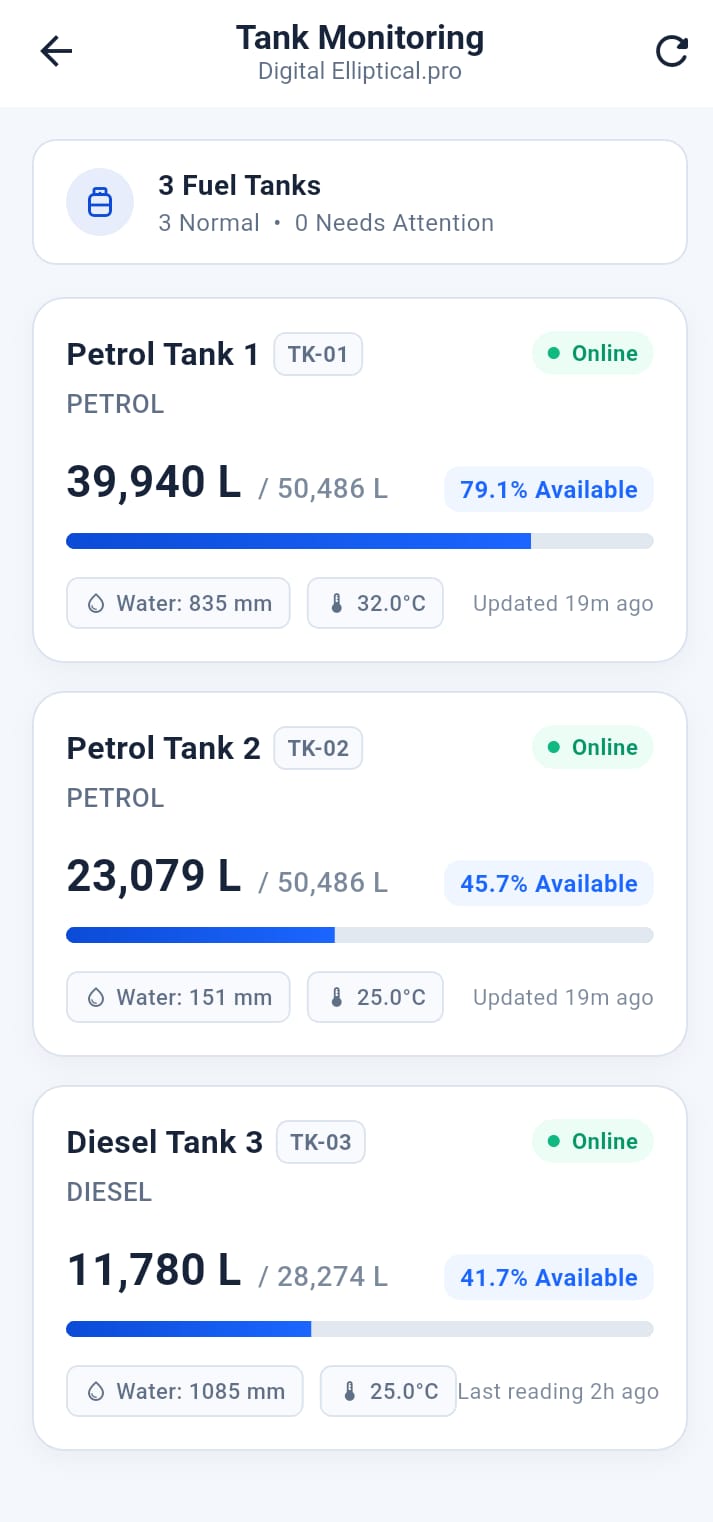
Client Tank Monitoring screen
WHYWhy this exists
Shows tank readings and status available to the client, using clear separation between fuel and water information.
WHATWhat it does
Shows tank readings and status available to the client, using clear separation between fuel and water information.
HOWHow to use
Open this area from the application navigation, review the visible status/information, and use only the controls presented for your role.
RESULTExpected result
The screen should clearly show the current user-facing state and any action result or warning.
SECTION 10
Nozzle Information
Shows nozzle-related information available to the client.
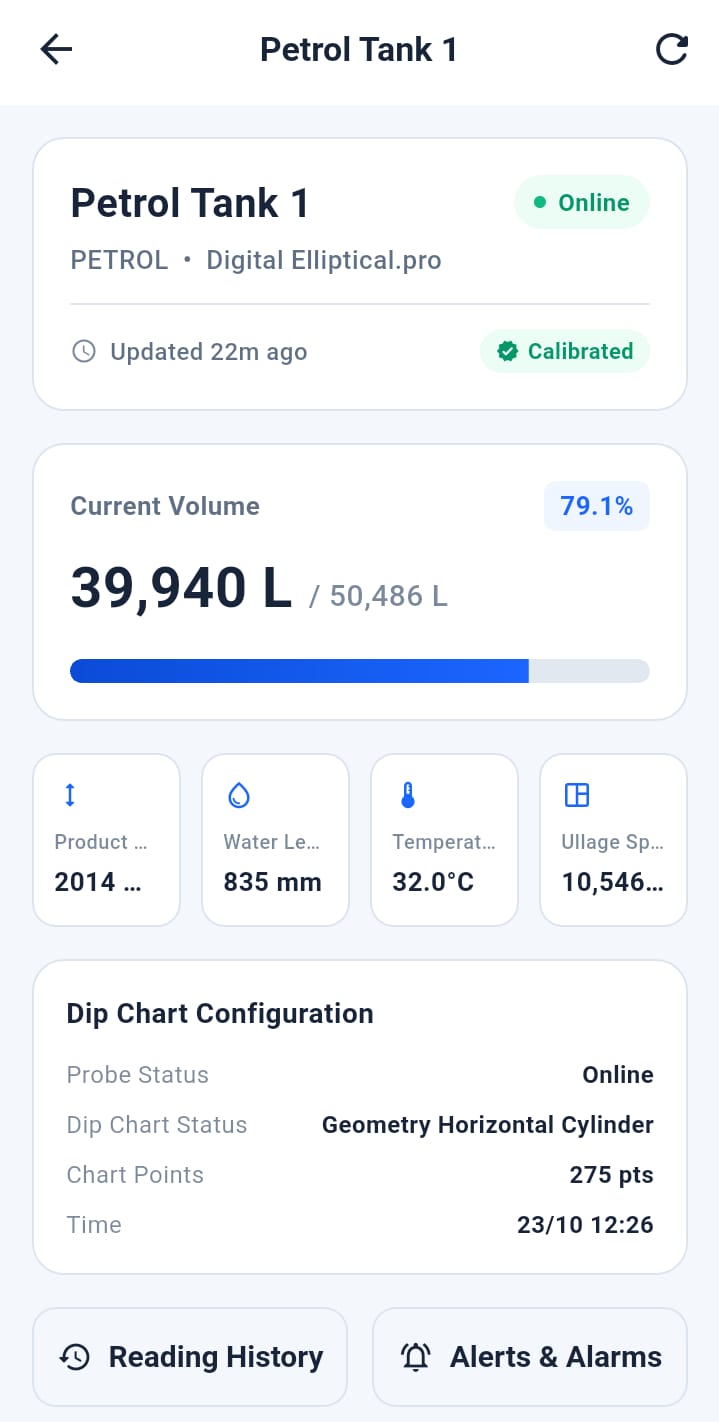
Client Nozzle information screen
WHYWhy this exists
Shows nozzle-related information available to the client.
WHATWhat it does
Shows nozzle-related information available to the client.
HOWHow to use
Open this area from the application navigation, review the visible status/information, and use only the controls presented for your role.
RESULTExpected result
The screen should clearly show the current user-facing state and any action result or warning.
SECTION 11
Remote Price Change
Where authorized, the client can request an approved nozzle price change. The guide explains prerequisites, confirmation states and failure reasons visible to the user.
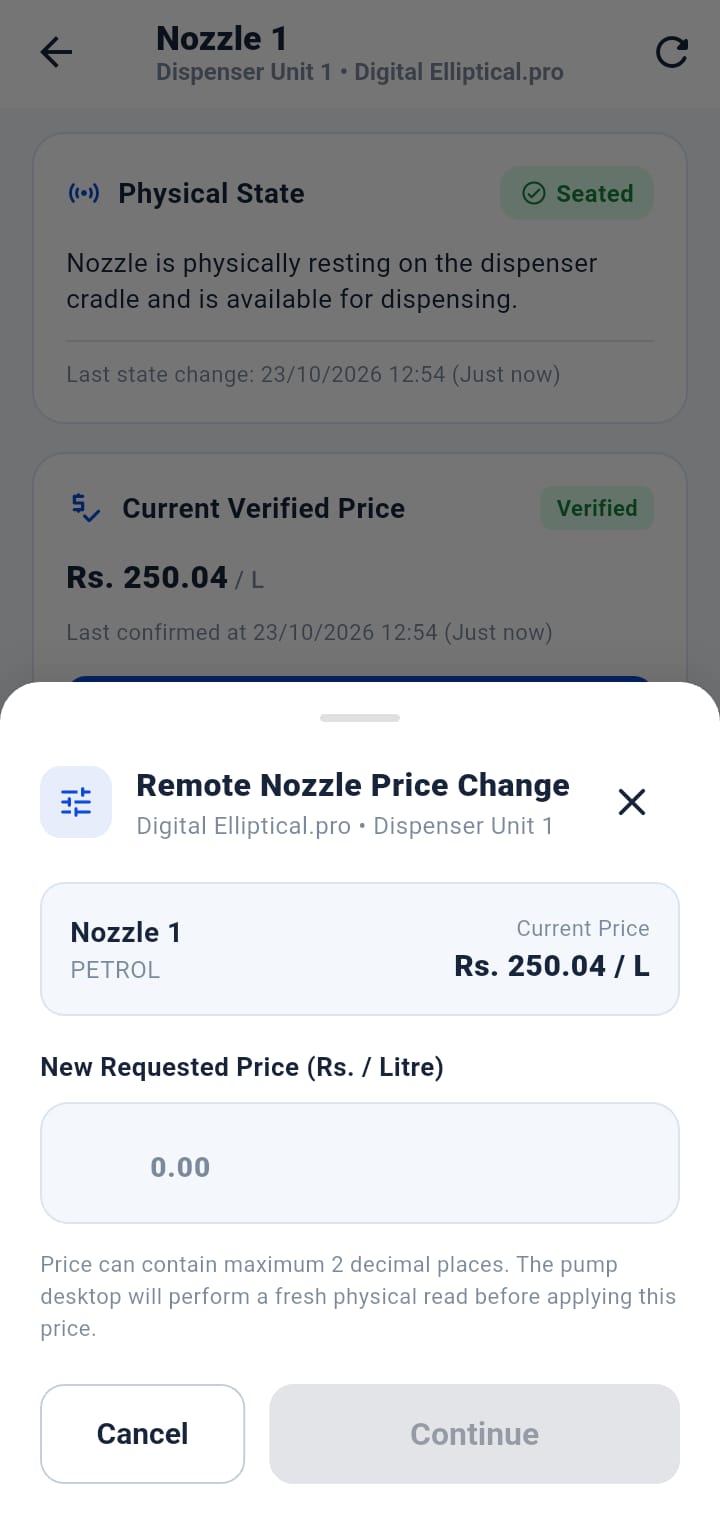
Remote nozzle price change form
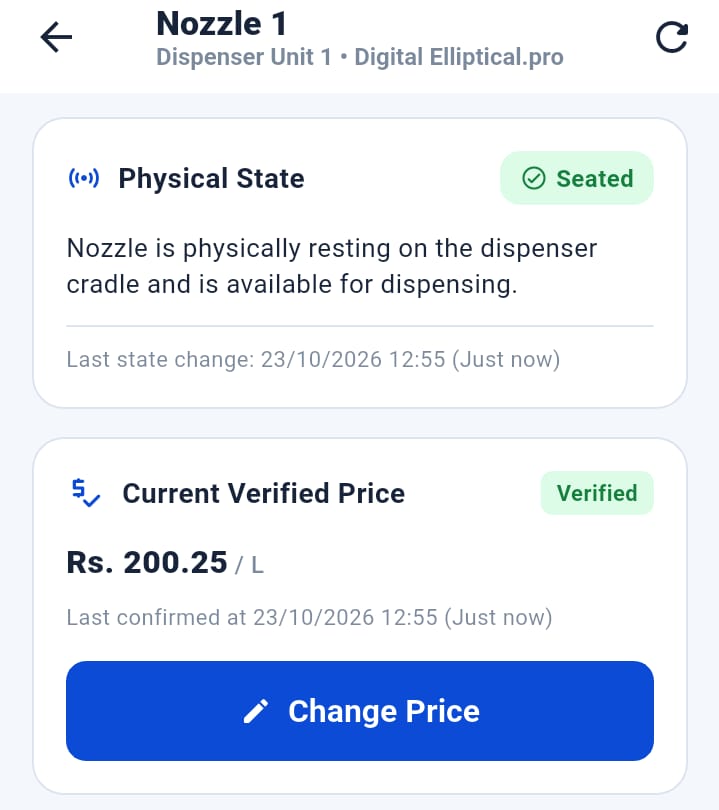
Remote price change result
WHYWhy this exists
Where authorized, the client can request an approved nozzle price change. The guide explains prerequisites, confirmation states and failure reasons visible to the user.
WHATWhat it does
Where authorized, the client can request an approved nozzle price change. The guide explains prerequisites, confirmation states and failure reasons visible to the user.
HOWHow to use
Open the approved nozzle price-change function, select the intended nozzle, enter the new valid price and submit. Follow the exact success/failure message shown.
RESULTExpected result
The application reports confirmed success only when the station-side operation is actually verified; otherwise it shows the real reason for failure.
Important: A remote physical price change is not treated as successful merely because a request was submitted.
SECTION 12
Alerts & Notifications
Shows important operational notifications and warning states relevant to the client.
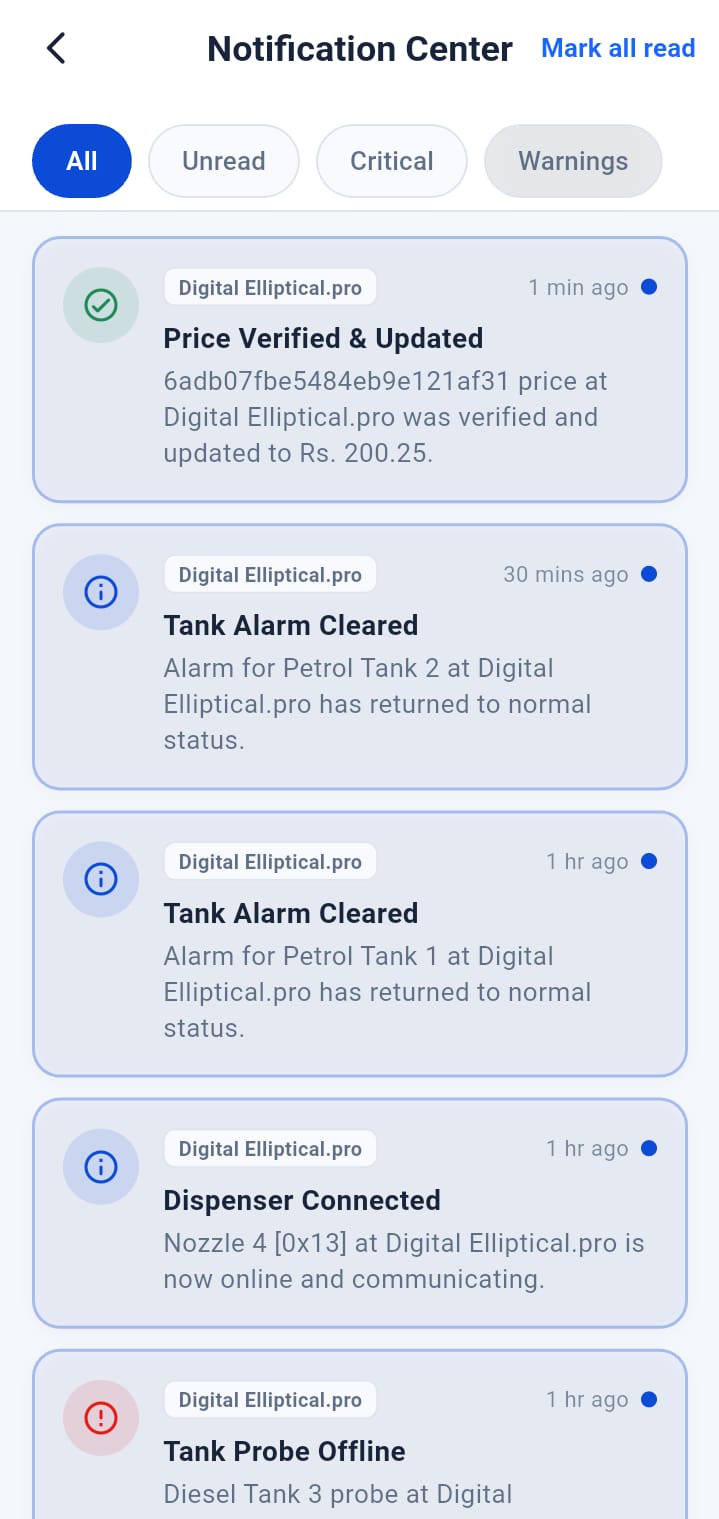
Client alerts / notifications screen
WHYWhy this exists
Shows important operational notifications and warning states relevant to the client.
WHATWhat it does
Shows important operational notifications and warning states relevant to the client.
HOWHow to use
Open this area from the application navigation, review the visible status/information, and use only the controls presented for your role.
RESULTExpected result
The screen should clearly show the current user-facing state and any action result or warning.
SECTION 13
Settings
Includes supported language, theme and account-facing preferences.
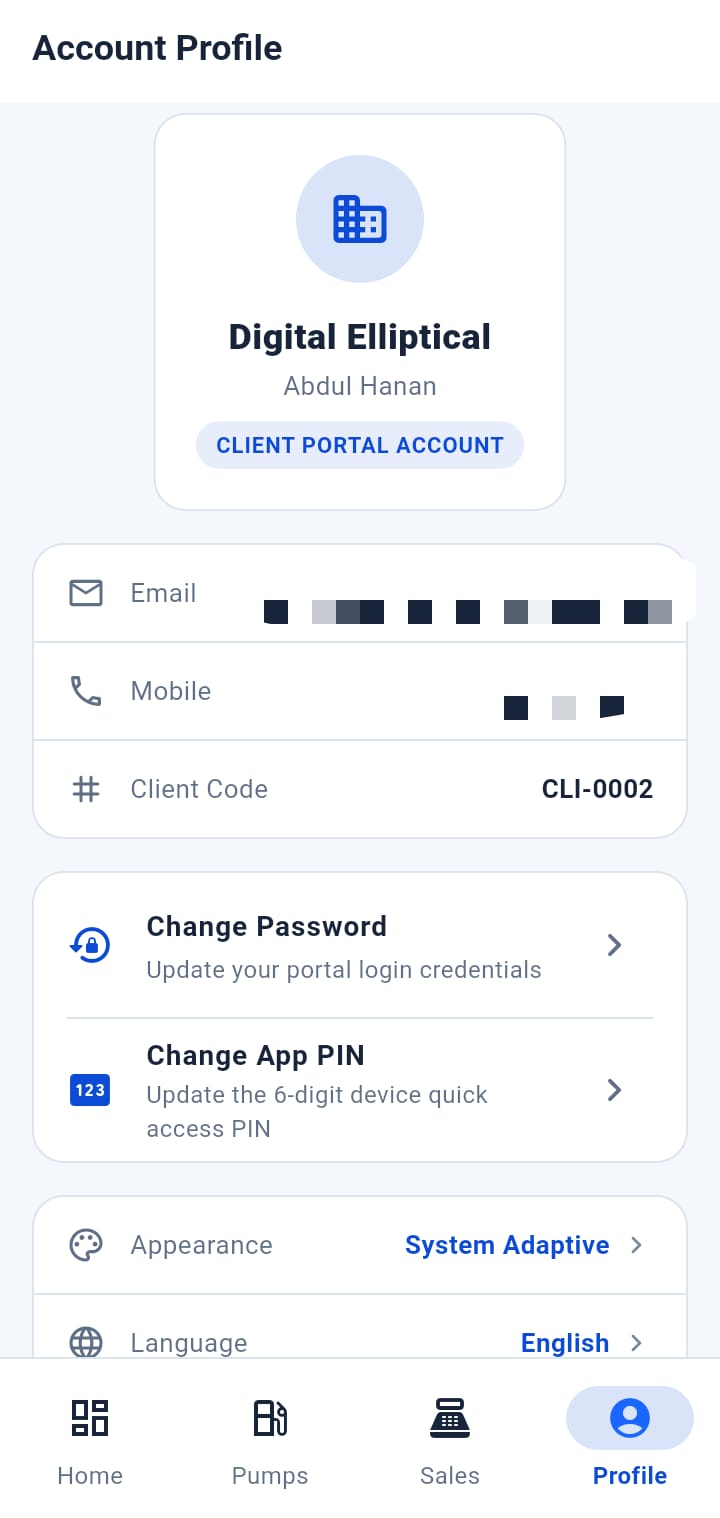
Client settings screen
WHYWhy this exists
Includes supported language, theme and account-facing preferences.
WHATWhat it does
Includes supported language, theme and account-facing preferences.
HOWHow to use
Open this area from the application navigation, review the visible status/information, and use only the controls presented for your role.
RESULTExpected result
The screen should clearly show the current user-facing state and any action result or warning.
SECTION 14
English / Urdu
Explains language switching and RTL presentation for Urdu.
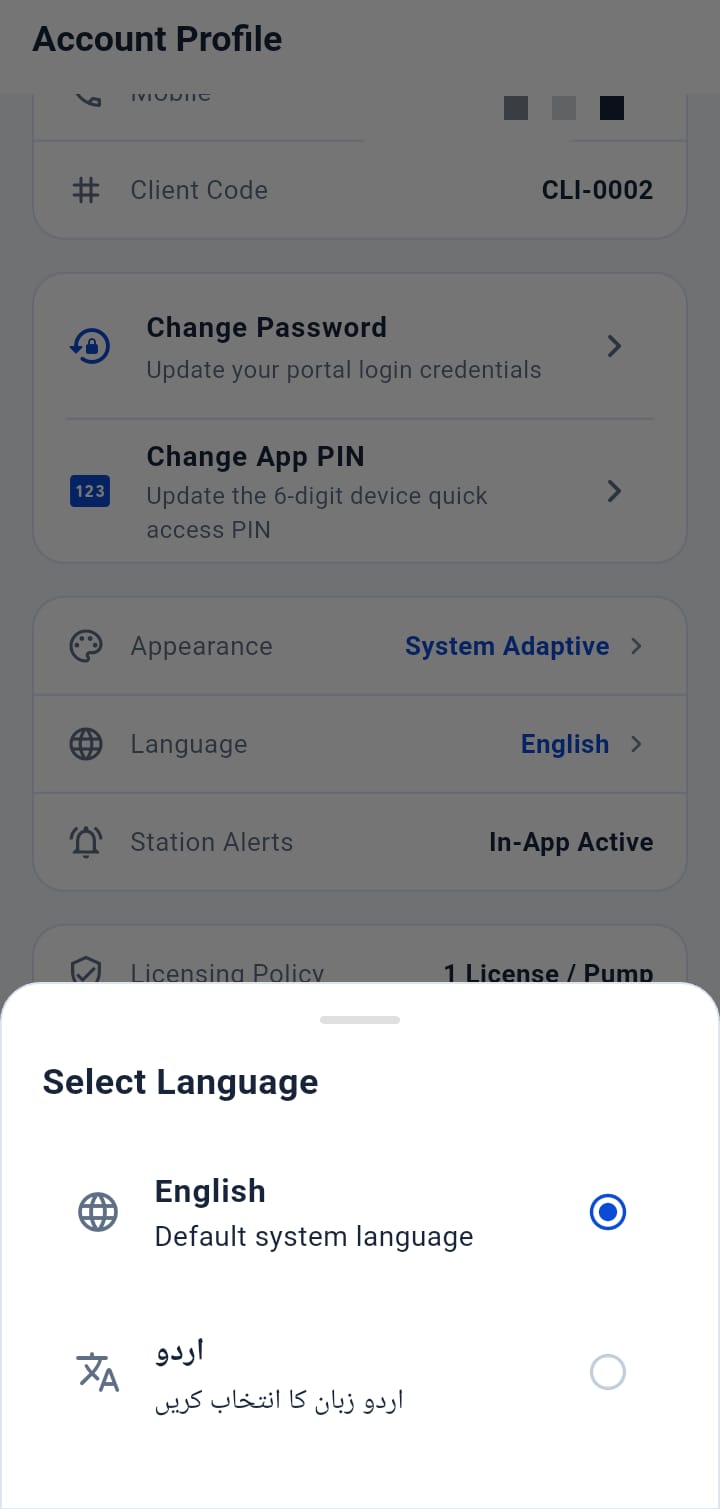
Client Application English example
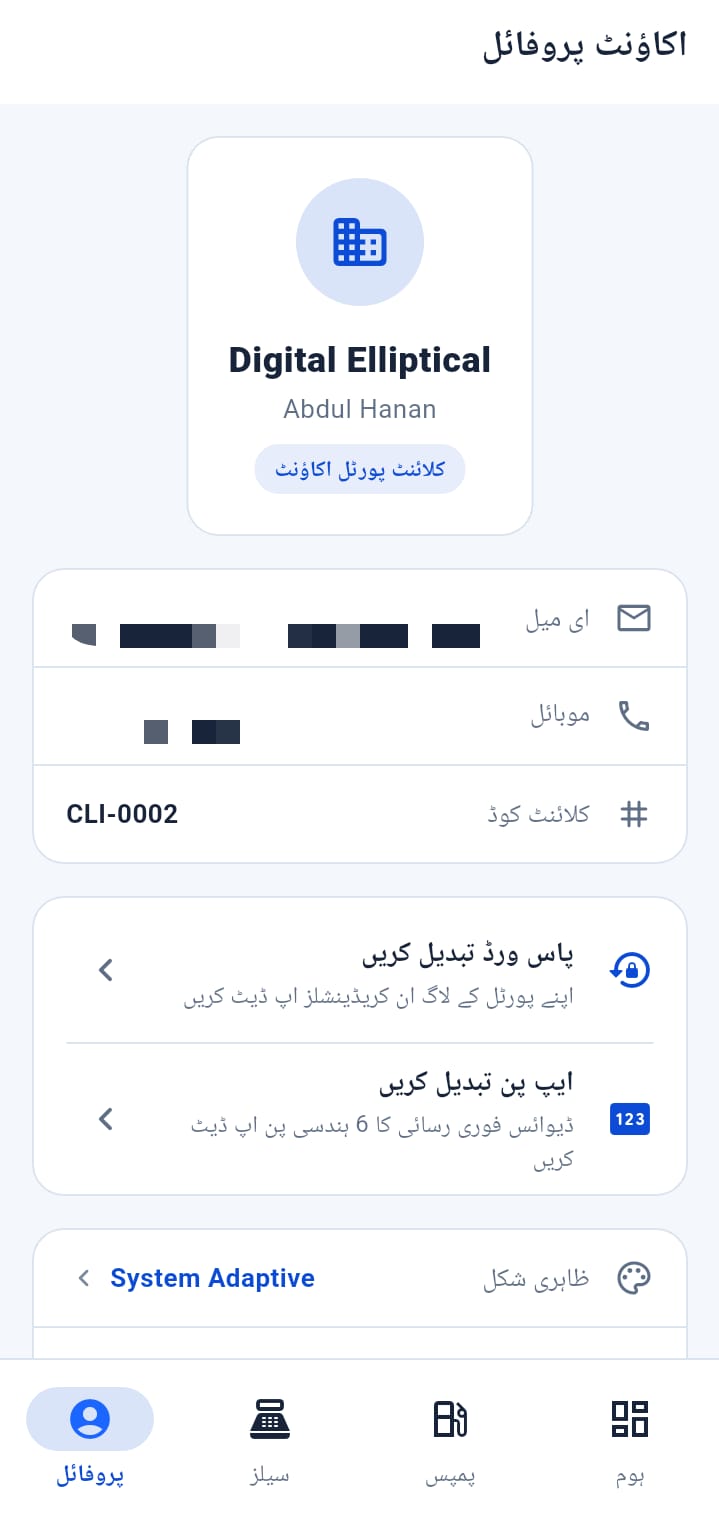
Client Application Urdu / RTL example
WHYWhy this exists
Explains language switching and RTL presentation for Urdu.
WHATWhat it does
Explains language switching and RTL presentation for Urdu.
HOWHow to use
Open this area from the application navigation, review the visible status/information, and use only the controls presented for your role.
RESULTExpected result
The screen should clearly show the current user-facing state and any action result or warning.
SECTION 15
Logout
Ends the current client application session safely.
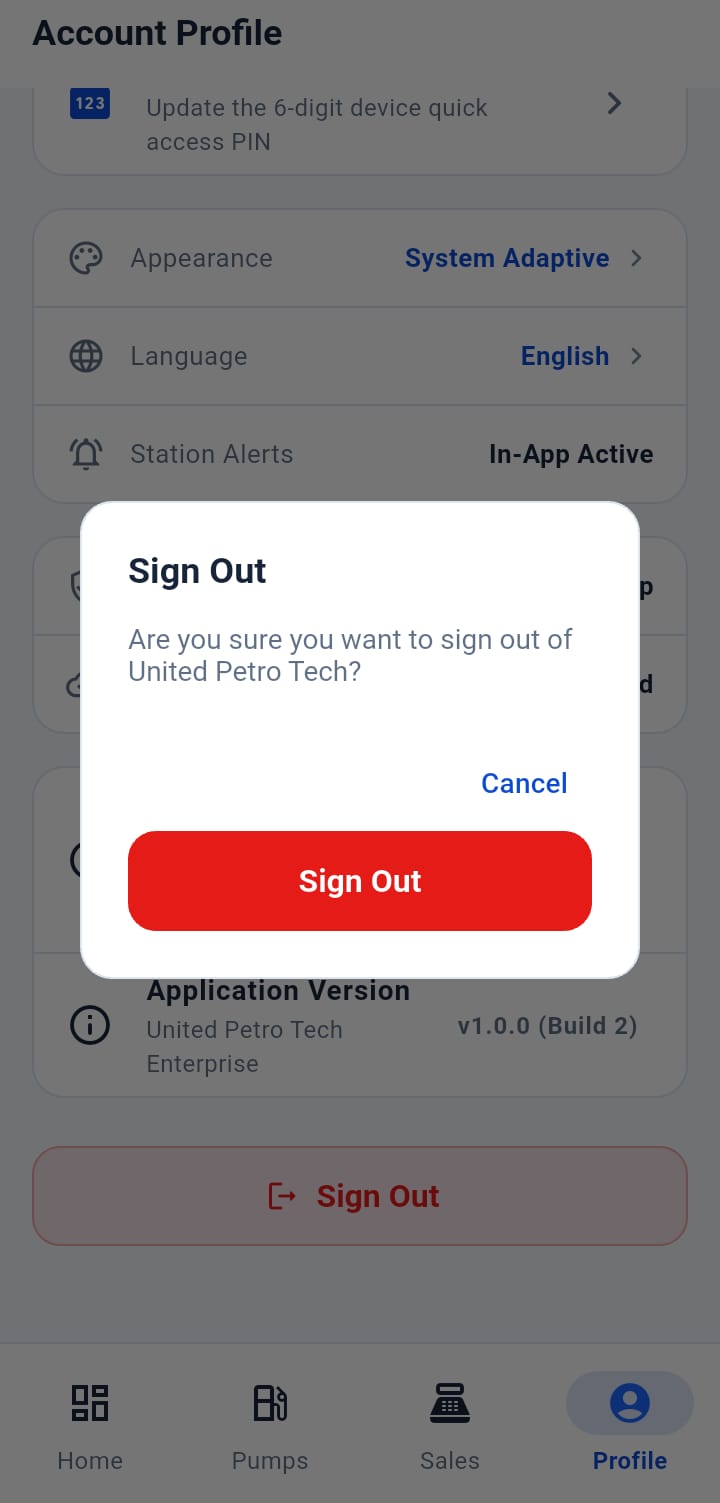
Client Application logout
WHYWhy this exists
Ends the current client application session safely.
WHATWhat it does
Ends the current client application session safely.
HOWHow to use
Open this area from the application navigation, review the visible status/information, and use only the controls presented for your role.
RESULTExpected result
The screen should clearly show the current user-facing state and any action result or warning.
SECTION 16
User Troubleshooting
Simple checks for login, stale data, remote command failure and connectivity messages.
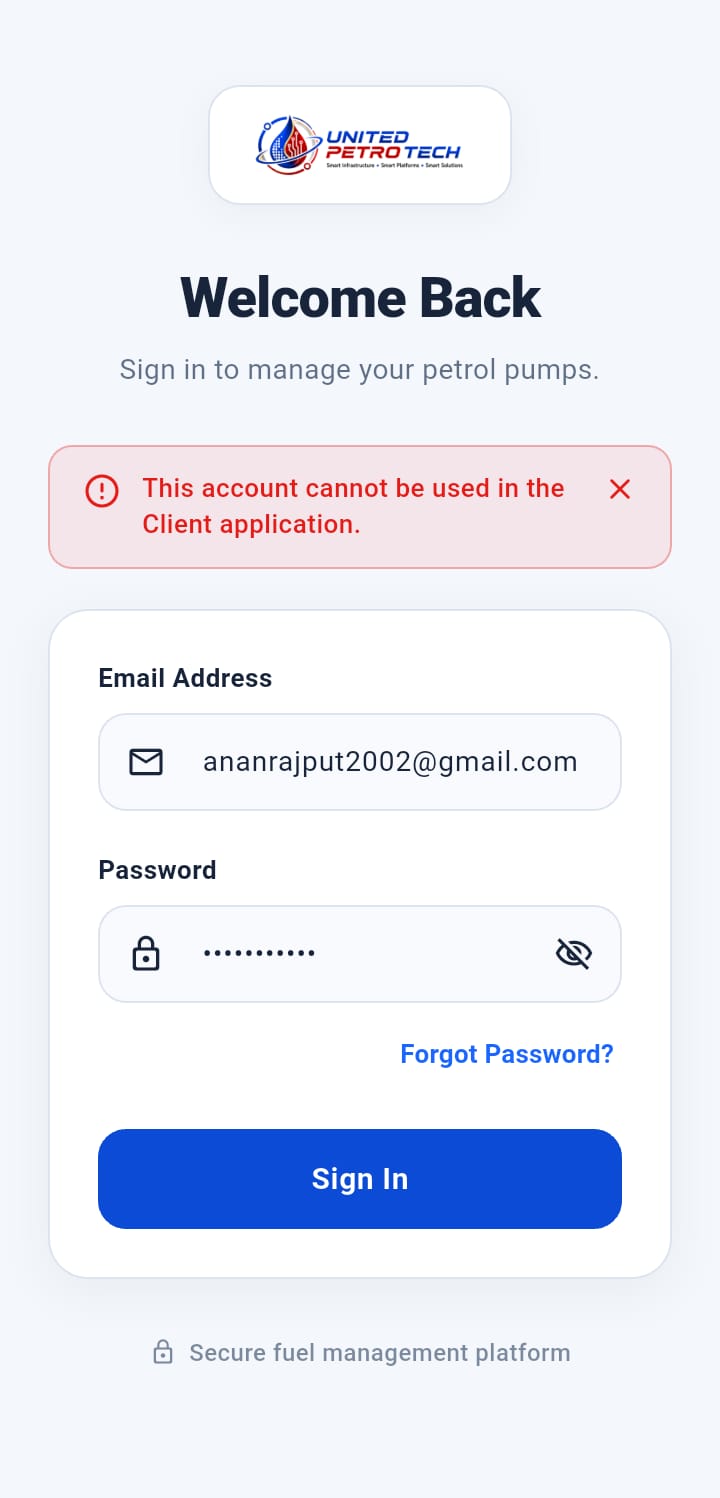
Representative Client Application warning/error state
WHYWhy this exists
Simple checks for login, stale data, remote command failure and connectivity messages.
WHATWhat it does
Simple checks for login, stale data, remote command failure and connectivity messages.
HOWHow to use
Follow the simple visible checks in order. If the issue remains after these checks, record the exact on-screen status/message and escalate it.
RESULTExpected result
The user can distinguish common operational conditions from issues requiring technical support.
UNITED PETRO TECH • OPERATION GUIDE
Manager Tablet
Landscape monitoring interface for the assigned pump manager
Operator-facing documentation
Screenshot-led walkthrough
No implementation internals
How this guide is written
Every chapter explains why an option exists, what it does, how to use it, the expected result, and the exact screenshot required for the final manual. The guide intentionally documents the product from an operator/user perspective only.
Not included
Source code, internal architecture, database structure, credentials, secrets, implementation logic or sensitive engineering details.
SECTION 01
Manager Tablet Overview
The Manager Tablet is a read-only monitoring surface for the assigned pump. It is designed for landscape use and shows current tank condition, alarms and Desktop availability.
Manager Tablet main overview
WHYWhy this exists
The Manager Tablet is a read-only monitoring surface for the assigned pump. It is designed for landscape use and shows current tank condition, alarms and Desktop availability.
WHATWhat it does
The Manager Tablet is a read-only monitoring surface for the assigned pump. It is designed for landscape use and shows current tank condition, alarms and Desktop availability.
HOWHow to use
Open this area from the application navigation, review the visible status/information, and use only the controls presented for your role.
RESULTExpected result
The screen should clearly show the current user-facing state and any action result or warning.
SECTION 02
Manager Login
The Manager logs in and the assigned pump is resolved automatically; there is no manual pump selector in normal use.
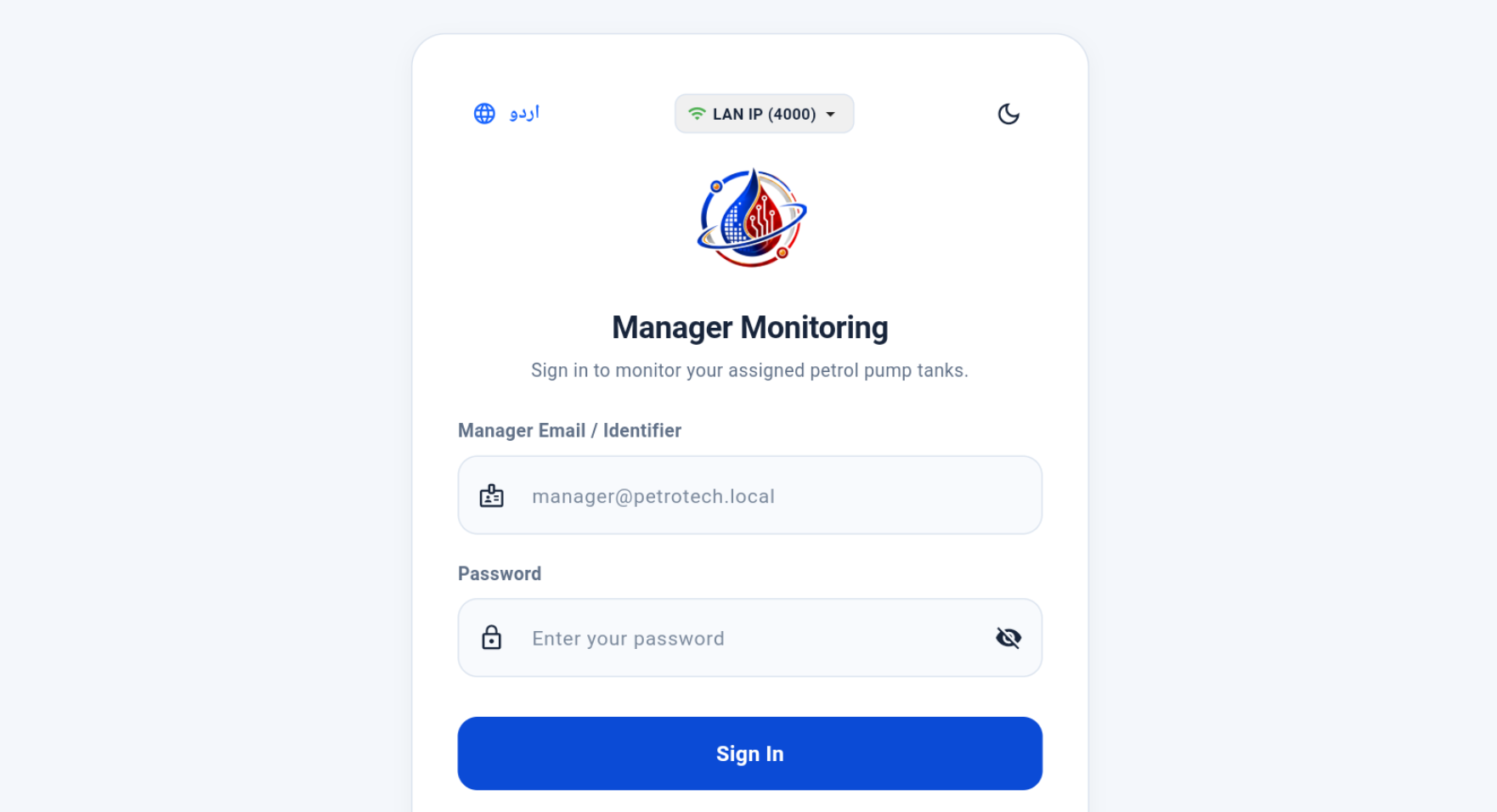
Manager Tablet login screen
WHYWhy this exists
The Manager logs in and the assigned pump is resolved automatically; there is no manual pump selector in normal use.
WHATWhat it does
The Manager logs in and the assigned pump is resolved automatically; there is no manual pump selector in normal use.
HOWHow to use
Open this area from the application navigation, review the visible status/information, and use only the controls presented for your role.
RESULTExpected result
The screen should clearly show the current user-facing state and any action result or warning.
SECTION 03
Desktop ONLINE / OFFLINE
The top status reflects the actual Desktop station presence. ONLINE means the assigned Desktop is currently present; OFFLINE means it is not.
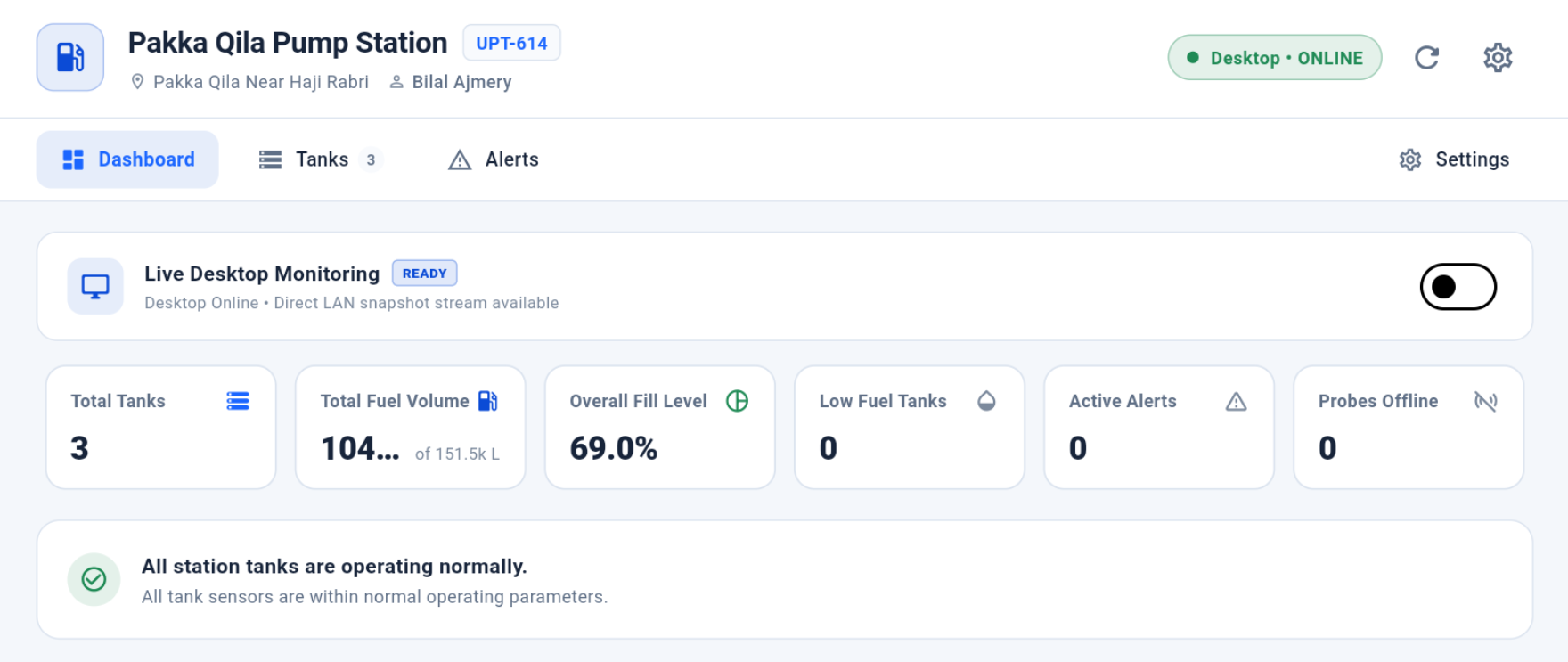
Tablet showing Desktop ONLINE
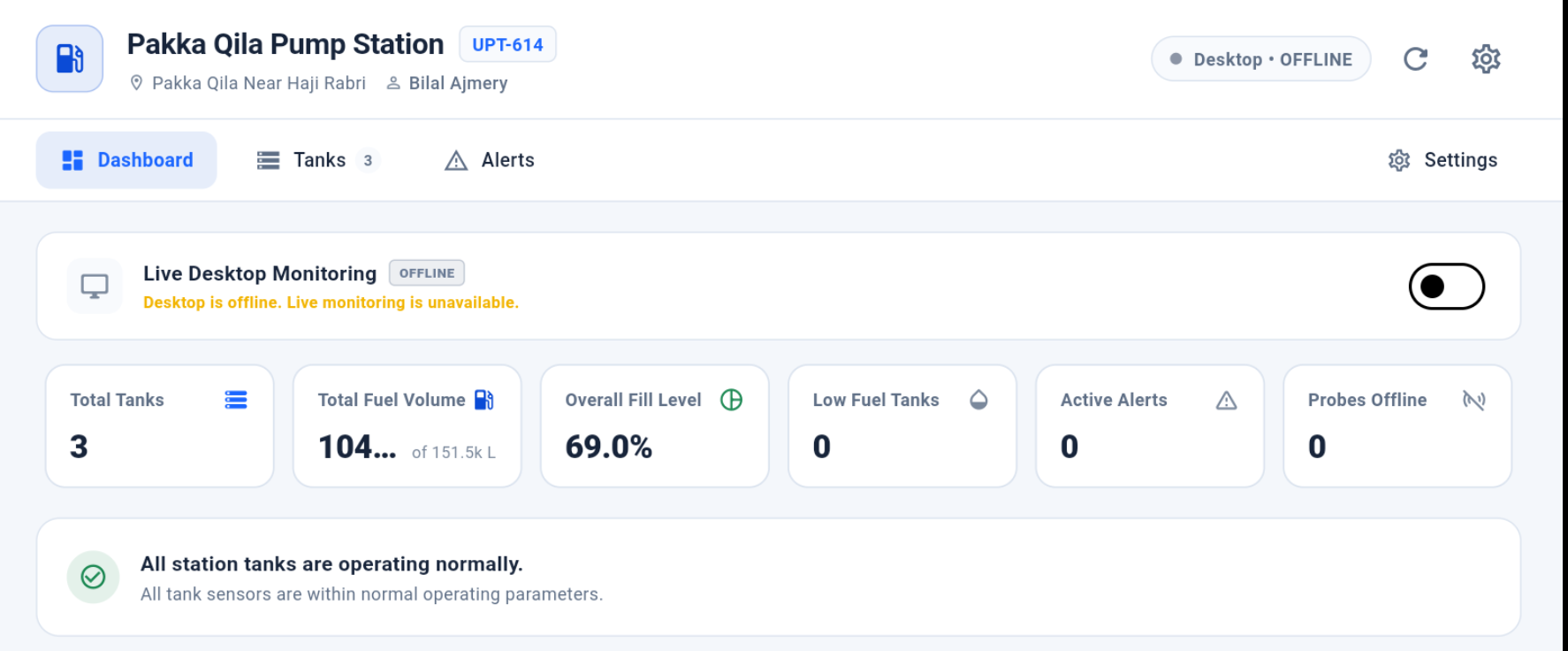
Tablet showing Desktop OFFLINE
WHYWhy this exists
The top status reflects the actual Desktop station presence. ONLINE means the assigned Desktop is currently present; OFFLINE means it is not.
WHATWhat it does
The top status reflects the actual Desktop station presence. ONLINE means the assigned Desktop is currently present; OFFLINE means it is not.
HOWHow to use
Check the top Desktop status. No manual refresh should be required.
RESULTExpected result
Desktop logged in/present → ONLINE. Desktop logged out/disconnected → OFFLINE.
Important: ONLINE is Desktop presence. It is different from LIVE FROM DESKTOP / Direct Monitoring Connected.
SECTION 04
Start Direct Live Monitoring
When the Desktop is ONLINE, the Manager can request direct live monitoring. The Desktop receives an approval prompt and decides whether to allow the session.
Start Live Monitoring control
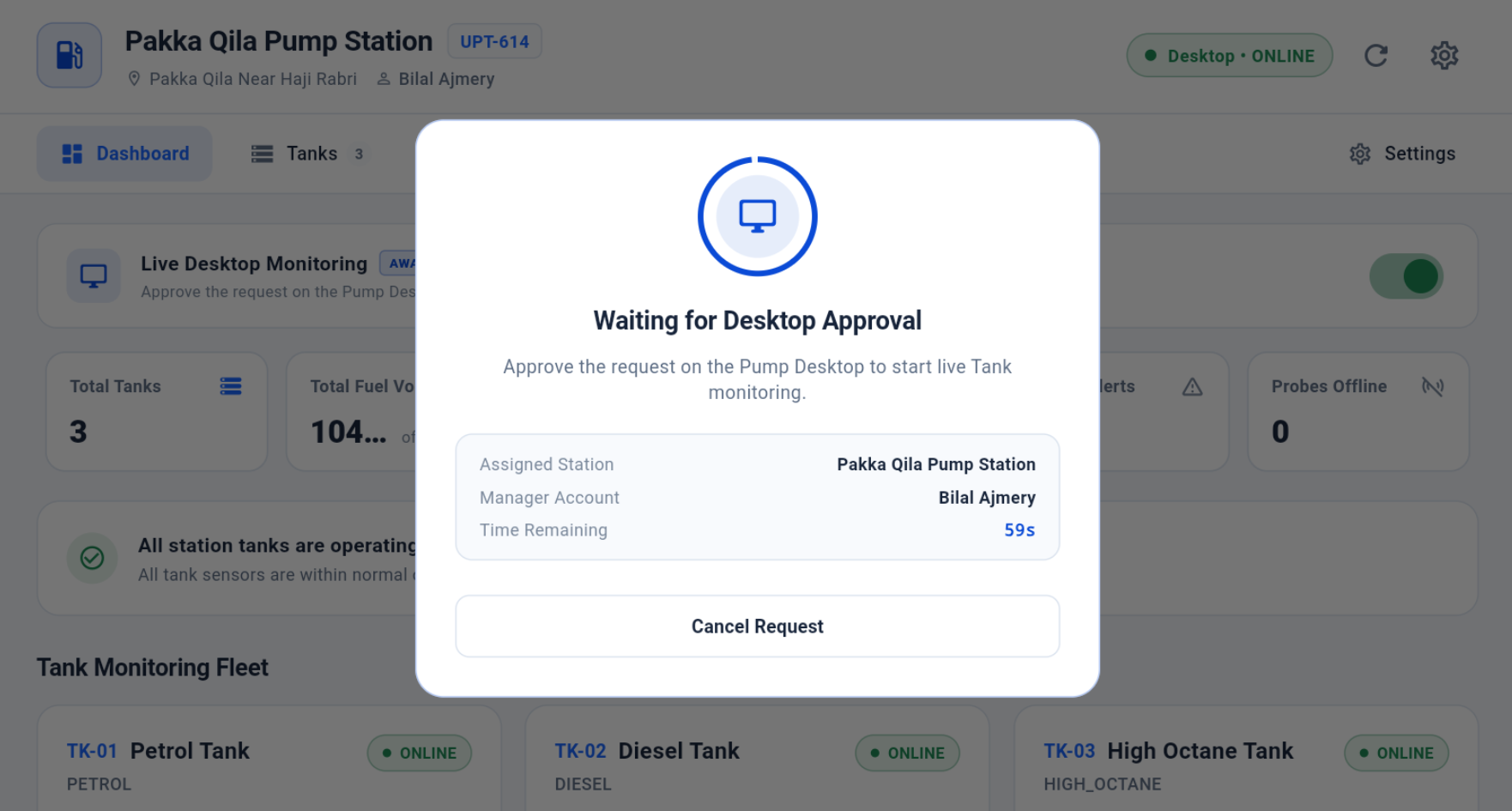
Waiting for Desktop approval state
WHYWhy this exists
When the Desktop is ONLINE, the Manager can request direct live monitoring. The Desktop receives an approval prompt and decides whether to allow the session.
WHATWhat it does
When the Desktop is ONLINE, the Manager can request direct live monitoring. The Desktop receives an approval prompt and decides whether to allow the session.
HOWHow to use
Tap Start Live Monitoring while the Desktop is ONLINE. Wait for delivery/approval status, then wait for the Desktop operator to Allow or Reject.
RESULTExpected result
After approval, the Tablet connects to the Desktop live monitoring session and receives the full tank snapshot.
SECTION 05
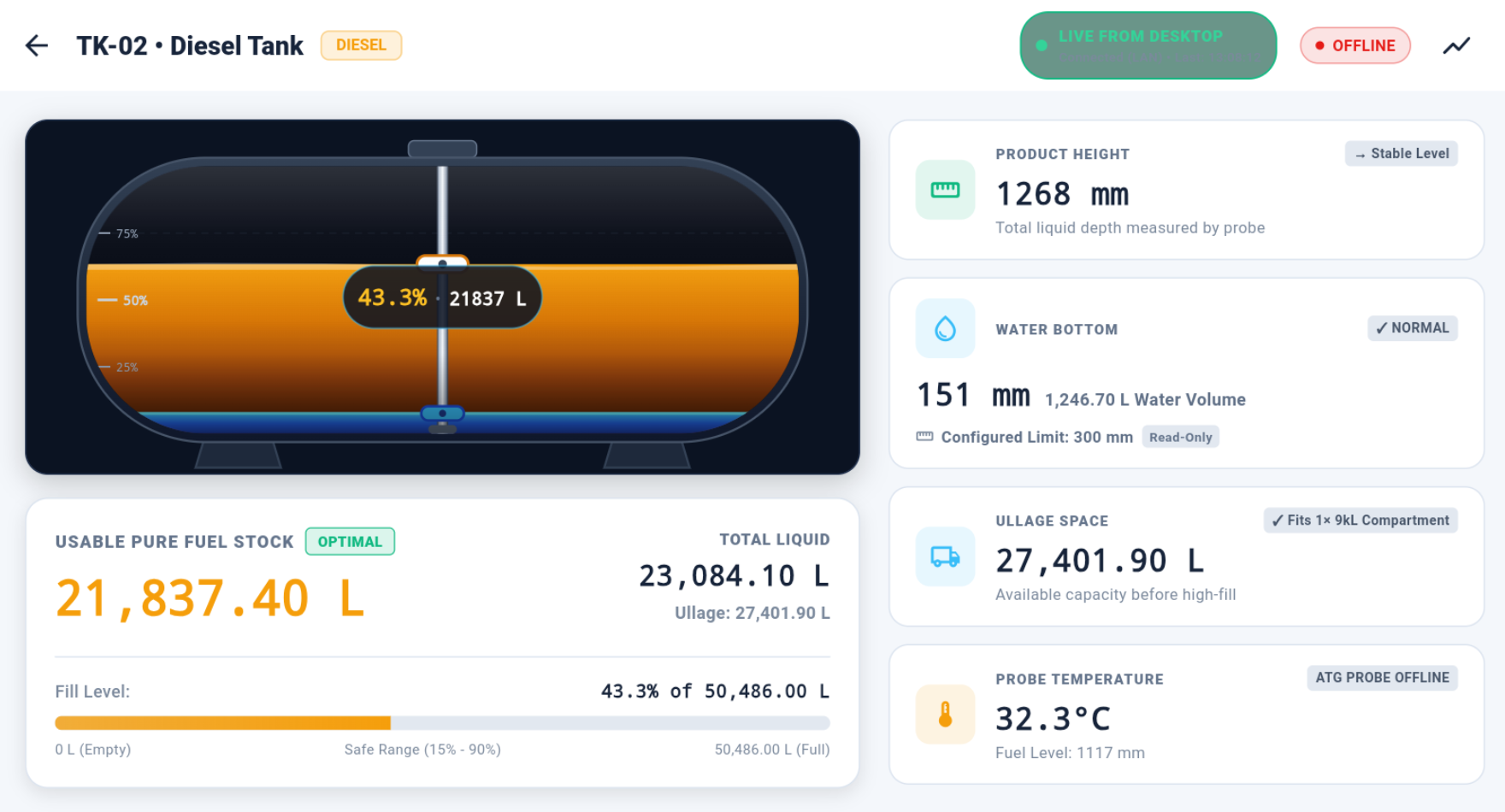
LIVE FROM DESKTOP
When the direct connection is active, the Tablet uses the Desktop's current canonical tank state as the only live source.
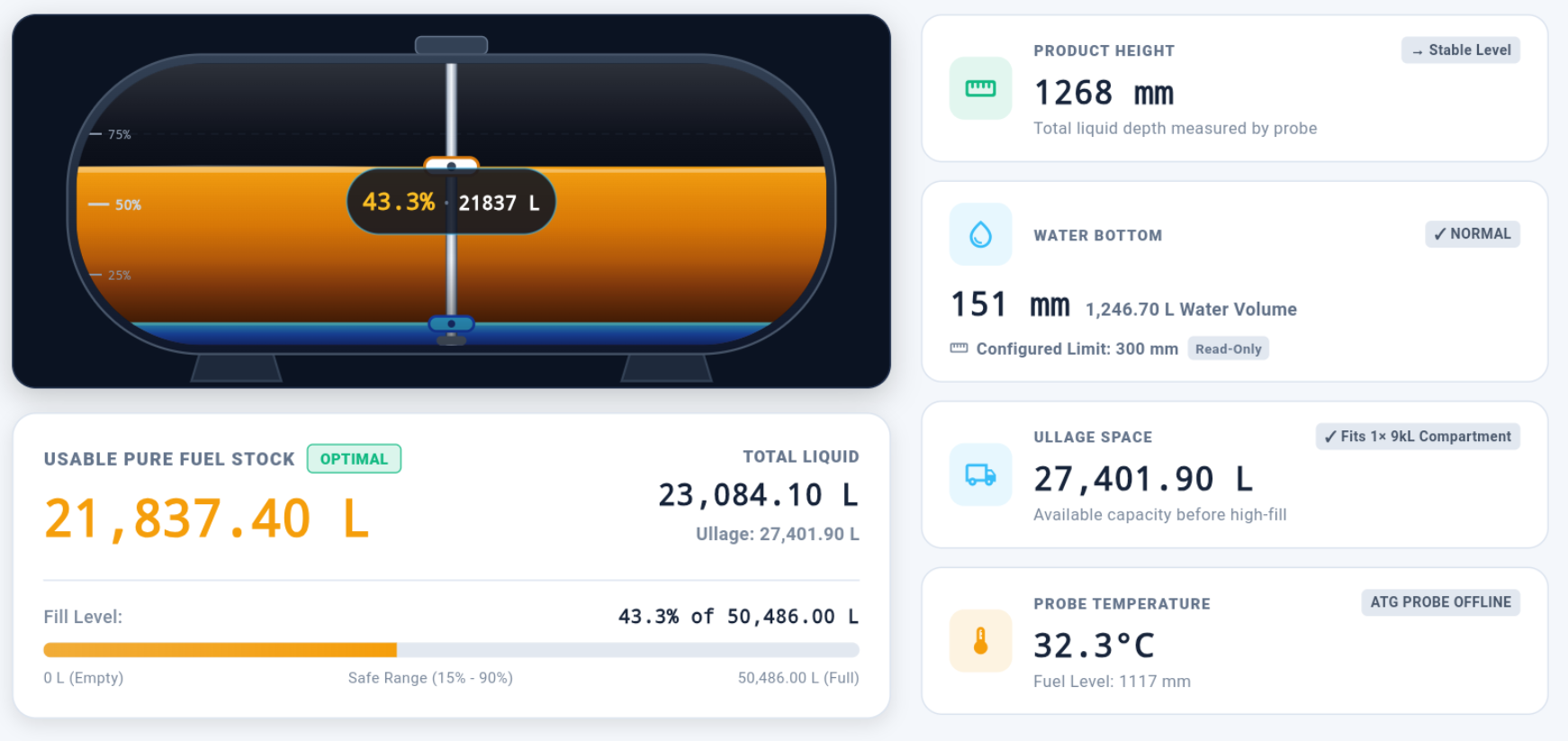
Tablet LIVE FROM DESKTOP state
WHYWhy this exists
When the direct connection is active, the Tablet uses the Desktop's current canonical tank state as the only live source.
WHATWhat it does
When the direct connection is active, the Tablet uses the Desktop's current canonical tank state as the only live source.
HOWHow to use
When LIVE FROM DESKTOP is visible, use the Tablet readings as a read-only mirror of the Desktop's current tank state.
RESULTExpected result
The same tank and same reading show matching fuel, water, fill percentage, ullage, temperature and alarm meanings on Desktop and Tablet.
Important: While Direct Live is active, Backend/DB tank snapshots must not overwrite the live Desktop values.
SECTION 06
Backend Fallback
If the direct Desktop connection is genuinely lost, the Tablet can fall back to the latest Backend snapshot and clearly indicate that it is no longer showing direct live data.
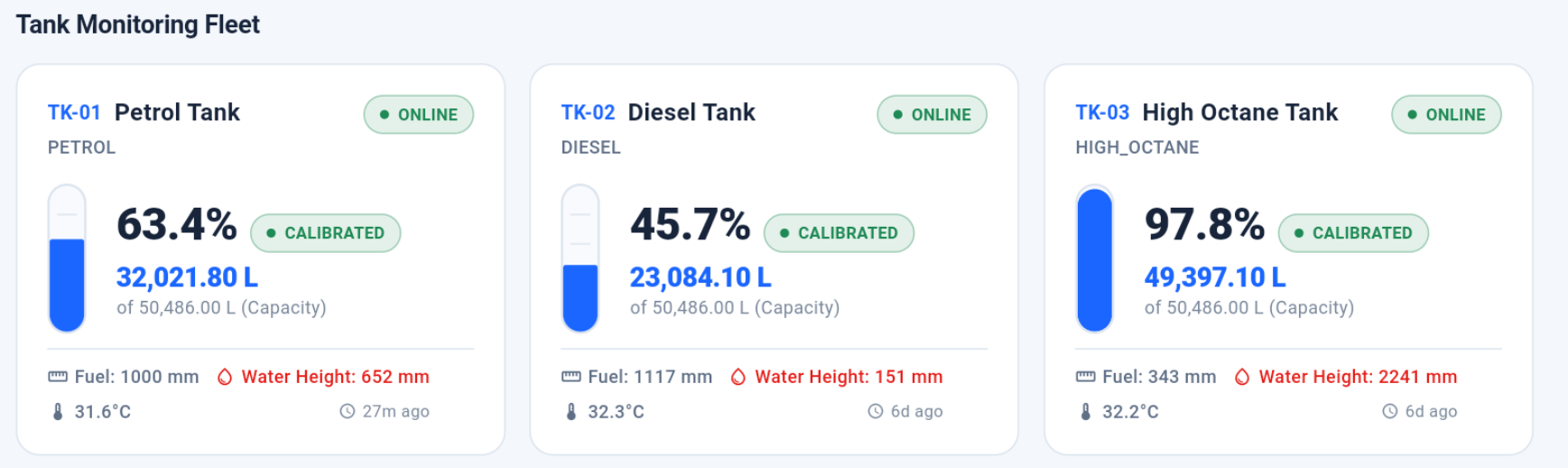
Tablet Backend Snapshot / fallback state
WHYWhy this exists
If the direct Desktop connection is genuinely lost, the Tablet can fall back to the latest Backend snapshot and clearly indicate that it is no longer showing direct live data.
WHATWhat it does
If the direct Desktop connection is genuinely lost, the Tablet can fall back to the latest Backend snapshot and clearly indicate that it is no longer showing direct live data.
HOWHow to use
Open this area from the application navigation, review the visible status/information, and use only the controls presented for your role.
RESULTExpected result
The screen should clearly show the current user-facing state and any action result or warning.
SECTION 07
Tank List
Shows the tanks for the assigned pump with current monitoring values and alarm state.
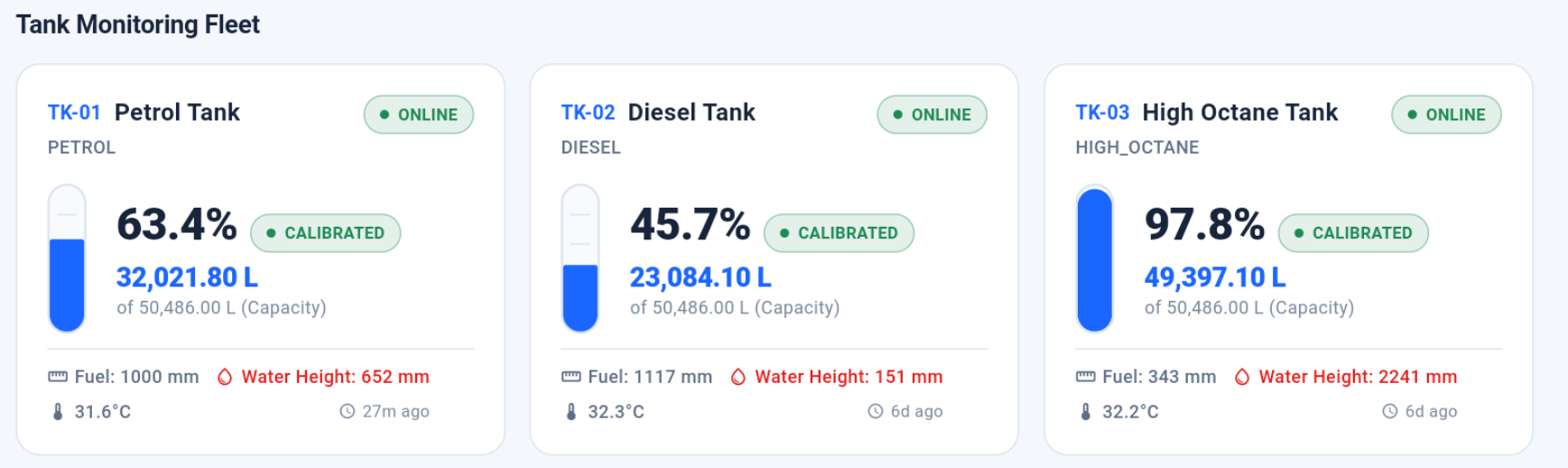
Manager Tablet Tank List
WHYWhy this exists
Shows the tanks for the assigned pump with current monitoring values and alarm state.
WHATWhat it does
Shows the tanks for the assigned pump with current monitoring values and alarm state.
HOWHow to use
Open this area from the application navigation, review the visible status/information, and use only the controls presented for your role.
RESULTExpected result
The screen should clearly show the current user-facing state and any action result or warning.
SECTION 08
Tank Detail
Tank Detail mirrors the Desktop's operational meanings: usable fuel stock, fill percentage, fuel level, product height, water bottom, water volume, total liquid, capacity, ullage, temperature and alarm state.
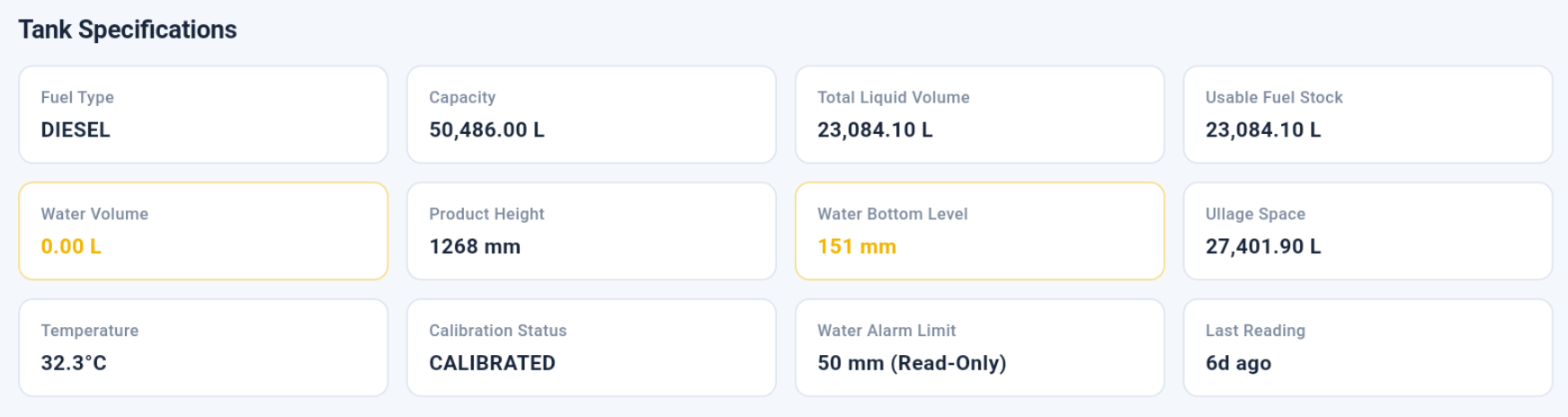
Manager Tablet Tank Detail matching Desktop semantics
WHYWhy this exists
Tank Detail mirrors the Desktop's operational meanings: usable fuel stock, fill percentage, fuel level, product height, water bottom, water volume, total liquid, capacity, ullage, temperature and alarm state.
WHATWhat it does
Tank Detail mirrors the Desktop's operational meanings: usable fuel stock, fill percentage, fuel level, product height, water bottom, water volume, total liquid, capacity, ullage, temperature and alarm state.
HOWHow to use
Open a tank. Review Usable Pure Fuel Stock, Fill %, Fuel Level, Product Height, Water Bottom, Water Volume, Total Liquid, Capacity, Ullage, Probe Temperature and alarm status.
RESULTExpected result
The meanings and values match the Desktop view for the same reading.
SECTION 09
Read-only Tank Configuration
The Tablet can view the configured water alarm limit but cannot set/increase/decrease it. Alarm-limit configuration remains Desktop-only.
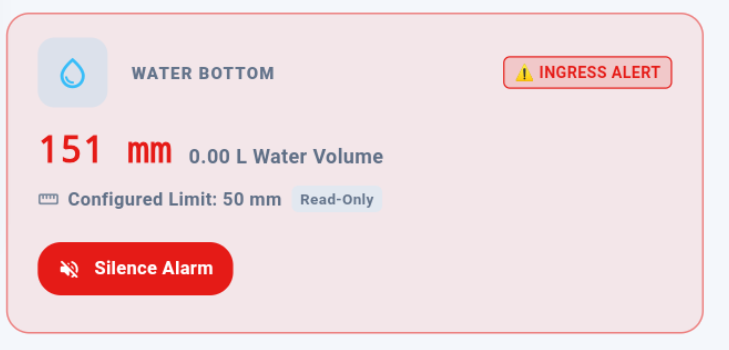
Read-only alarm limit on Tablet; no Set Limit button
WHYWhy this exists
The Tablet can view the configured water alarm limit but cannot set/increase/decrease it. Alarm-limit configuration remains Desktop-only.
WHATWhat it does
The Tablet can view the configured water alarm limit but cannot set/increase/decrease it. Alarm-limit configuration remains Desktop-only.
HOWHow to use
View the configured alarm limit as information only. Use Silence Alarm if audio needs to be muted temporarily.
RESULTExpected result
No Set Limit / Increase Limit / threshold edit control appears on the Tablet.
Important: Alarm threshold changes are performed only from Desktop.
SECTION 10
Water / Ingress Alarm
Canonical physical alarm state comes from the current authoritative tank source. Visual warning remains visible while the condition is active.

Tablet Water / Ingress Alert active
WHYWhy this exists
Canonical physical alarm state comes from the current authoritative tank source. Visual warning remains visible while the condition is active.
WHATWhat it does
Canonical physical alarm state comes from the current authoritative tank source. Visual warning remains visible while the condition is active.
HOWHow to use
Open this area from the application navigation, review the visible status/information, and use only the controls presented for your role.
RESULTExpected result
The screen should clearly show the current user-facing state and any action result or warning.
SECTION 11
Timed Per-Tank Silence
Silence Alarm opens a duration choice (5 Minutes, 1 Hour, 24 Hours). The selected tank stays audio-muted until the chosen expiry even when new socket snapshots arrive.
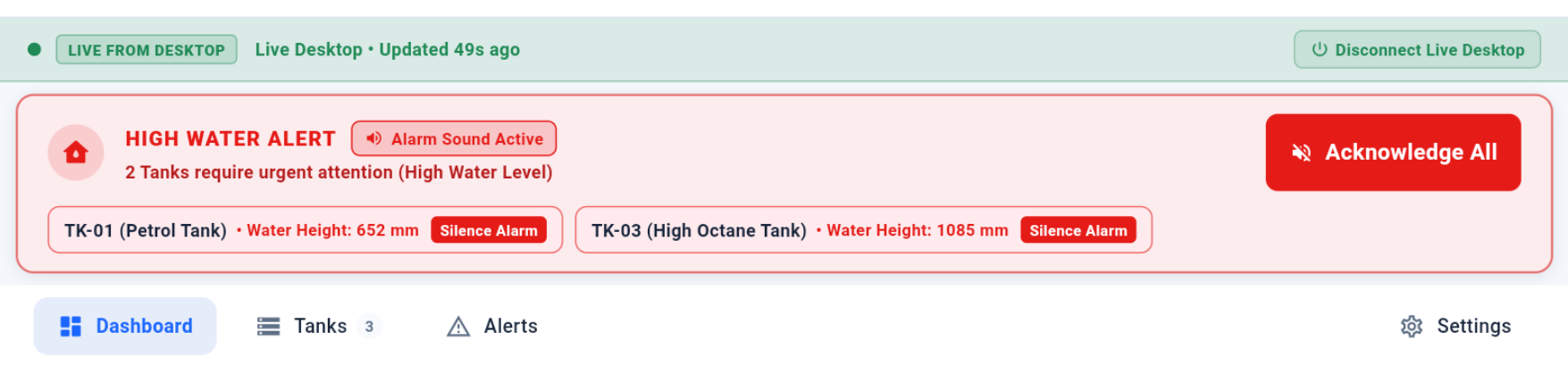
Silence Alarm action
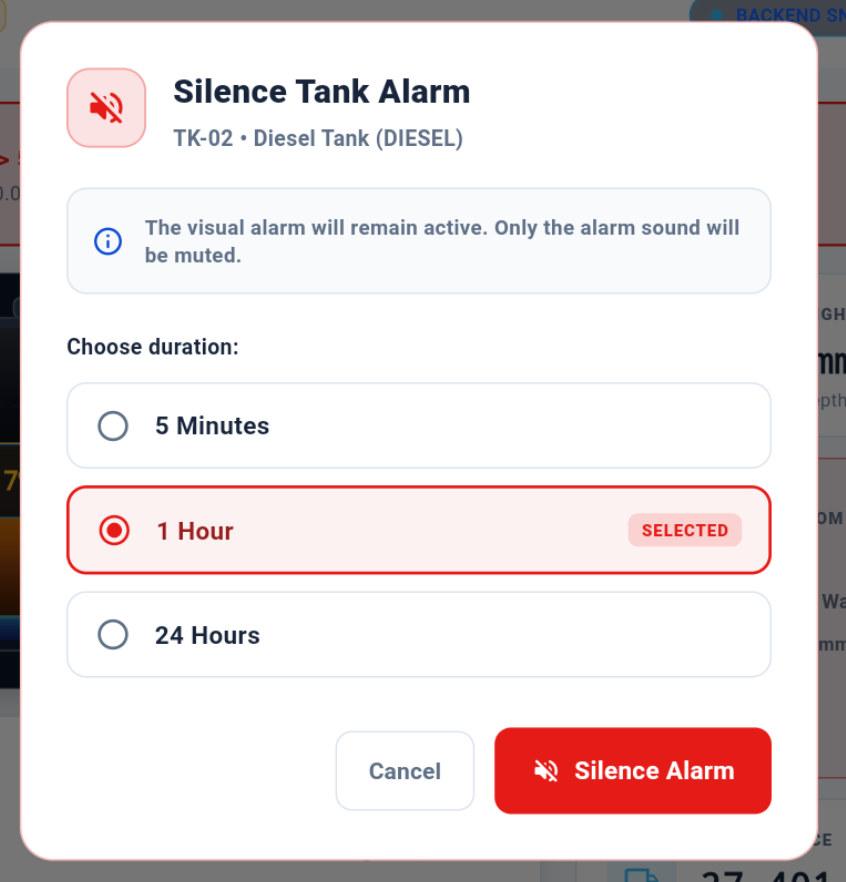
5 Minutes / 1 Hour / 24 Hours modal
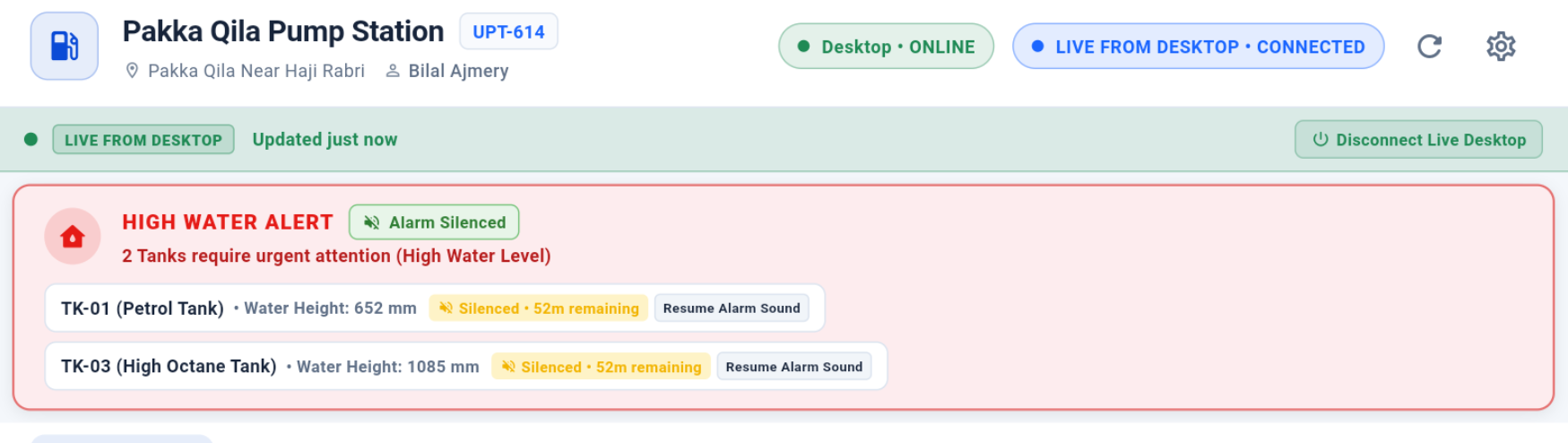
Silenced-until / remaining duration state
WHYWhy this exists
Silence Alarm opens a duration choice (5 Minutes, 1 Hour, 24 Hours). The selected tank stays audio-muted until the chosen expiry even when new socket snapshots arrive.
WHATWhat it does
Silence Alarm opens a duration choice (5 Minutes, 1 Hour, 24 Hours). The selected tank stays audio-muted until the chosen expiry even when new socket snapshots arrive.
HOWHow to use
Tap Silence Alarm, select 5 Minutes, 1 Hour or 24 Hours, and confirm. The physical alarm remains visible while only this tank's Tablet audio is muted.
RESULTExpected result
Repeated socket snapshots do not restart the sound before the selected expiry. If the alarm is still active when silence expires, sound becomes eligible again.
SECTION 12
Alarm Tone Settings
The Manager can choose a bundled alarm tone and preview it. A strong professional tone is selected by default and works offline.
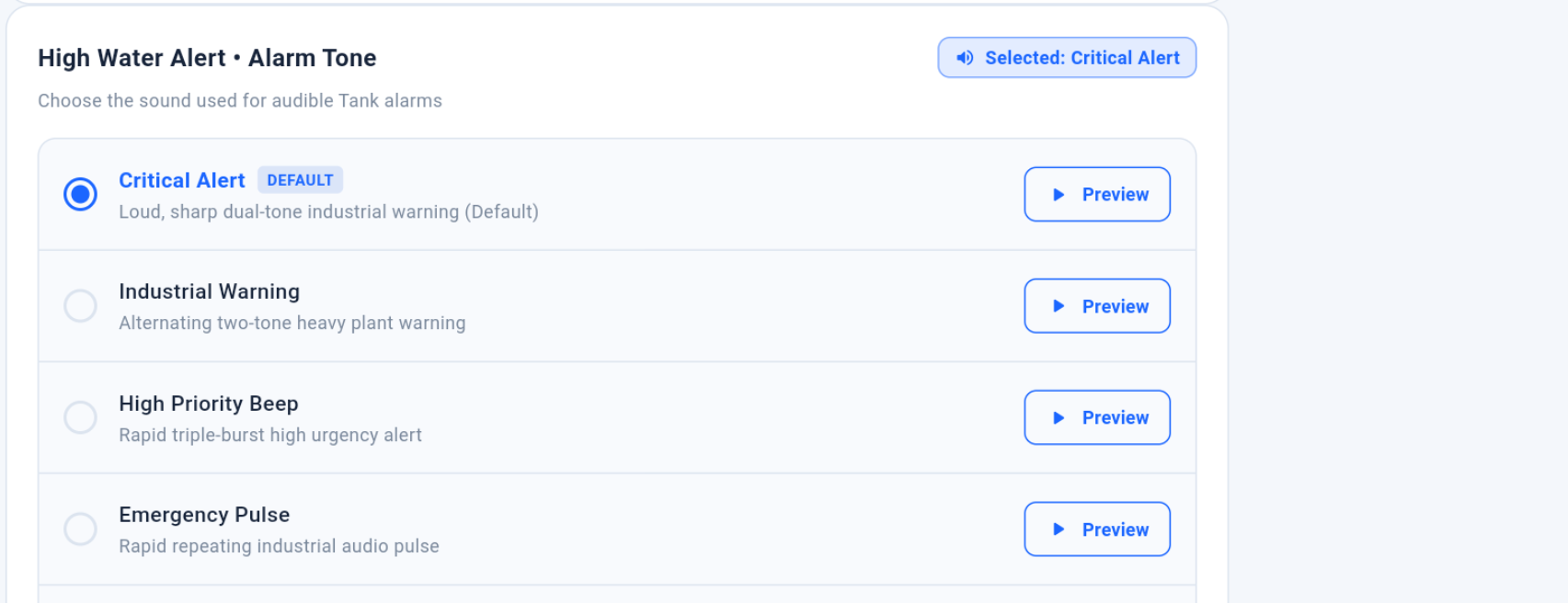
Alarm Tone Settings
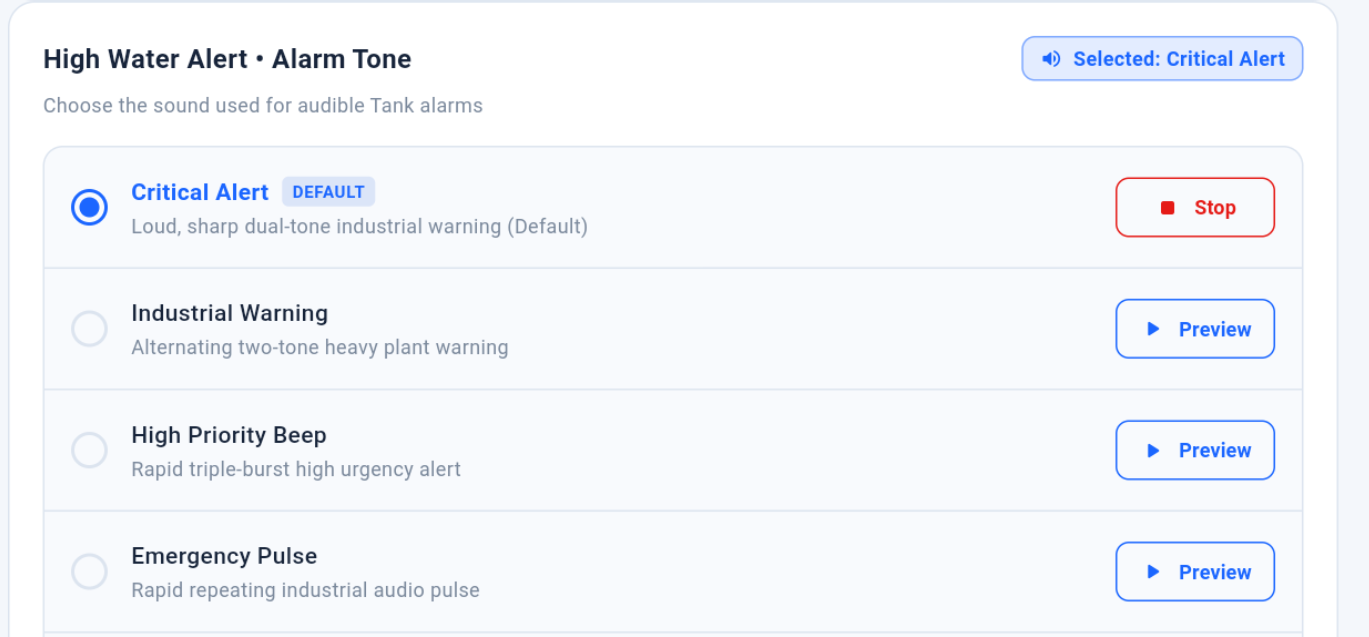
Alarm tone preview / Test Alarm state
WHYWhy this exists
The Manager can choose a bundled alarm tone and preview it. A strong professional tone is selected by default and works offline.
WHATWhat it does
The Manager can choose a bundled alarm tone and preview it. A strong professional tone is selected by default and works offline.
HOWHow to use
Open Settings → Alarm & Alerts → Alarm Tone. Preview available tones and select the preferred professional warning tone.
RESULTExpected result
The selected tone is remembered locally and works without Internet.
SECTION 13
Multiple Tank Alarms
Each tank has its own timed silence state while the application uses one central alarm audio loop. Any active unmuted tank can keep the audible alert running.

Multiple Tank alarms example
WHYWhy this exists
Each tank has its own timed silence state while the application uses one central alarm audio loop. Any active unmuted tank can keep the audible alert running.
WHATWhat it does
Each tank has its own timed silence state while the application uses one central alarm audio loop. Any active unmuted tank can keep the audible alert running.
HOWHow to use
Open this area from the application navigation, review the visible status/information, and use only the controls presented for your role.
RESULTExpected result
The screen should clearly show the current user-facing state and any action result or warning.
SECTION 14
History / Stored Data
Historical data remains a Backend function and is kept separate from direct current Desktop readings.
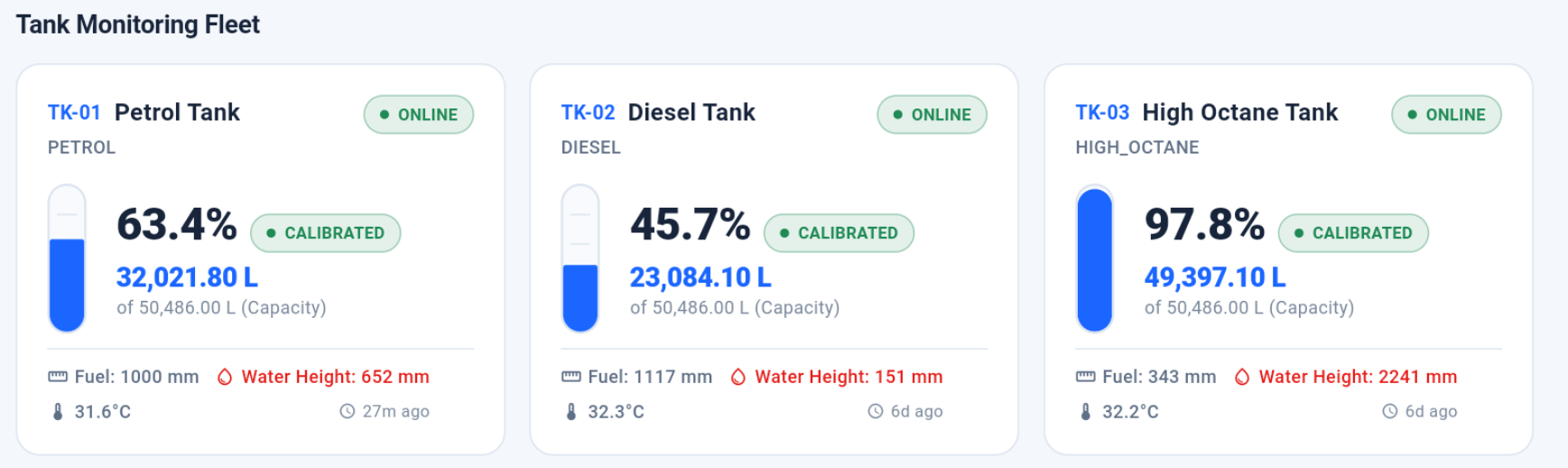
Manager Tablet History / stored data screen
WHYWhy this exists
Historical data remains a Backend function and is kept separate from direct current Desktop readings.
WHATWhat it does
Historical data remains a Backend function and is kept separate from direct current Desktop readings.
HOWHow to use
Open this area from the application navigation, review the visible status/information, and use only the controls presented for your role.
RESULTExpected result
The screen should clearly show the current user-facing state and any action result or warning.
SECTION 15
English / Urdu Typography
English and Urdu are supported with proper RTL behavior. The approved Urdu typography is applied consistently in the Tablet UI.
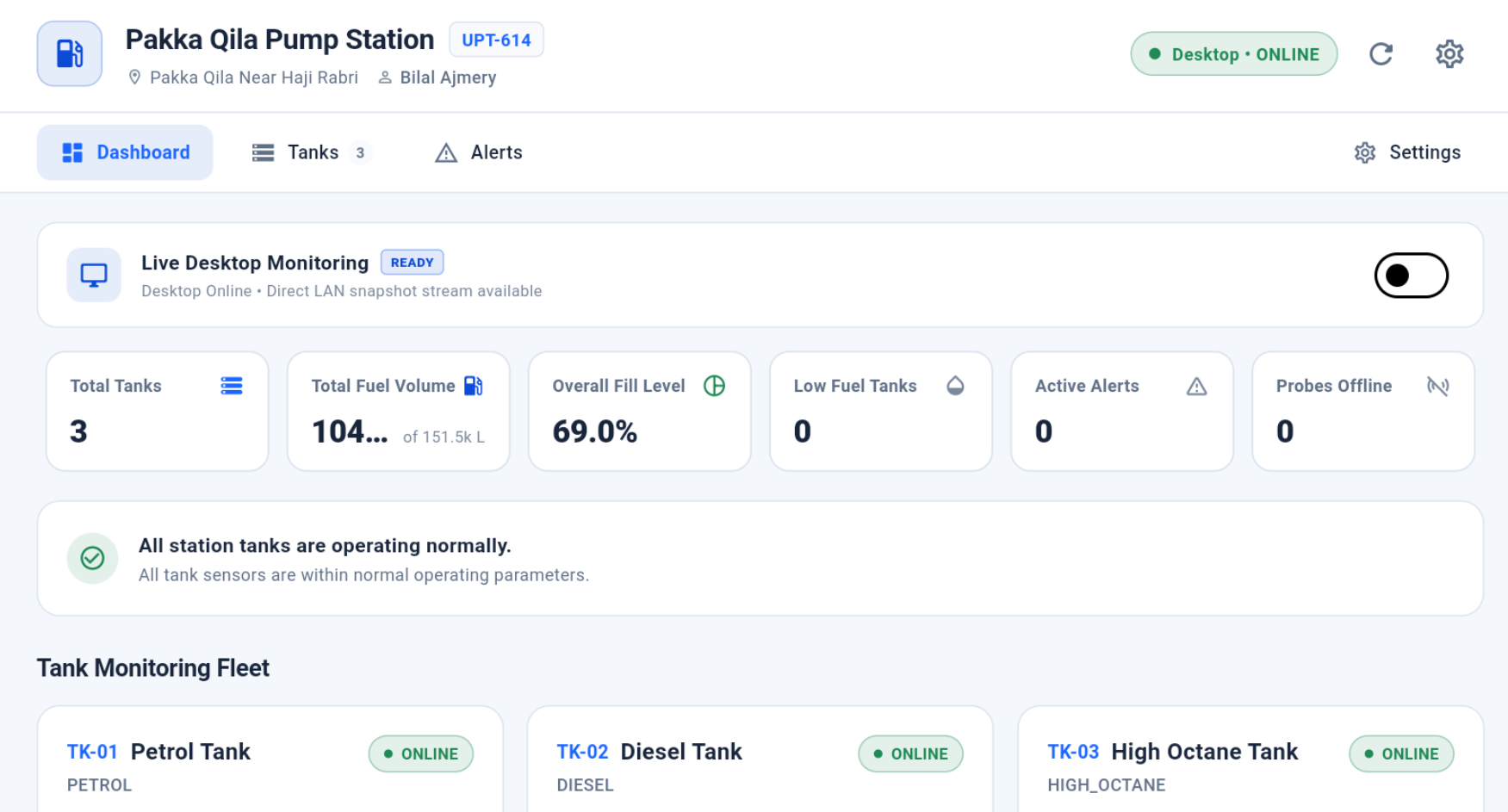
Manager Tablet English screen
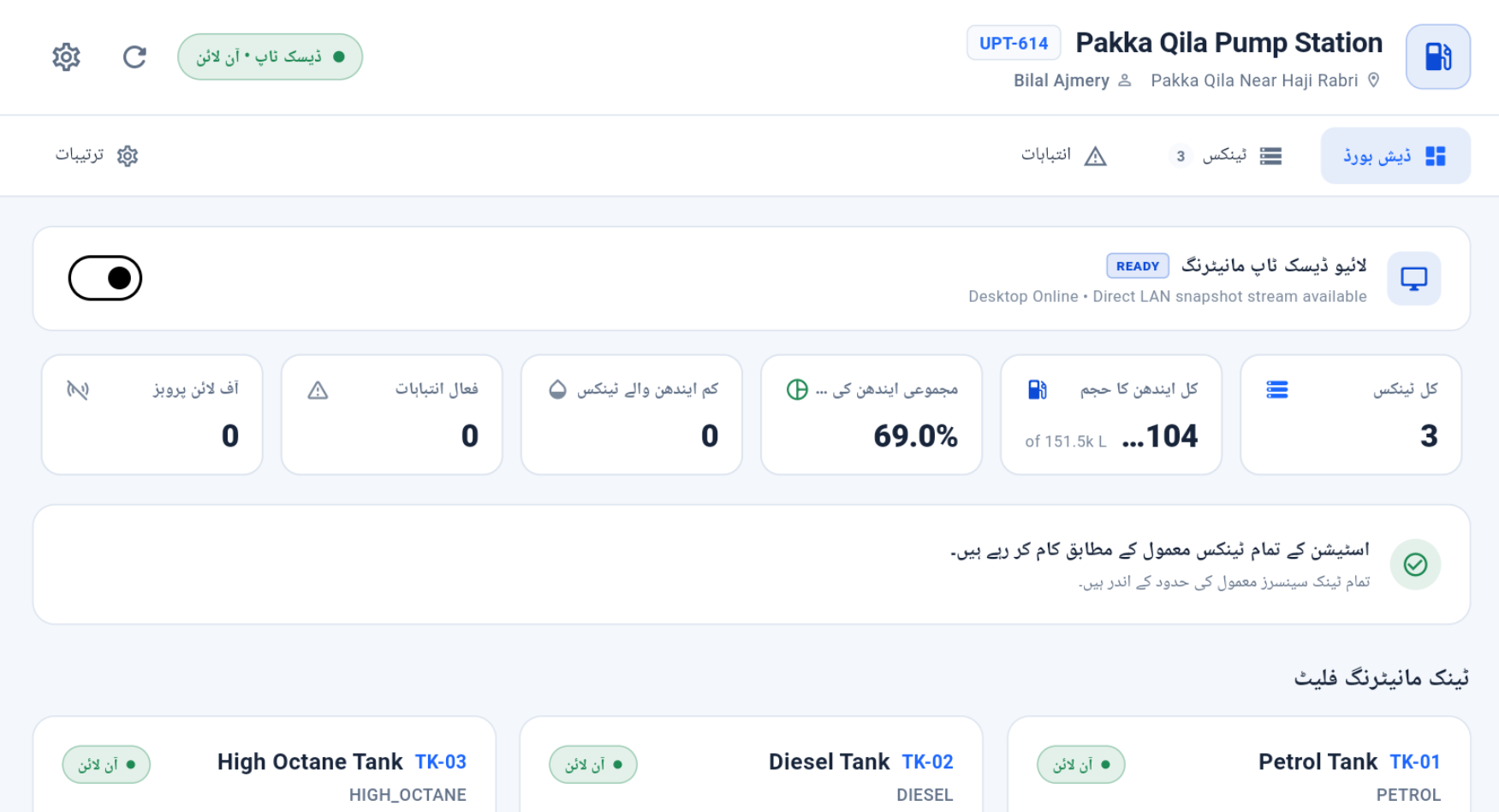
Manager Tablet Urdu / RTL screen
WHYWhy this exists
English and Urdu are supported with proper RTL behavior. The approved Urdu typography is applied consistently in the Tablet UI.
WHATWhat it does
English and Urdu are supported with proper RTL behavior. The approved Urdu typography is applied consistently in the Tablet UI.
HOWHow to use
Open this area from the application navigation, review the visible status/information, and use only the controls presented for your role.
RESULTExpected result
The screen should clearly show the current user-facing state and any action result or warning.
SECTION 16
Light / Dark / System Theme
Explains visual theme choices without changing monitoring behavior.
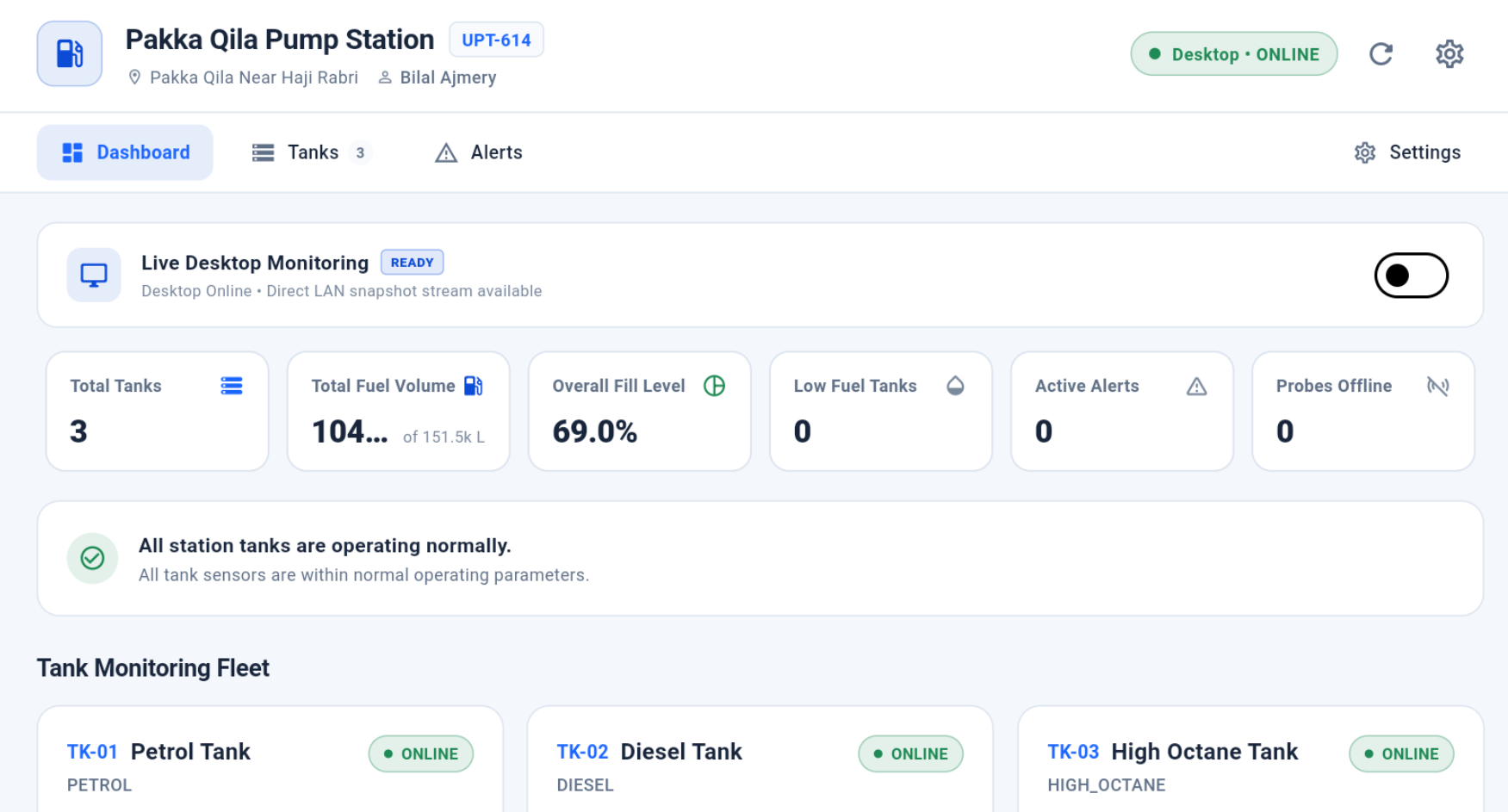
Manager Tablet Light theme
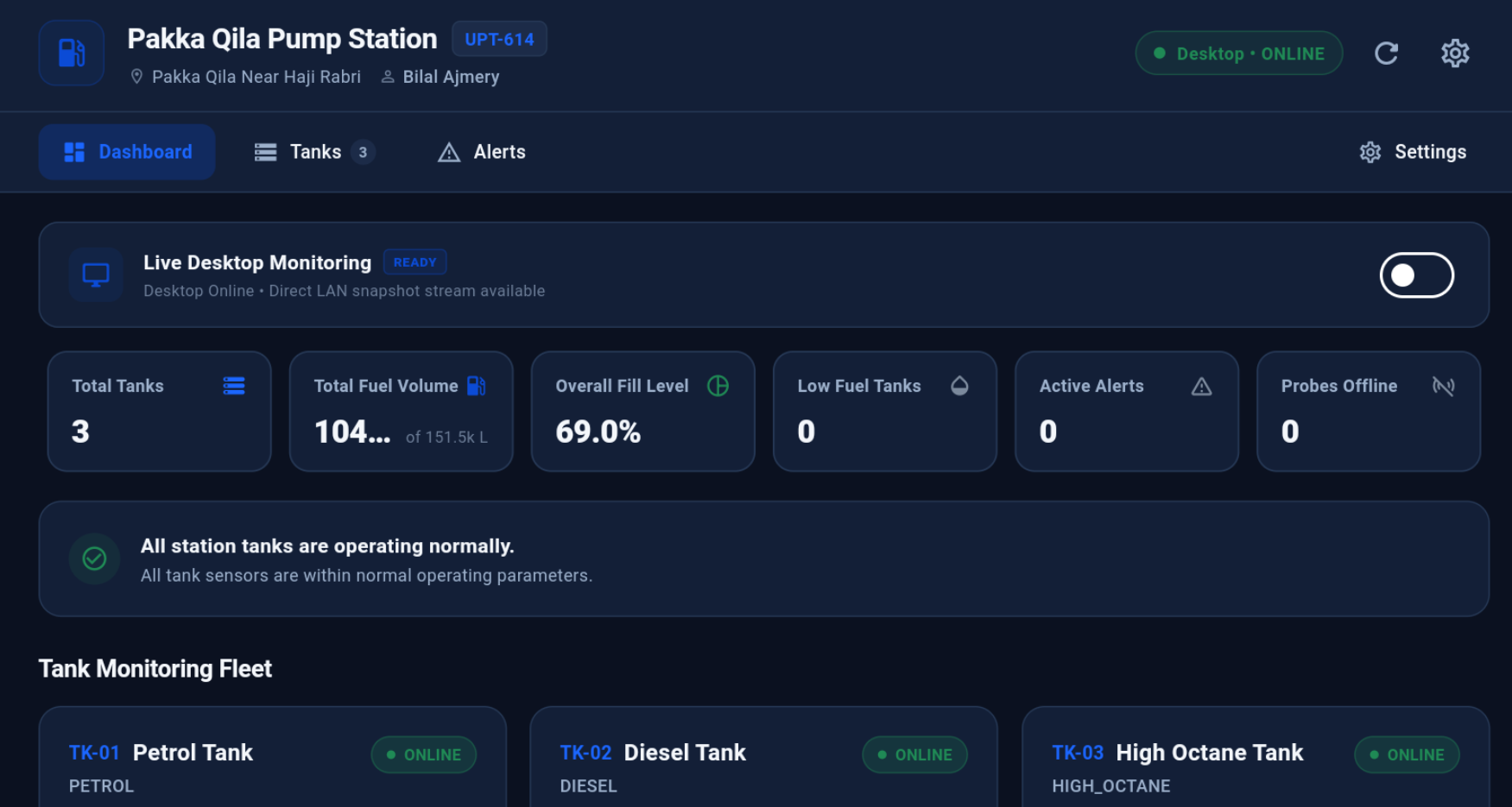
Manager Tablet Dark theme
WHYWhy this exists
Explains visual theme choices without changing monitoring behavior.
WHATWhat it does
Explains visual theme choices without changing monitoring behavior.
HOWHow to use
Open this area from the application navigation, review the visible status/information, and use only the controls presented for your role.
RESULTExpected result
The screen should clearly show the current user-facing state and any action result or warning.
SECTION 17
Connection Loss & Reconnect
Explains how the Tablet identifies a lost direct session, shows stale/fallback status and returns to direct live state after a valid reconnect.
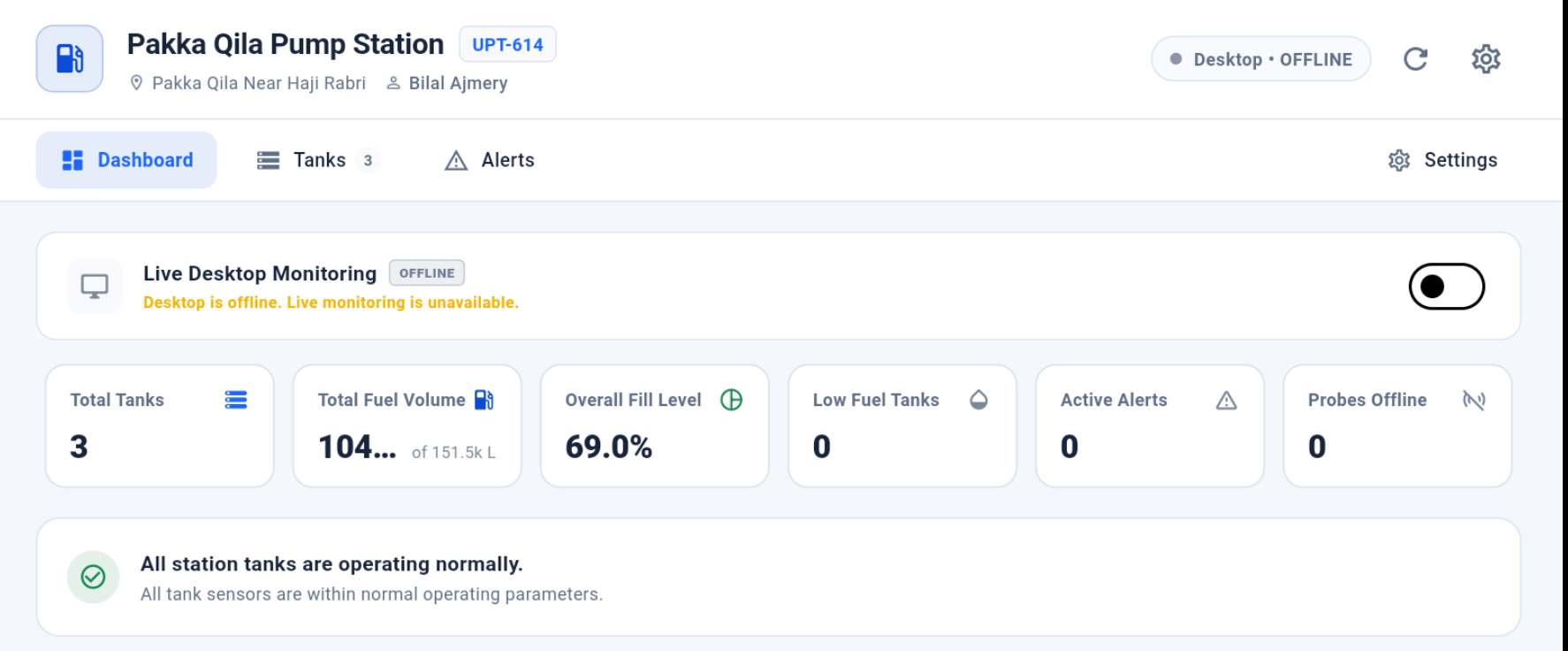
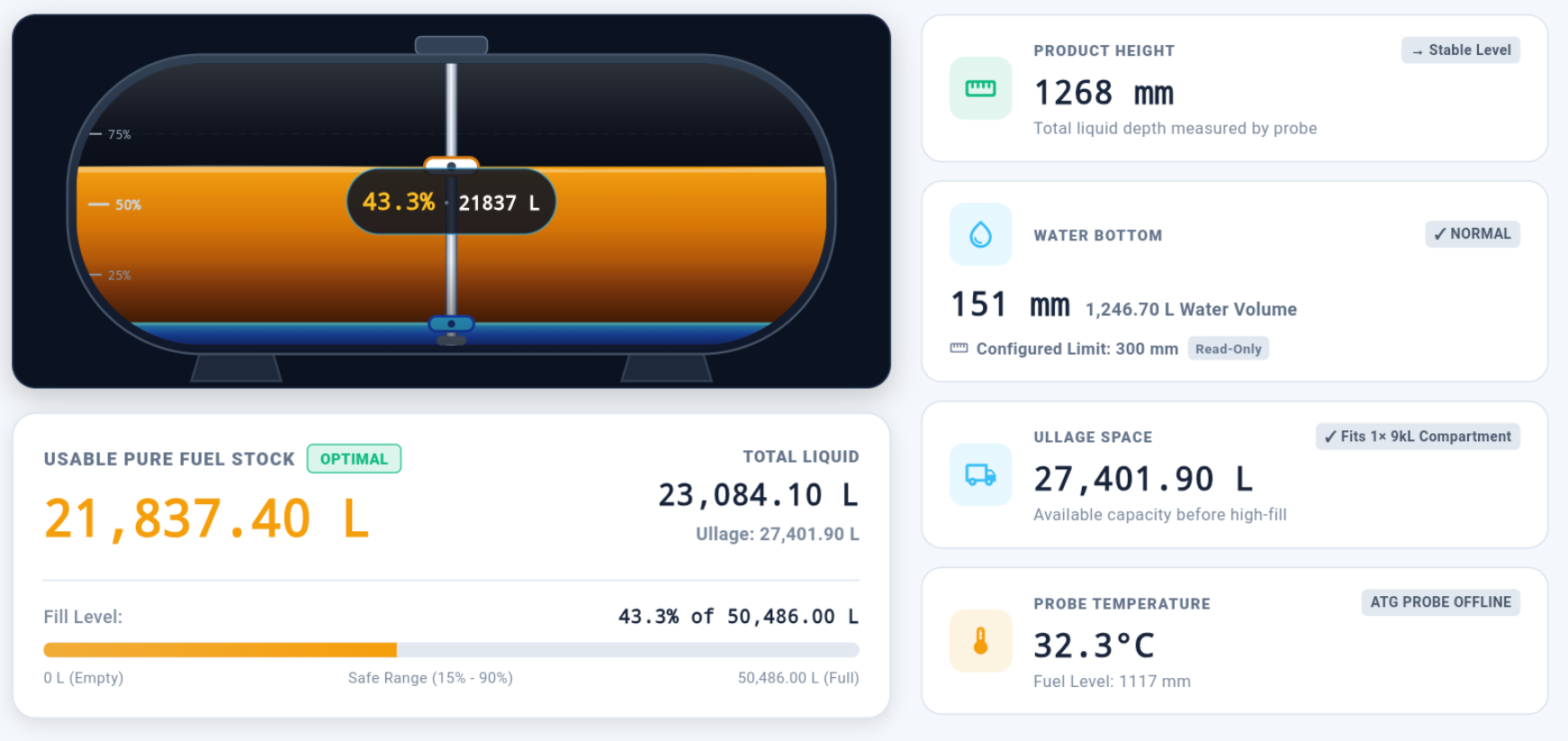
Direct connection lost / stale state
Direct monitoring reconnected
WHYWhy this exists
Explains how the Tablet identifies a lost direct session, shows stale/fallback status and returns to direct live state after a valid reconnect.
WHATWhat it does
Explains how the Tablet identifies a lost direct session, shows stale/fallback status and returns to direct live state after a valid reconnect.
HOWHow to use
Open this area from the application navigation, review the visible status/information, and use only the controls presented for your role.
RESULTExpected result
The screen should clearly show the current user-facing state and any action result or warning.
SECTION 18
Logout
Ends the Manager Tablet session and clears the current authenticated monitoring context.
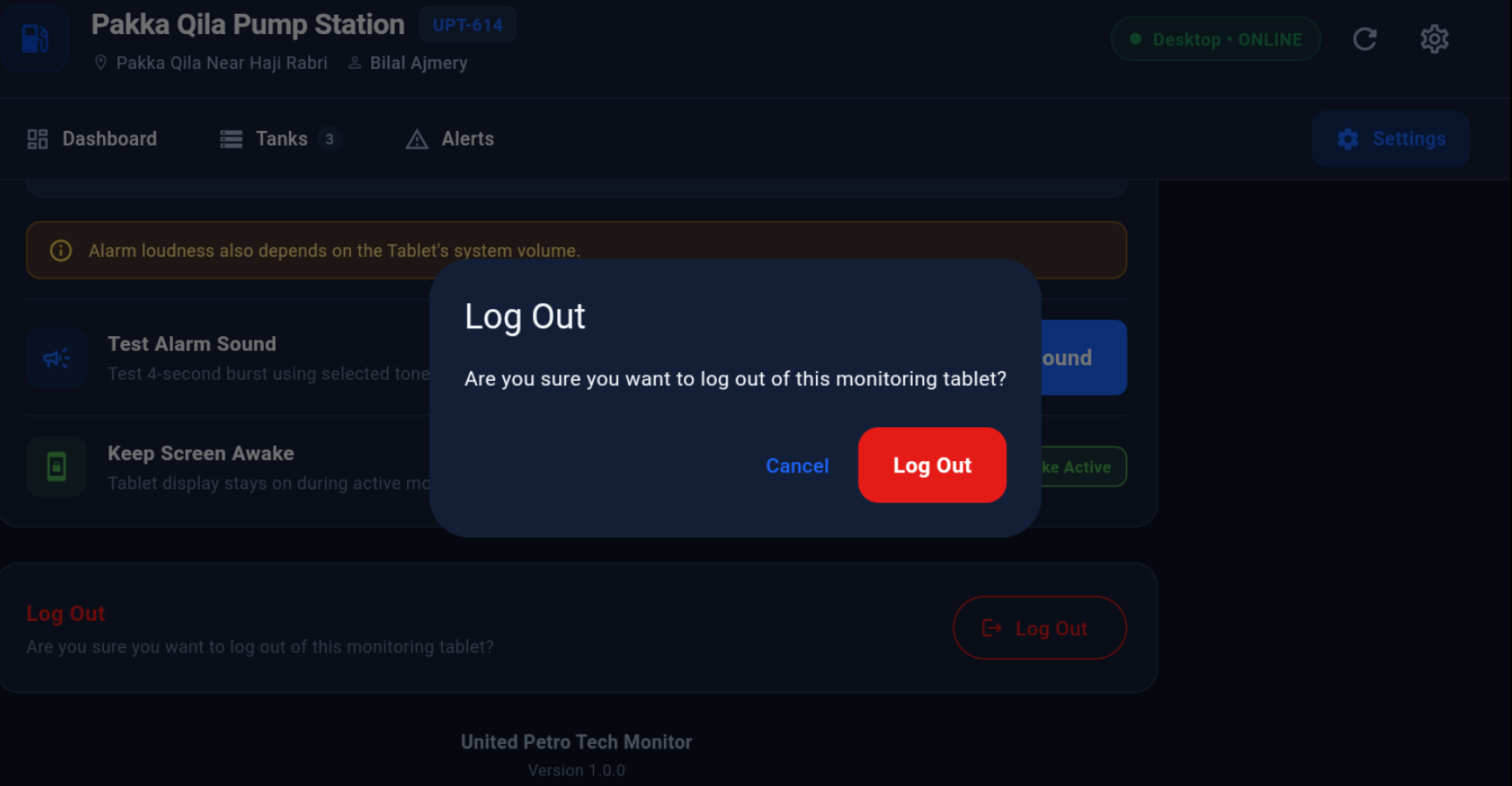
Manager Tablet logout
WHYWhy this exists
Ends the Manager Tablet session and clears the current authenticated monitoring context.
WHATWhat it does
Ends the Manager Tablet session and clears the current authenticated monitoring context.
HOWHow to use
Open this area from the application navigation, review the visible status/information, and use only the controls presented for your role.
RESULTExpected result
The screen should clearly show the current user-facing state and any action result or warning.
SECTION 19
Manager Troubleshooting
Simple checks for Desktop OFFLINE, live request not delivered, direct connection loss, stale readings and alarm-audio behavior.
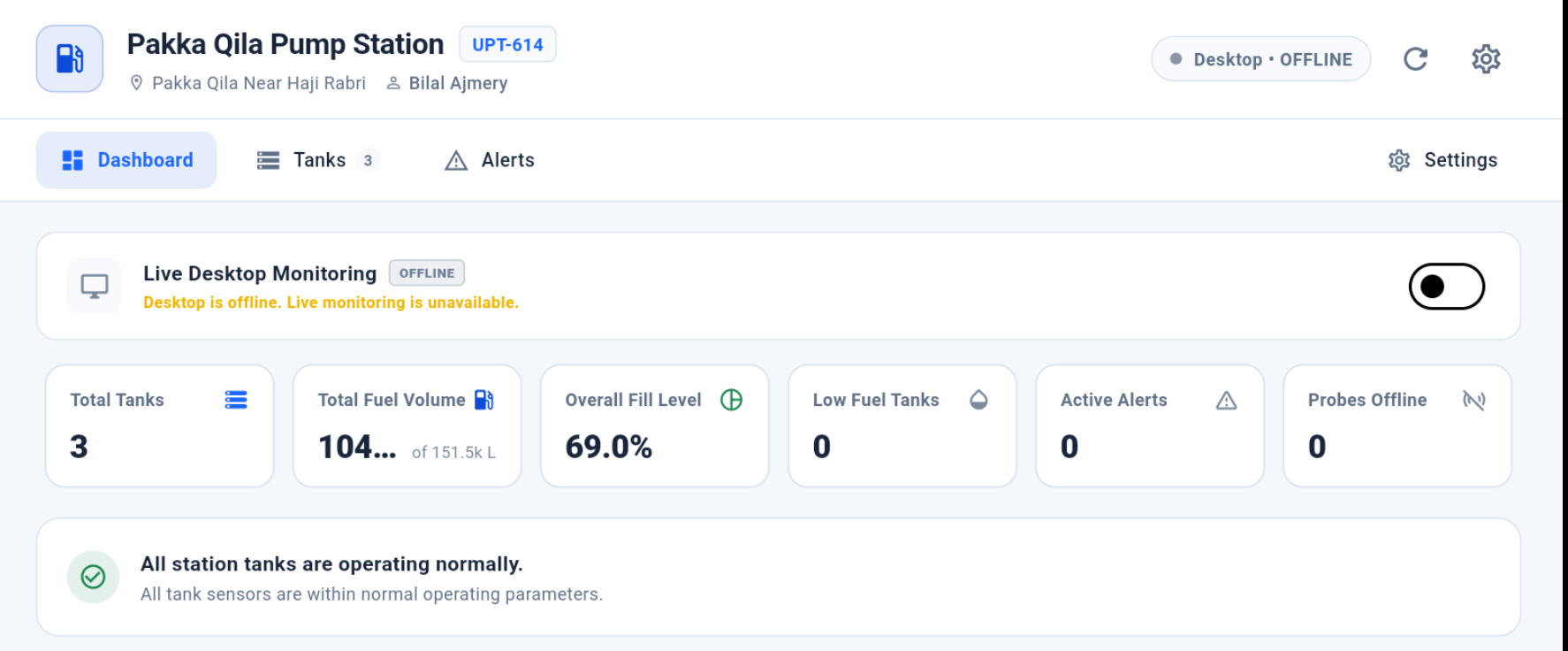
Representative Tablet warning/error state
WHYWhy this exists
Simple checks for Desktop OFFLINE, live request not delivered, direct connection loss, stale readings and alarm-audio behavior.
WHATWhat it does
Simple checks for Desktop OFFLINE, live request not delivered, direct connection loss, stale readings and alarm-audio behavior.
HOWHow to use
Follow the simple visible checks in order. If the issue remains after these checks, record the exact on-screen status/message and escalate it.
RESULTExpected result
The user can distinguish common operational conditions from issues requiring technical support.